
The reports section summarizes the status of all the messages sent from your organization. You can also find the analytics for each email that summarizes the delivery status and the email interaction per device.
Here is how you access reports of your messages:
-
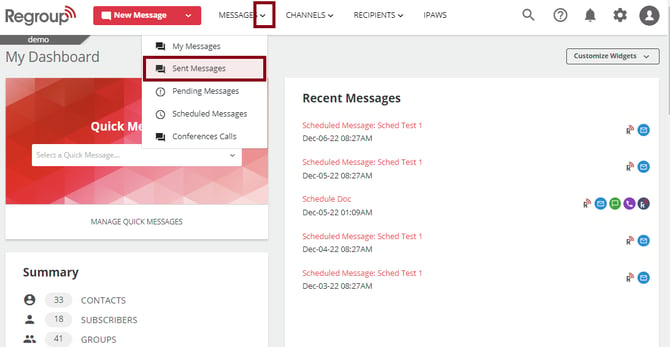
Click Messages dropdown and select Sent Messages. See the following image:
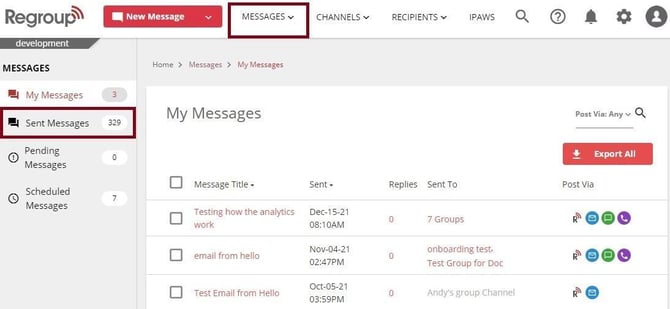
Otherwise, click Messages tab and Send Messages on the left navigation panel. See the following image:
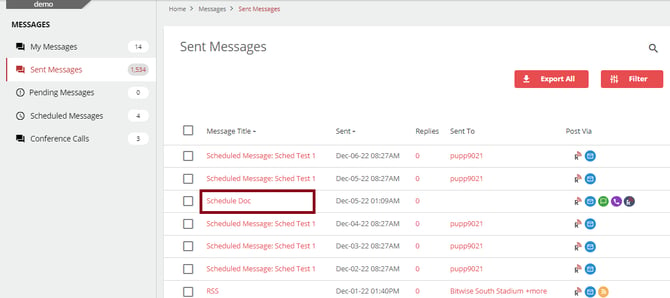
The Sent Message page opens with the list of messages sent from your organization.
-
Locate the required message and click its title to open the message. See the following image:
-
Click the Reports tab for email analytics and other message reports. See the following image:
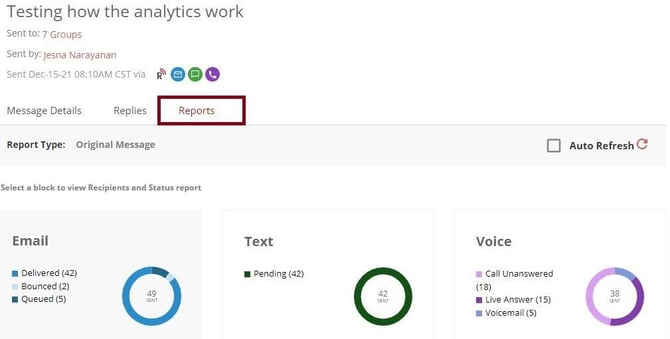
The following are the different delivery statuses:
-
Delivered: The message is delivered to this recipient.
-
Dropped: The message is not delivered.
-
Opened: The recipient has opened the message.
-
Bounced: The message is not delivered.
Note: Click the Auto-Refresh checkbox or the refresh icon to get the latest report.
-
-
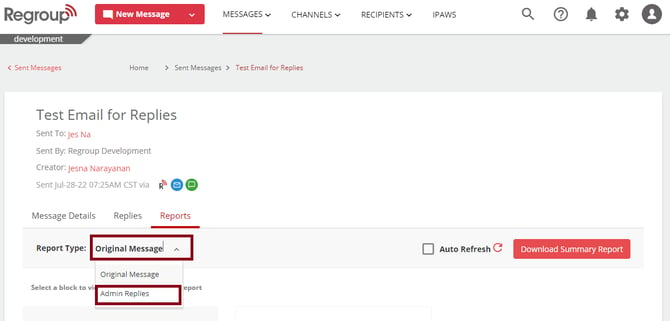
You can click the Report Type dropdown to select the specific message if you have sent multiple updates to a message. See the following image:
-
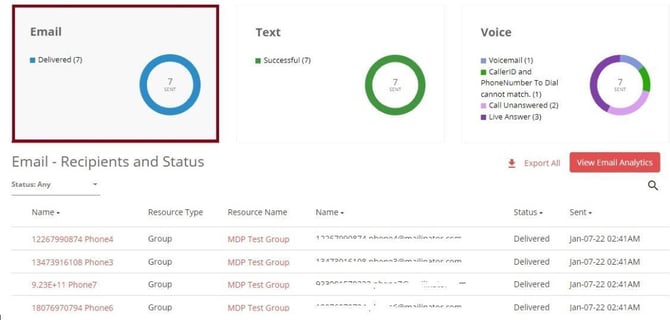
Click the tiles for Email to see the analytics. See the following image:
-
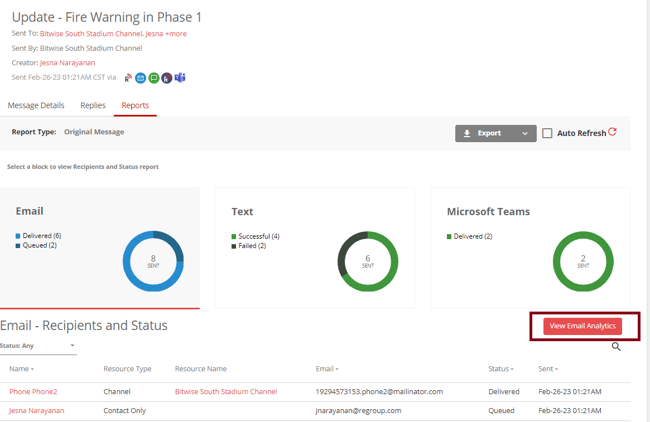
Click the Email Analytics button on the Emails tile to view the message status, engagement and browser details. See the following image:
The following are emails' delivery and bounce statuses:
-
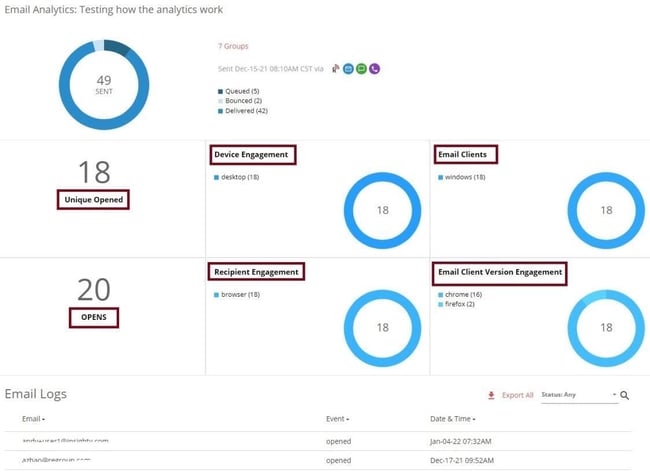
Unique Opened: the number of users who opened the message. Each user opening it many times or otherwise is counted as one.
-
Opens: The total number of times the message was opened.
-
Device Engagement: The devices in which the message was opened.
-
Email Clients: The details on the email client and the email client version.
-
Recipient Engagement: The details on the recipient engagement.
-
Email Client Version Engagement: The details on email client version engagement.
The following image highlights the different email analytics statuses:
Note: Depending on the total number of emails sent, email analytics may take up to 20 minutes to propagate fully.
-
-
Click Close.