Overview
This guide explains how to add groups and individual contacts as recipients to a channel in your organization. Only organization admins can manage channel recipients.
Add Recipients to a Channel
-
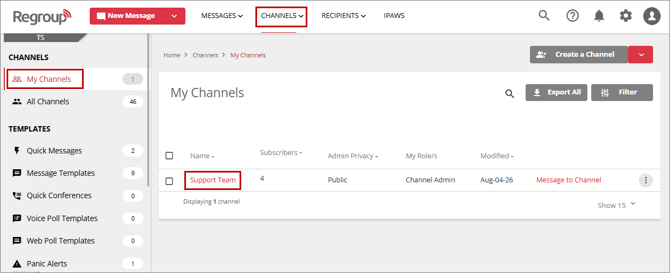
Open the Channels tab to view the My Channels page.
-
Use the magnifier icon to search for the channel you want to edit.
-
Click the channel name to open its General Settings page.
-
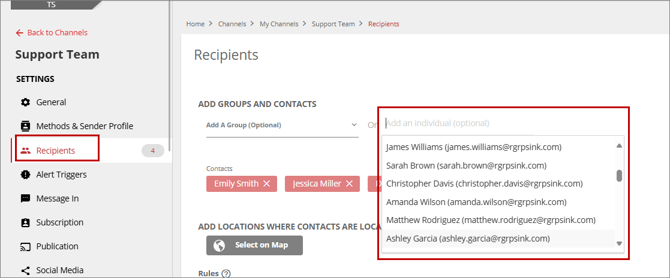
Select the Recipients tab from the left navigation panel.
-
In the Add an Individual dropdown, enter a name or email address.
-
Select the desired contact from the list.
Add Groups as Recipients
-
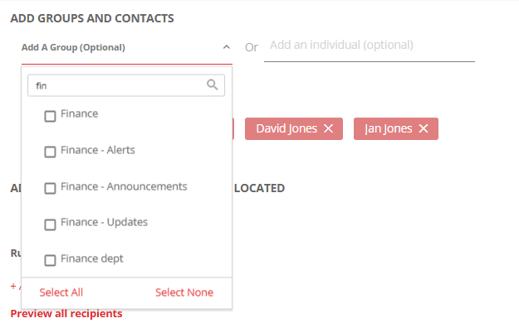
Click the Add a Group dropdown.
-
Type the group name in the Search for group field and select it from the dropdown.
-
Use Select All to include all groups or Select None to clear your selection.
Additional Options
-
To add recipients based on a map location, refer to the guide: Locate Contacts on the Map and Add as Channel Recipient.
-
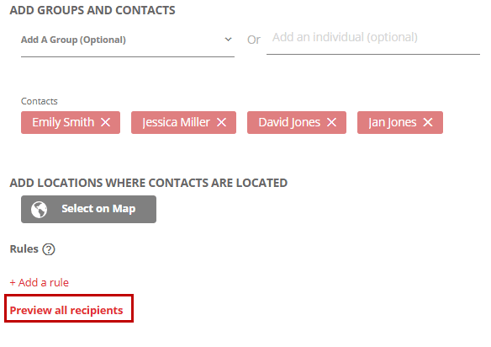
Click Preview all recipients to review your selected contacts.
-
Click Save to add all selected contacts and groups to the channel.