
When you authenticate the Blackbaud integration, a new Blackbaud tab appears on the Contact Management page. In this tab, you map the Blackbaud roles into the Regroup groups and initiate the import.
It is advised you create the required groups in Regroup before adding the roles. To create new groups, see the topic: Create Groups manually. If you don’t create groups prior, you can use the create new group option while mapping the roles. With this option, the system generates groups with the Blackbaud role names. You cannot update these group names.
Perform the following tasks to configure and initiate the Blackbaud data import:
-
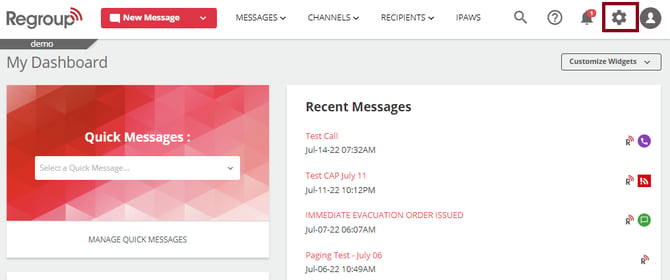
Click the Organization Settings icon on the top right corner. See the following image:
-
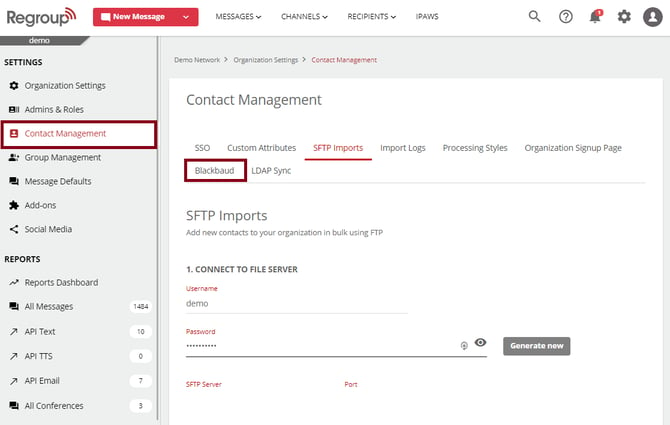
Click Contact Management tab on the left navigation panel.
-
Click the Blackbaud tab.
The following image shows the Contact Management and Blackbaud tabs:
-
To map the Blackbaud roles with Regroup groups:
-
Navigate to the Blackbaud Roles section.
-
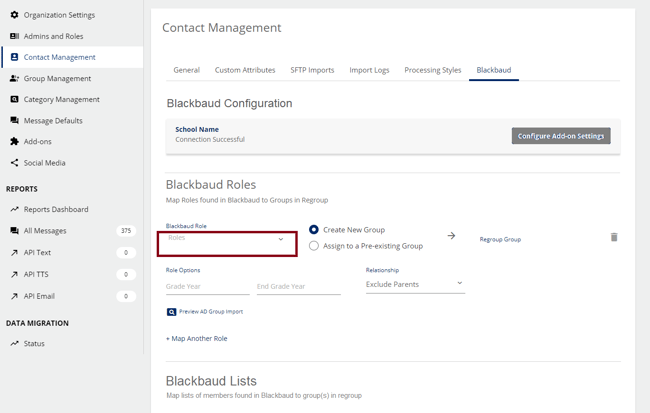
Click Roles dropdown. The dropdown lists your Blackbaud roles.
See the following image:
-
Select the Blackbaud role you want to add to a Regroup group.
Tip: You can add one or more Blackbaud roles into a Regroup group.
-
To select or create corresponding groups in Regroup, click either of the following:
-
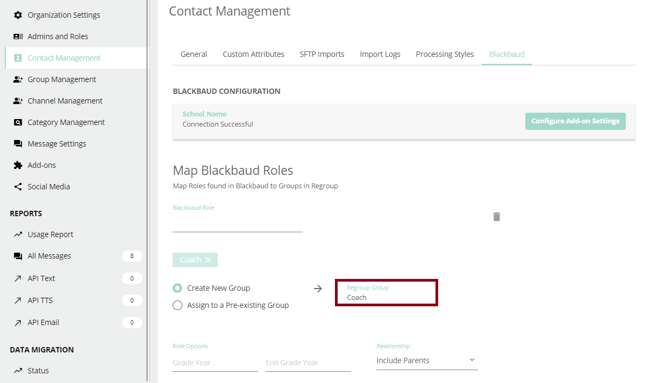
Create a New Group: The system creates a new group based on the Blackbaud role name. You can click the suggested group name in the Regroup Group field to confirm the creation.
Tip: If you change the name of this newly created group anytime, the system creates another new group with the selected name during the next import.
The following is the suggested group name in the Regroup Group field:
-
Assign a Pre-existing Group: You can choose an already created group from the Regroup Group dropdown.
The following is the select group dropdown:
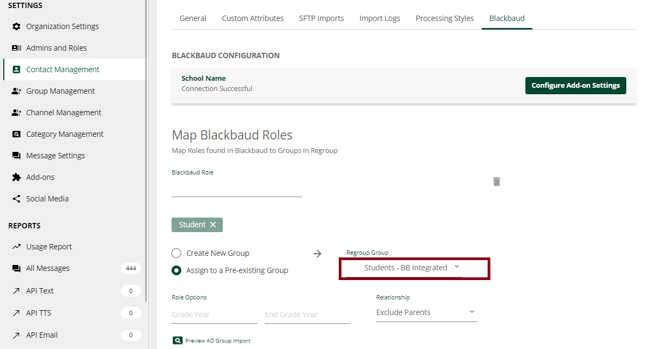
To learn about creating groups, see the topic: Create Groups manually.
-
-
You can click the Role Options dropdown to add only a filtered category of members within the role to the Regroup group.
See the following image:
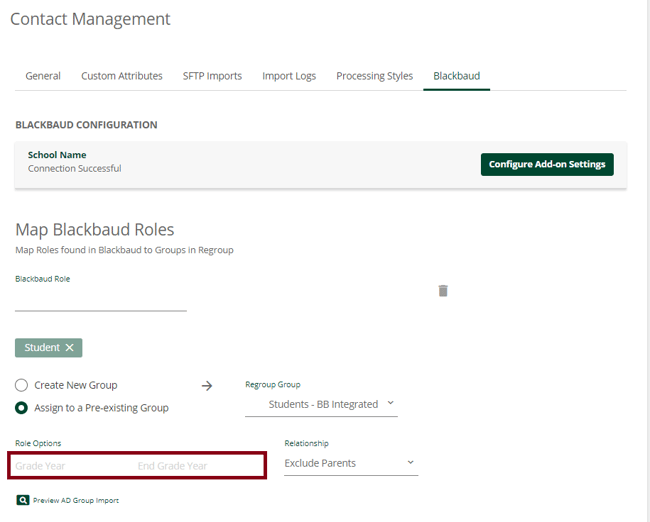
The Relationship dropdown enables you to add more conditions to the filter.
-
Click Preview AD Group Import button to see the list of members that will be added to the group.
See the following image:
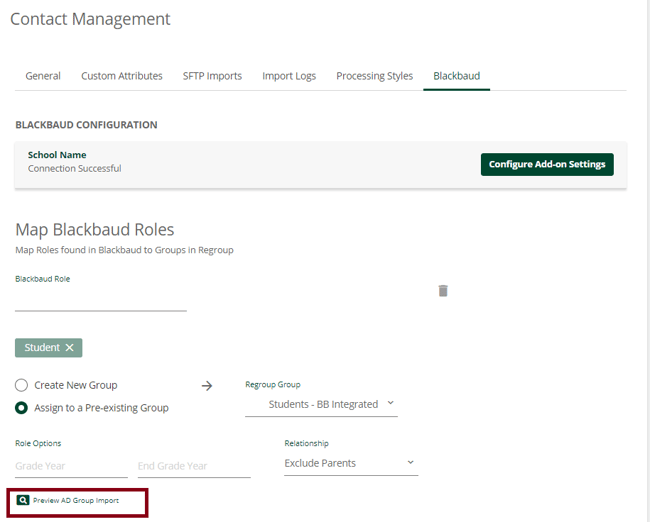
-
You can click Map Another Role button to add new roles to the groups.
Tip: You can add multiple roles to one group or one role in different groups.
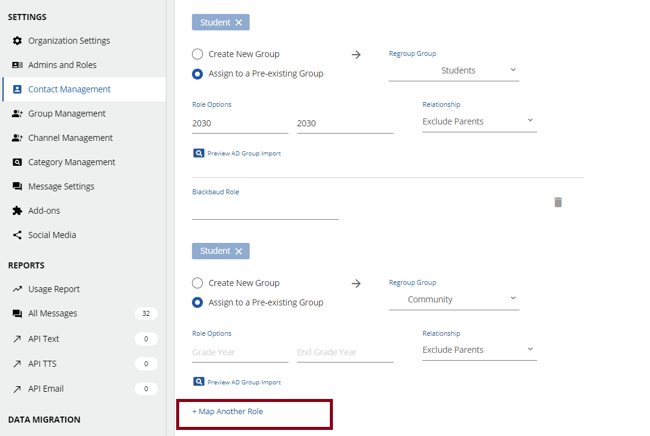
-
-
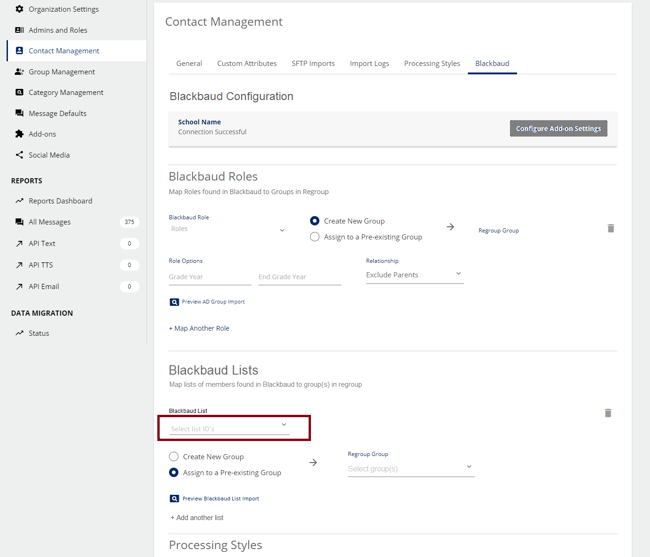
Click the Blackbaud List dropdown to import contacts from the Blackbaud Lists to the Regroup groups.
-
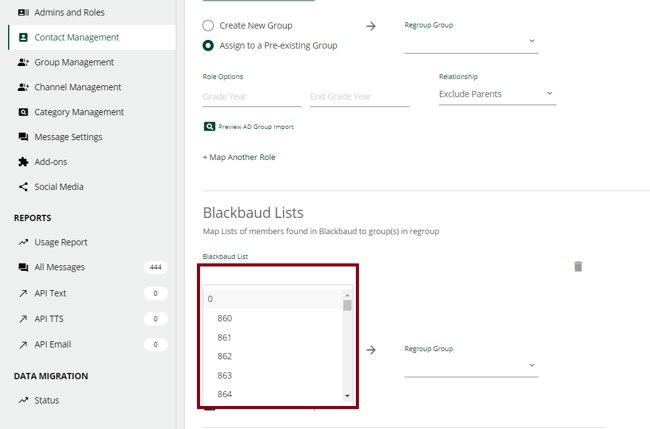
Select the ID of Lists from the dropdown.
Tip: You can select multiple Lists to add all their members to a Regroup group.
See the following image:
-
You can click either of the following to select where to add the members of selected Lists:
-
Create New Group: the system creates a new group in Regroup and adds the members from the List. You can click the suggested group name in the Regroup Group field to confirm the creation.
Tip: If you change the name of this newly created group anytime, the system creates another new group with the selected name during the next import.
-
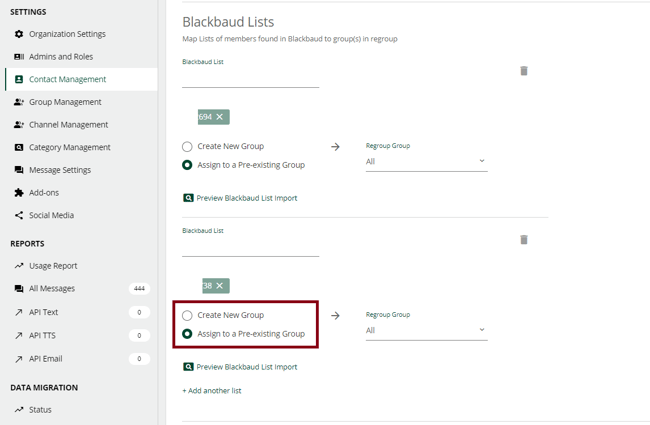
Assign to a Pre-existing Group: you can add the members from the List to an existing Regroup group.
See the following image:
-
-
You can click Preview Blackbaud List Import to view all the members in the selected Lists.
See the following image:
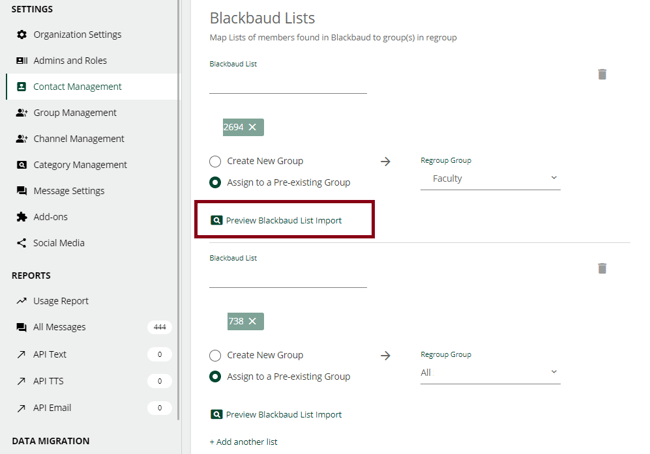
A popup appears displaying the list of members.
-
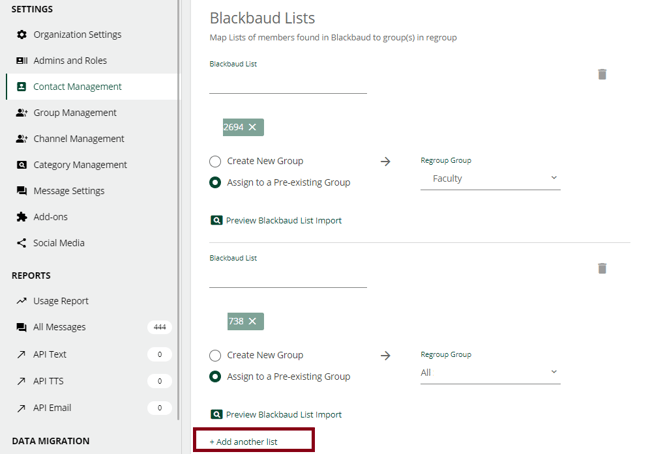
You can click +Add another list to add more Lists.
See the following image:
-
In the Processing Style section, you can select how the import is processed. The following are the options:
-
Add Only: The system imports any new member to the corresponding group.
-
Add & Delete: The system adds Blackbaud’s new members to Regroup groups and deletes those not in Blackbaud.
Tip: We advise using Add & Delete as the processing style.
-
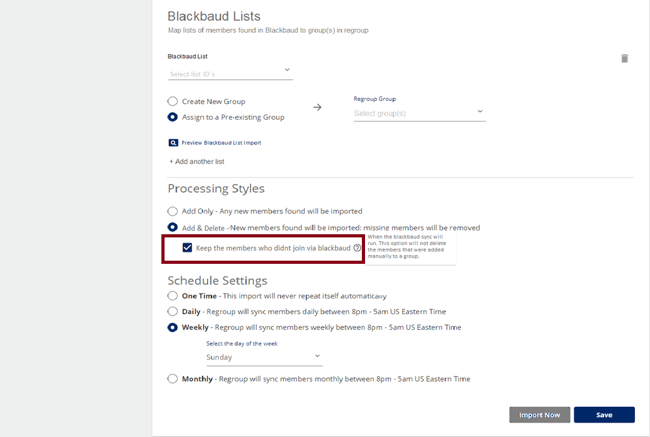
You can enable the Keep the members who didn’t join via Blackbaud checkbox to prevent deleting members in Regroup who are added directly to Regroup groups by any means other than Blackbaud.
Note: For successful import, you must have the organization-level processing style set as Normal and Add Only (Organization admin > Contact Management > Processing Style). To learn how to set up the organization-level processing style, see Configure Organization-Level Processing Style.
-
-
In the Schedule Settings, you can set up a time when Regroup imports any update in your Blackbaud roles. The following are the options:
-
One time: You do a single import, and it never repeats.
-
Daily: Regroup syncs the members daily, between 8 p.m. and 5 a.m. ET.
-
Weekly: Regroup syncs the members weekly, between 8 p.m. and 5 a.m. ET, on a selected day of the week. Click Select day of the week dropdown to pick the required day.
Tip: It’s advised you choose Weekly as your schedule for import.
The following are the suggested options:
-
-
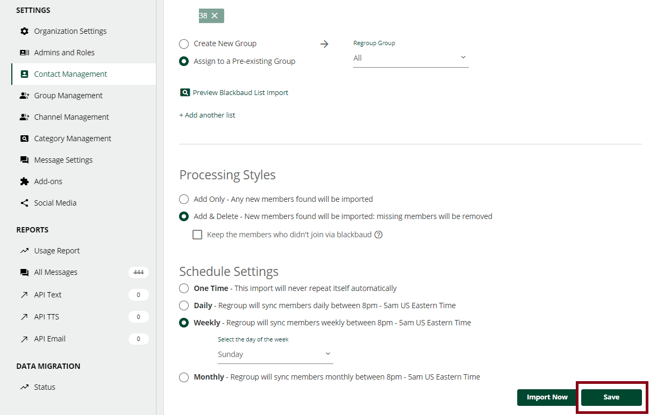
Click Save to save your inputs. With this option, the select roles get imported to the groups at the scheduled time.
See the following image:
-
Click Import Now to save your changes and initiate an import immediately.
See the following image:
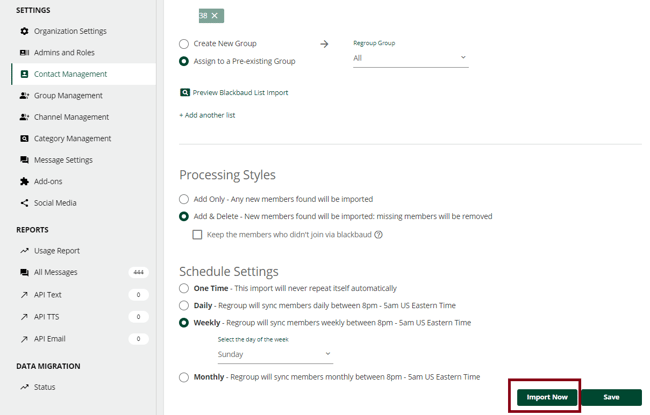
You get a message confirming the import is in progress. You also receive a confirmation email when the import is complete.
Note: For successful import, you must have the organization-level processing style set as Normal and Add Only. The organization-level processing style won’t affect the processing style you set for Blackbaud.
To learn how to set up the organization-level processing style, see Configure Organization-Level Processing Style.