
After Regroup enables this add-on, you can set up and test the integration with UnifiedFX.
Here is how you do it:
-
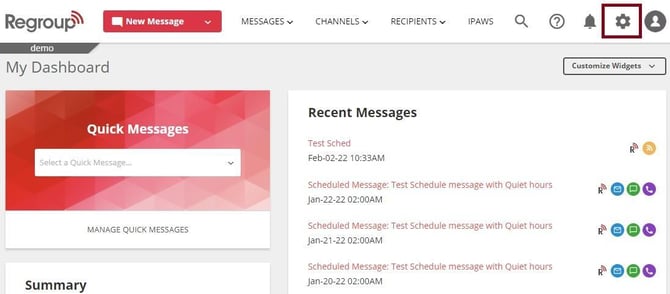
Click the Organization Settings icon on the top right corner. See the following image:
-
Click the Add-ons tab on the left navigation panel. See the following image:
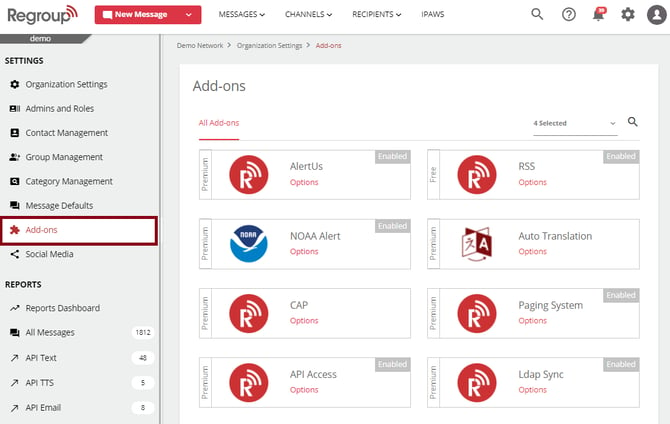
The add-ons page appears with all add-ons.
-
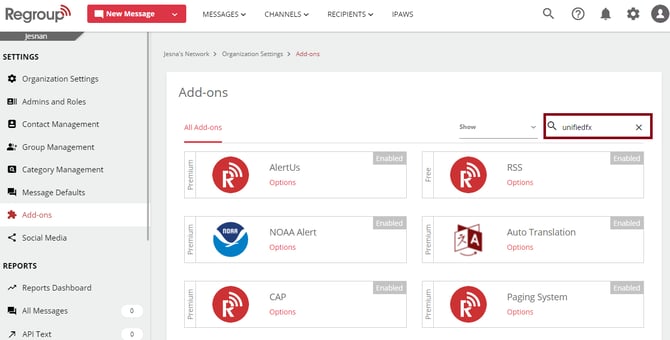
Search for the UnifiedFX add-on> click the search field, enter the add-on’s name and click enter on your keyboard.
See the following image:
-
Click Options on the required add-on tile. See the following image:
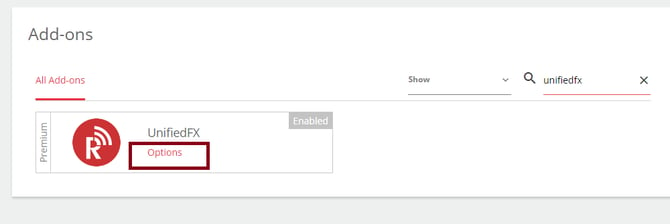
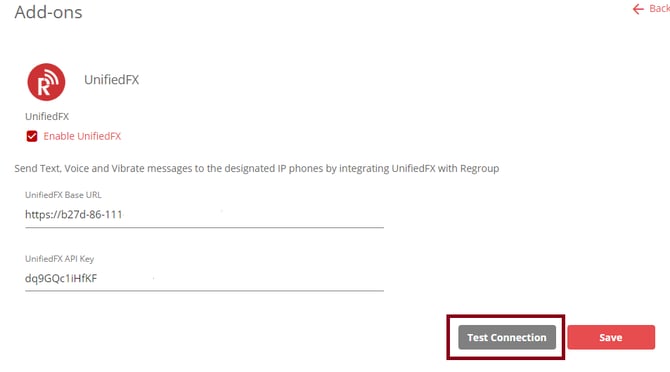
The Add-ons page opens with the configuration and test connection setup.
-
Enter the BaseURL in the UnifiedFX Base URL field.
-
Enter the API key in the UnifiedFX API Key field.
Tip: You avail these from the UnifiedFX client.
-
Click Test Connection to test the integration.
See the following image:
-
Click Ok on the message that confirms the connection was set successfully.
-
Click Save.
The configuration you set here determines the recipients, voice files and the phone used to send UnifiedFX messages.