
You can configure a default message delivery method and sender profiles for all the messages sent from the channel. While sending a new message, admins can select pre-configured messaging methods with prefixed values and styles. Using default settings, admins can quickly access standardized messages for each requirement. When set up at the channel level, the default delivery methods appear preselected and updatable for all the channel messages.
You can set up default delivery methods and sender profiles at the channel or organization level. Here is how you configure the default message methods and sender profile at the channel level:
-
Click the Channels tab. See the following image:
The My Channels page appears.
-
Click the lens icon to search and locate the channel in the My Channels tab. The organization admins can also configure channels on the All Channels tab.
-
Click the name of the channel to open it. The General Setting page opens.
-
Click Methods & Sender Profile on the left navigation panel. See the following image:
The Default Options page appears.
-
Select the messaging methods you want to set as default from the Default Message Method Section.
See the following image:
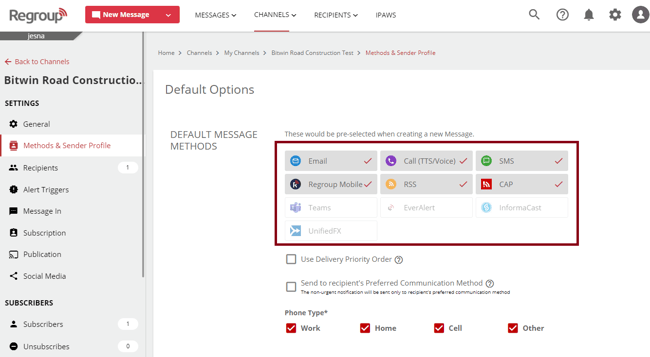
Tip: The delivery methods you select here appear preselected when sending new messages.
-
If you select Email, SMS, Call, or Regroup Mobile as delivery methods, a checkbox called Use Delivery Priority Order appears. You can use delivery priority order to define the order and interval at which the system attempts to deliver messages using each method.
You cannot define priority order for delivery methods other than Email, SMS, Call, or Regroup Mobile. The system immediately delivers the message using those methods and follows the priority order.
Note: The delivery priority order treats a message as urgent and invalidates the recipient’s quiet hours setting.
The Delivery Priority Order is a free add-on. To know more about it, see the topic, Delivery Priority Order: Overview.
See the following image:
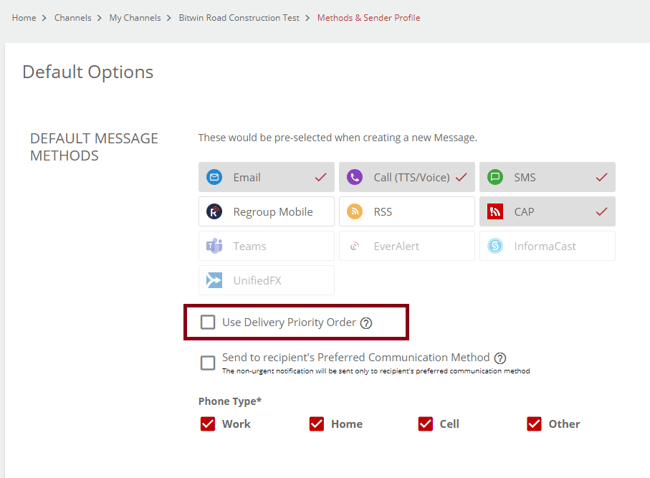
To set a delivery priority order as the default for this channel, perform the procedure in the following topic, step 5 onwards: Send messages with a defined delivery priority order.
-
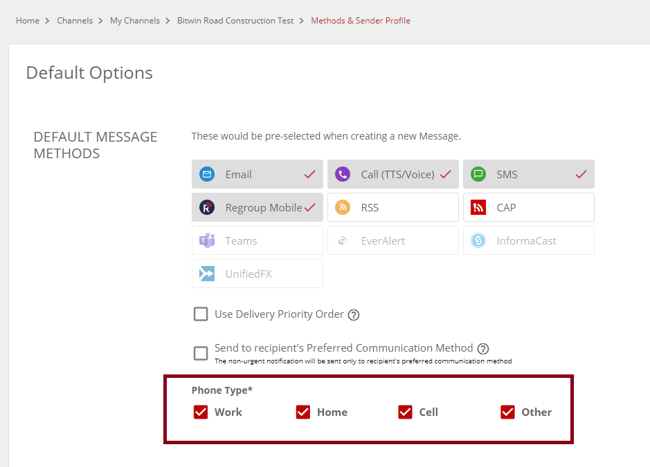
If you choose SMS, Call/TTS and Email as the delivery method, you can specify the phone and email types to send the messages. Select the required from the following:
-
Email Type: Both primary and secondary are set as default.
-
Phone Type: All the phone types are selected for phone type.
See the following image:
-
-
Click the Send to recipient's Preferred Communication Method checkbox to send non-urgent messages only to the recipient's preferred method. See the following image:
Note: The recipients without a selected method receive messages on all the methods you choose from the Default Message Method Section.
-
To set up Microsoft Teams with this channel, see the topic, Integrate Microsoft Teams with a Regroup channel.
-
In the sender profile section, click the Choose Sender Profile dropdown to select an existing sender profile as the default for this channel.
Tip: You can view and select only the sender profiles shared with you, the channel, or all admins.
-
You can click View Profile Info to see the details of the selected profile. See the following image:
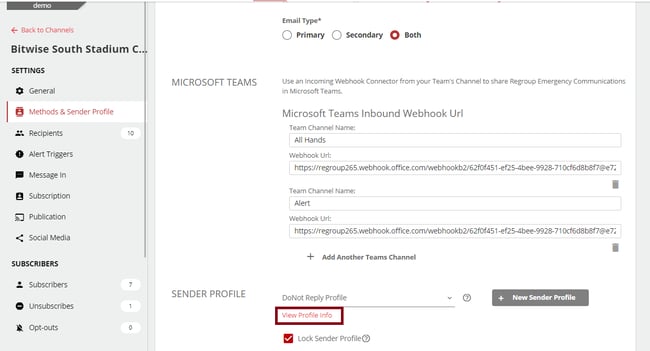
Note: You cannot save the message defaults if the selected sender profile has no caller ID and Call (TTS/Voice) is selected as a delivery method.
-
You can create a new sender profile by clicking the New Sender Profile button. The New Sender Profile page opens. See the topic Create Sender Profiles, step 3 onwards, to create a new sender profile.
-
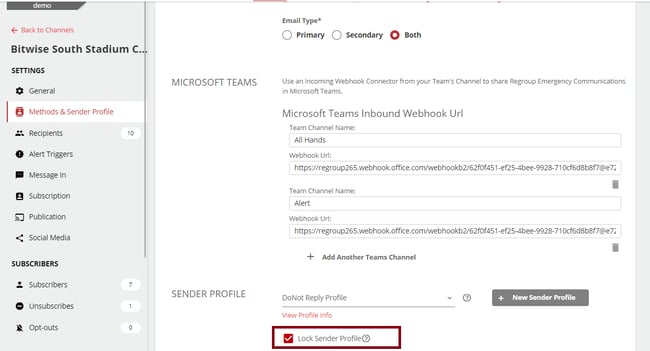
You can click Lock Sender Profile checkbox to mandate using one sender profile for all messages sent from a channel. Click Yes to confirm.
Note: You cannot lock the channel-level sender profile if a mandatory profile is set for the organization.
See the following image:
-
Click Save to save your selections.