
Overview
RSS (Really Simple Syndication) allows you to publish messages from channels or groups using an XML-based data format. This feature enables integration with desktop notifications and other public-facing systems that consume RSS feeds.
RSS is available as a free add-on. After enabling the RSS add-on, you must configure RSS publication at the channel or group level. Messages sent through the configured channel or group can then be distributed via RSS.
Key Considerations
-
RSS must be selected as a delivery method to send desktop notifications.
-
RSS publication can be enabled on both channels and groups.
-
Organization admins can enable RSS publication on channels listed under All Channels.
-
A dedicated channel or group can be configured with RSS as the default delivery method.
Enable RSS Publication on a Channel or Group
-
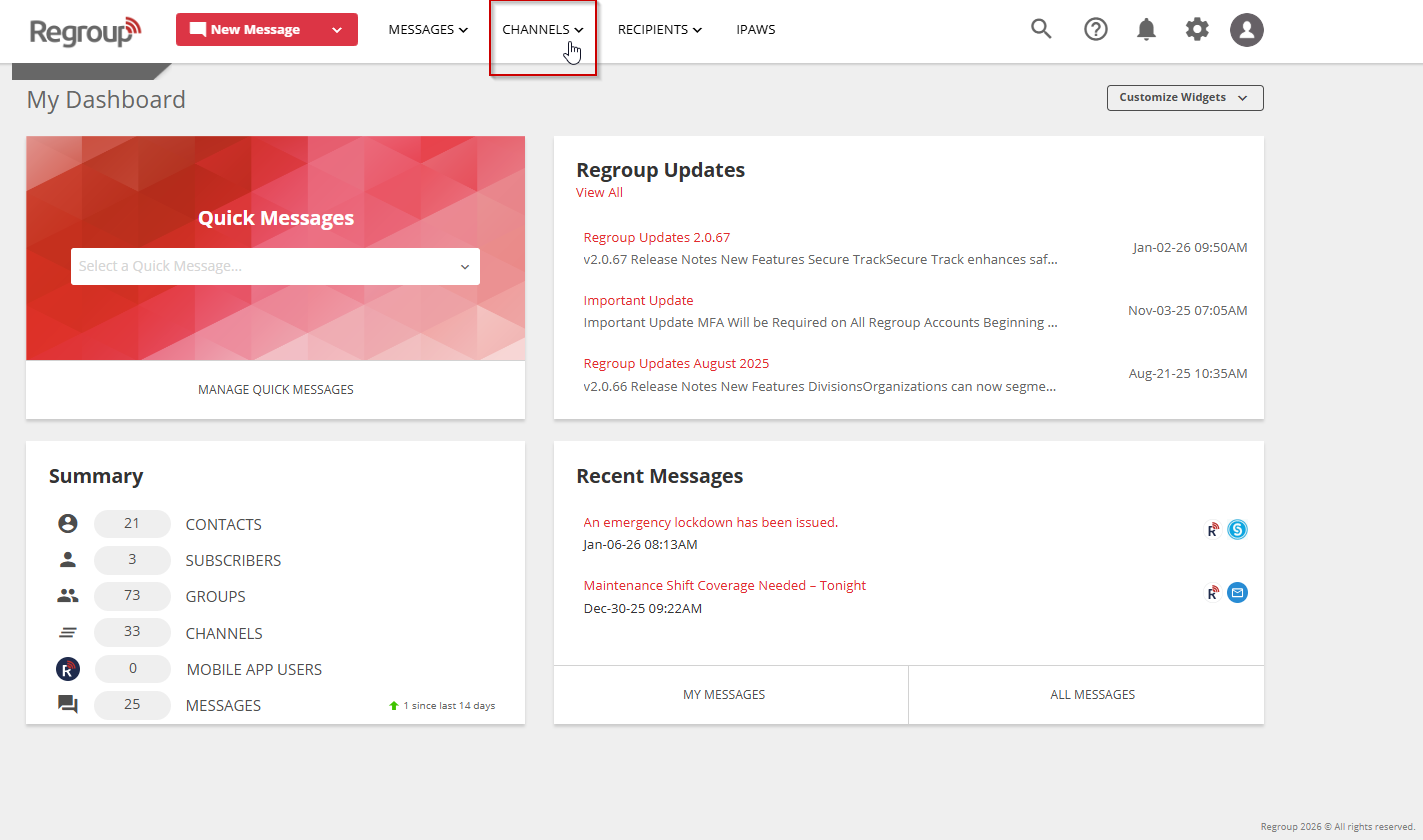
Open the Channels tab.
-
For groups, navigate to Recipients > My Groups or All Groups.
-
-
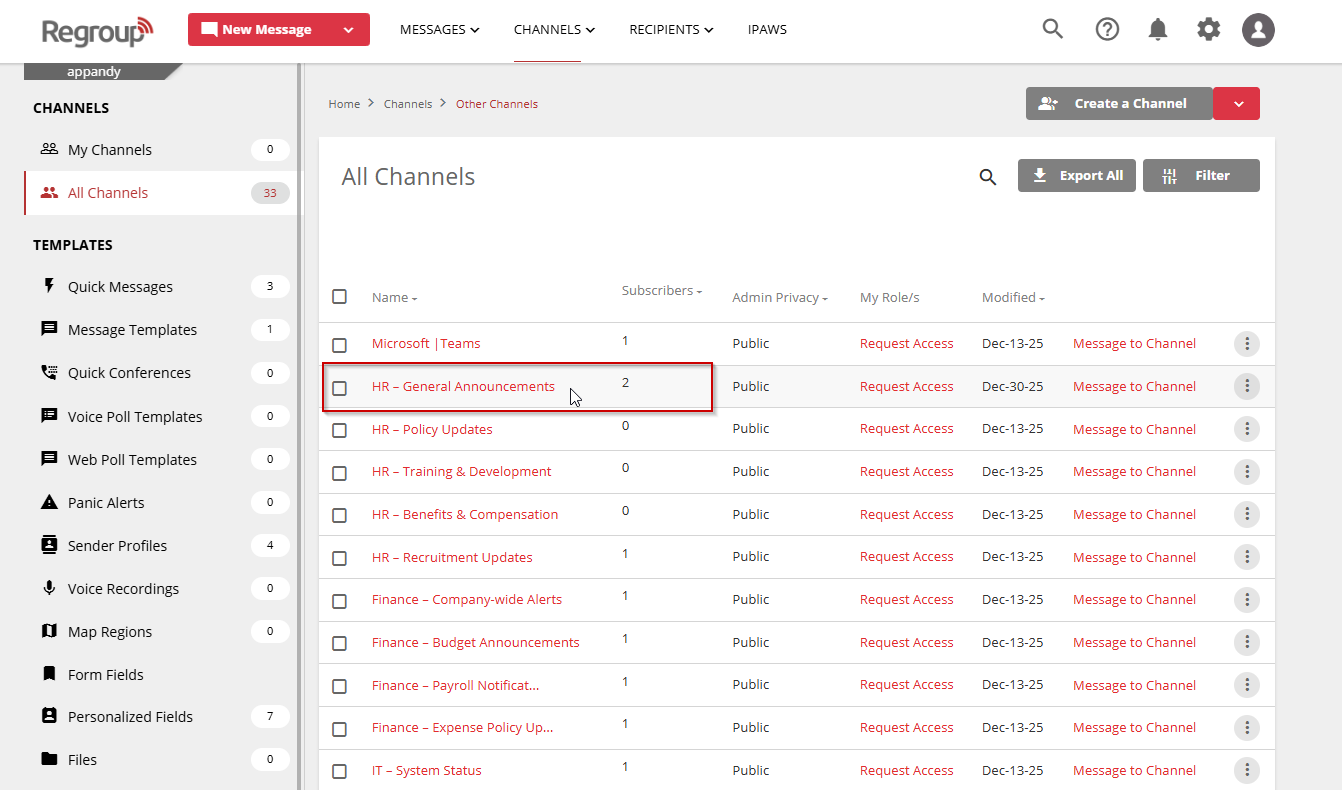
Locate and select the required channel or group.
-
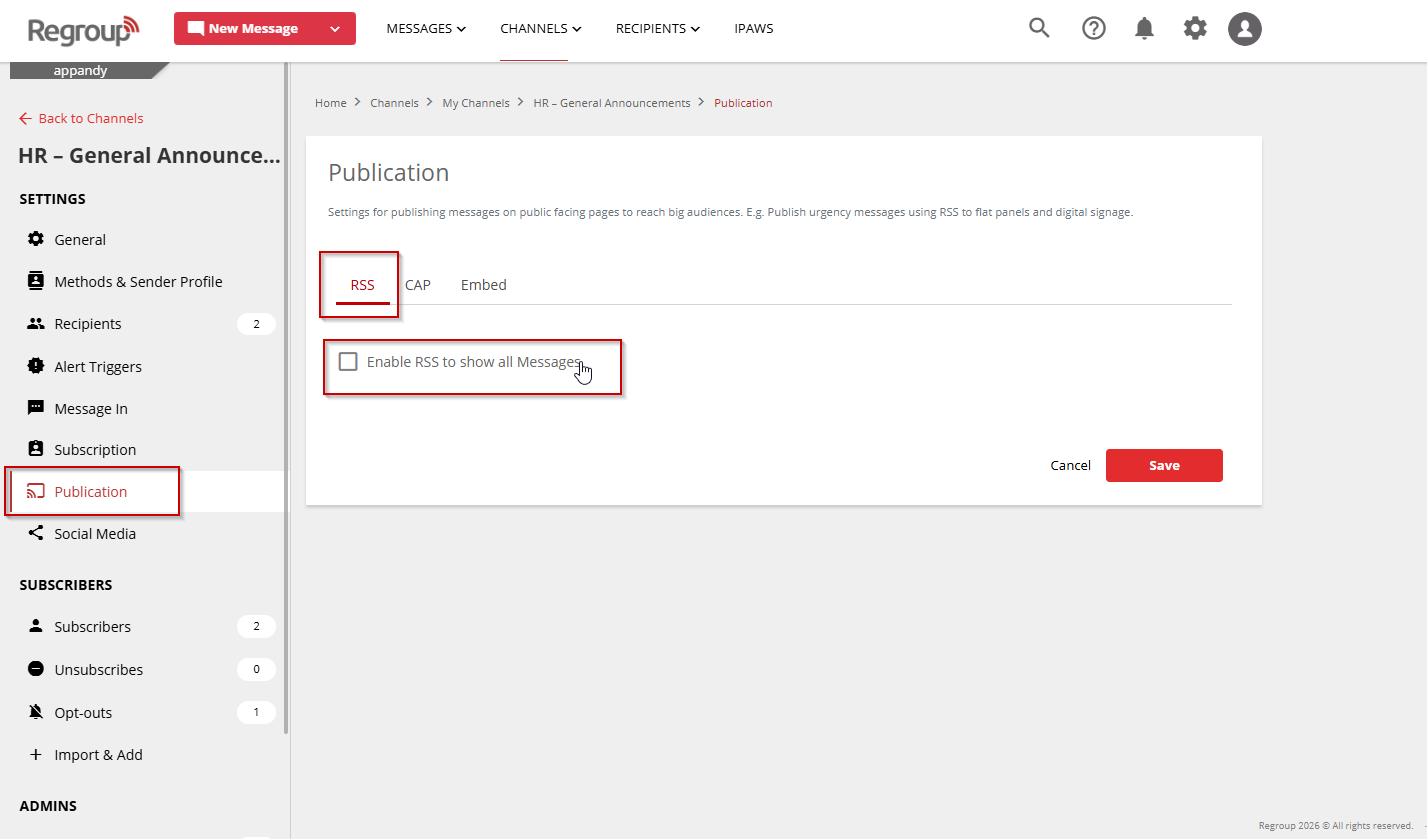
Open the Settings panel and select Publication.
-
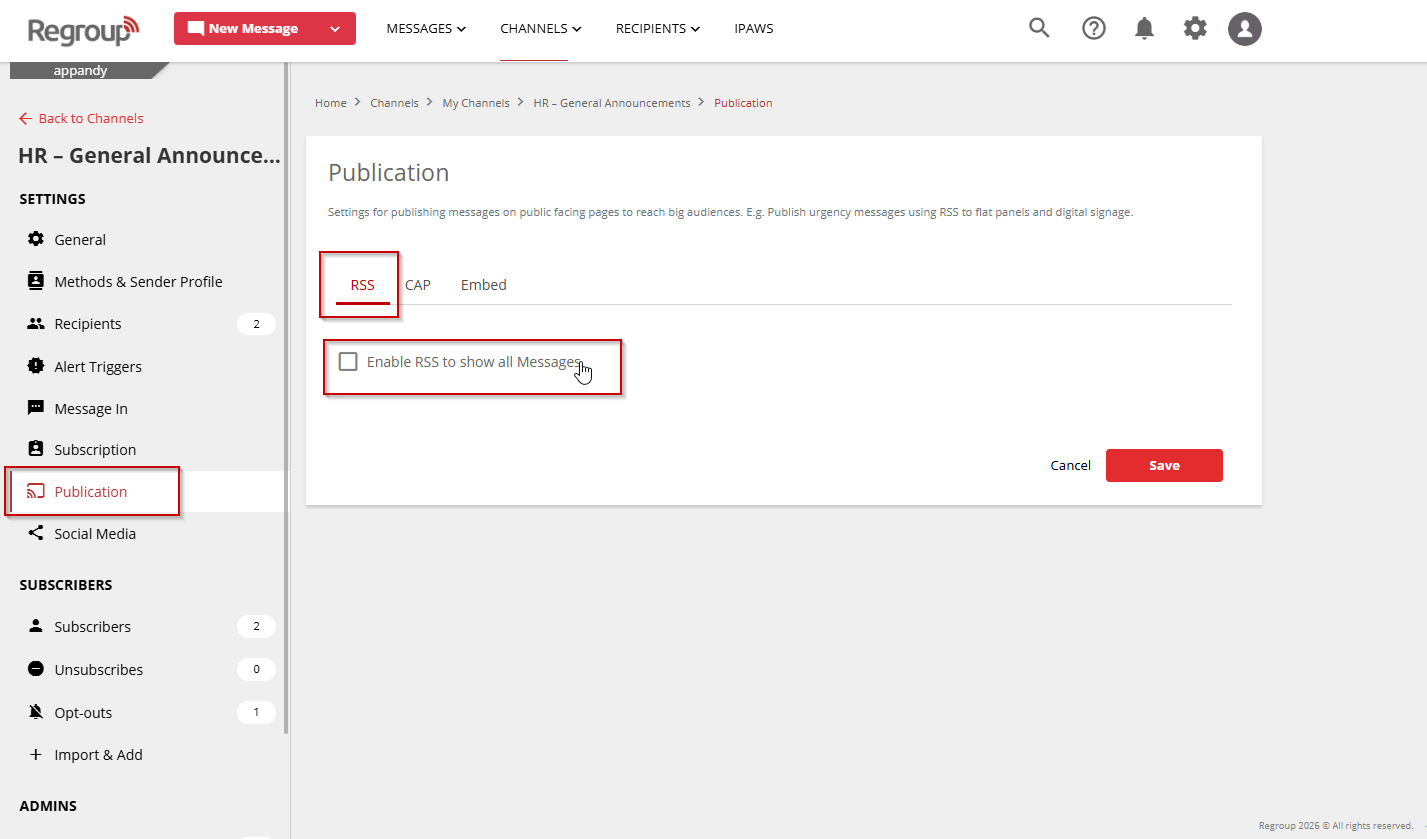
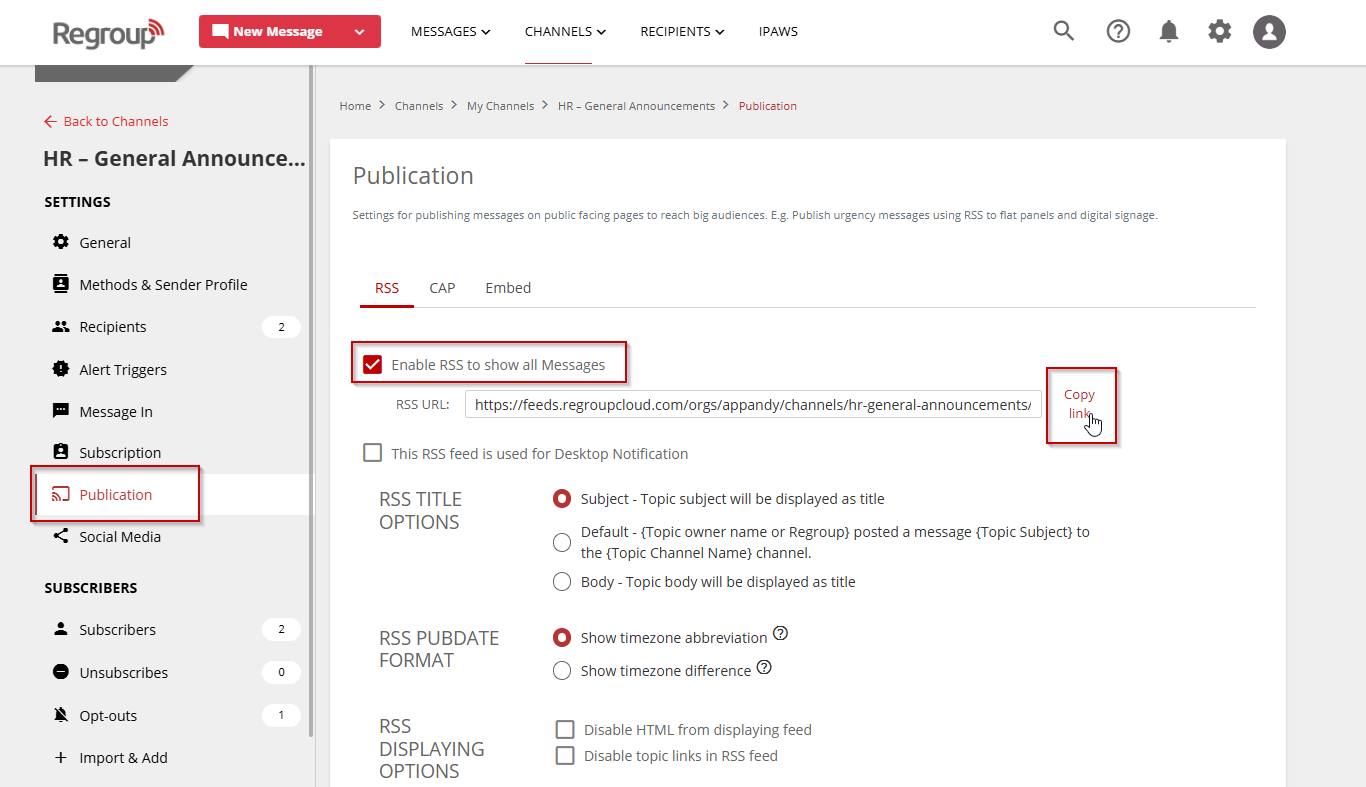
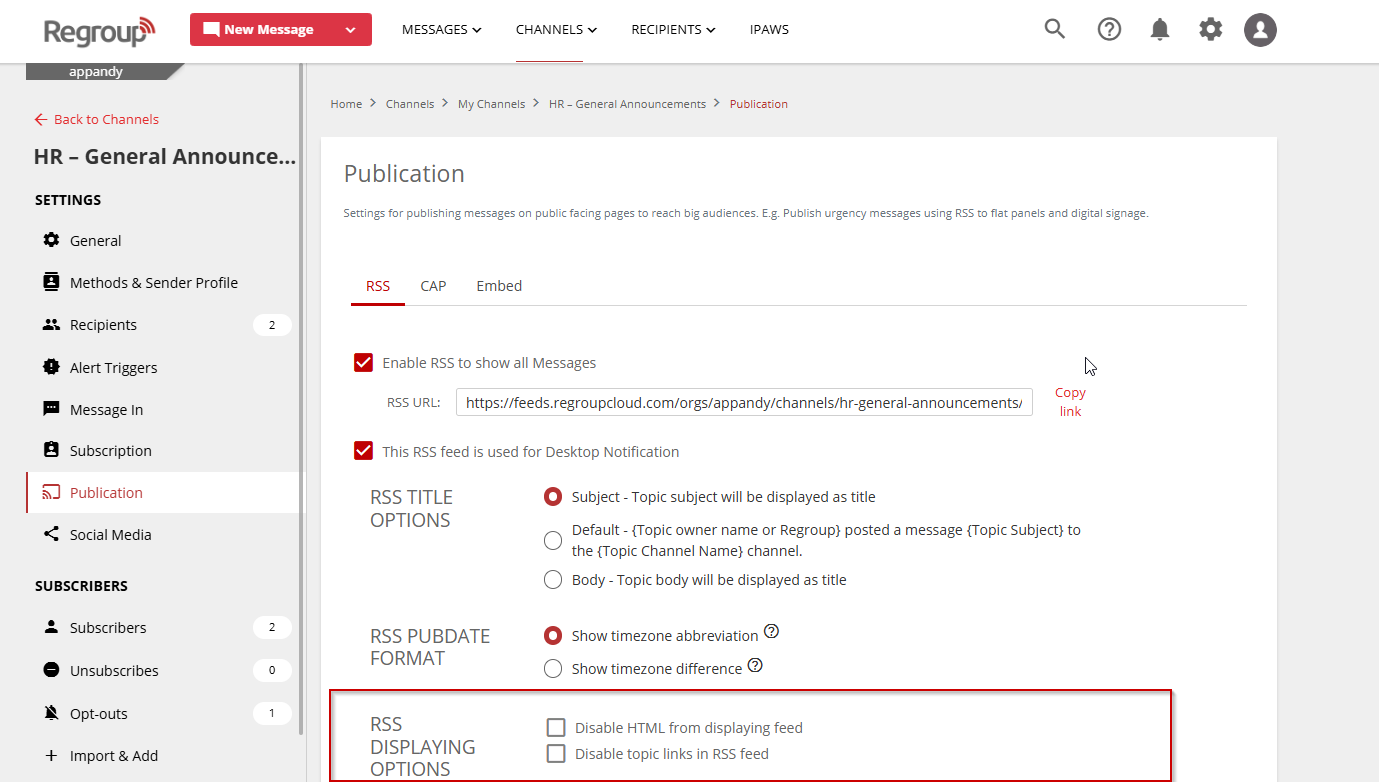
Enable RSS to show all messages.
-
The RSS publication settings become available.
-
-
Select Copy Link to generate the RSS feed URL.
-
Use this link to publish content externally or share it with Regroup Support for inbound RSS configuration.
-
-
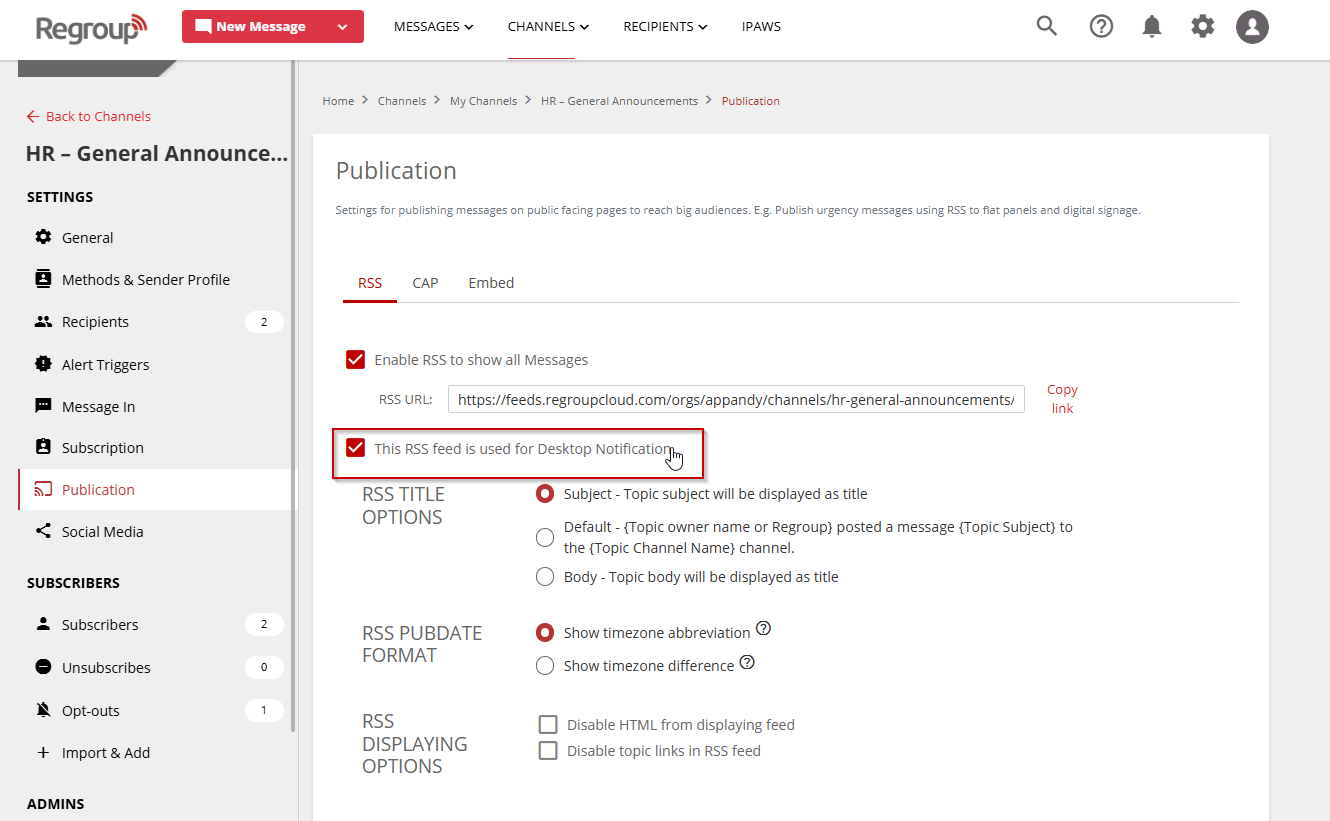
Enable This RSS feed is used for Desktop Notification to allow desktop alerts from this feed.
-
Channels with this option enabled appear under Channels Configured for Desktop Notification in the Desktop Notification add-ons page.
-
-
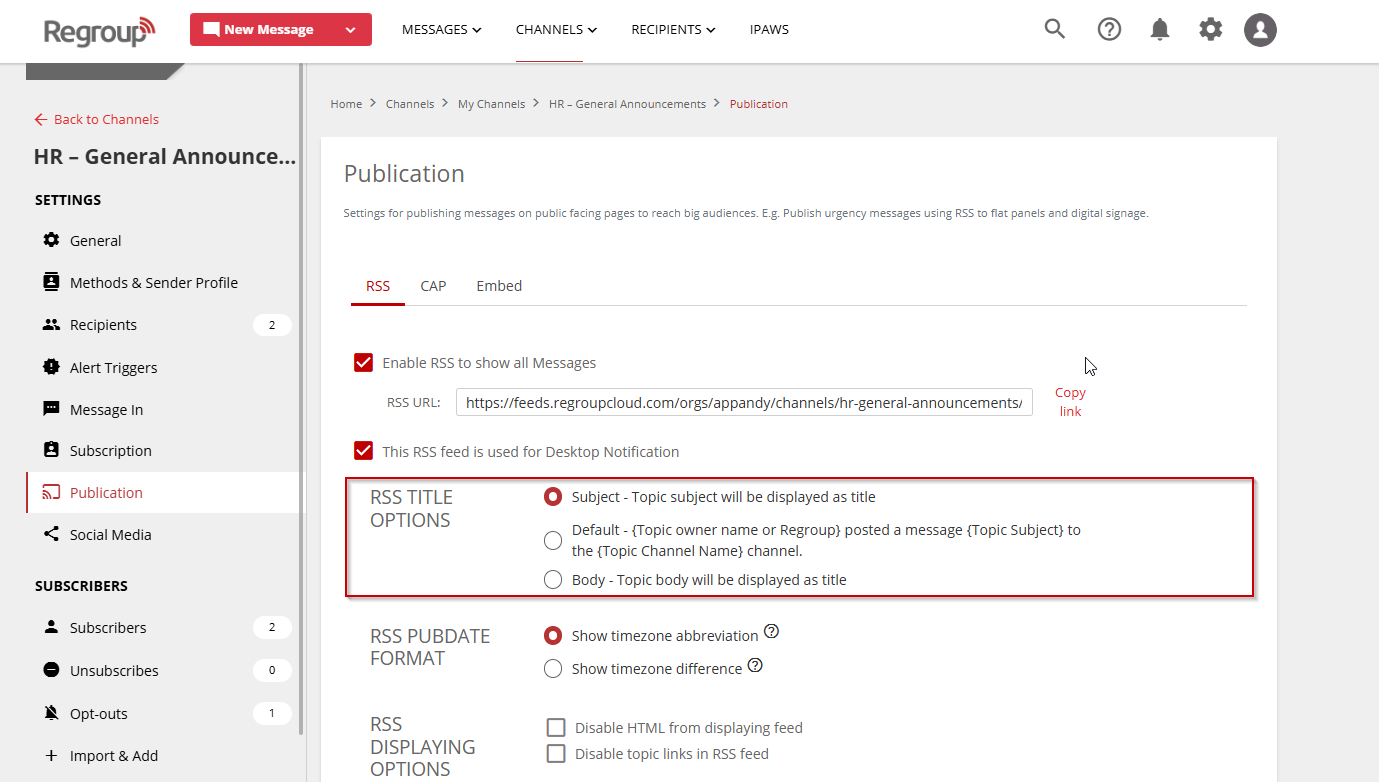
Configure RSS Title Options:
-
Subject: Uses the message subject as the RSS title.
-
Default: Displays the sender and message subject in the title.
-
Body: Uses the message body as the RSS title.
-
-
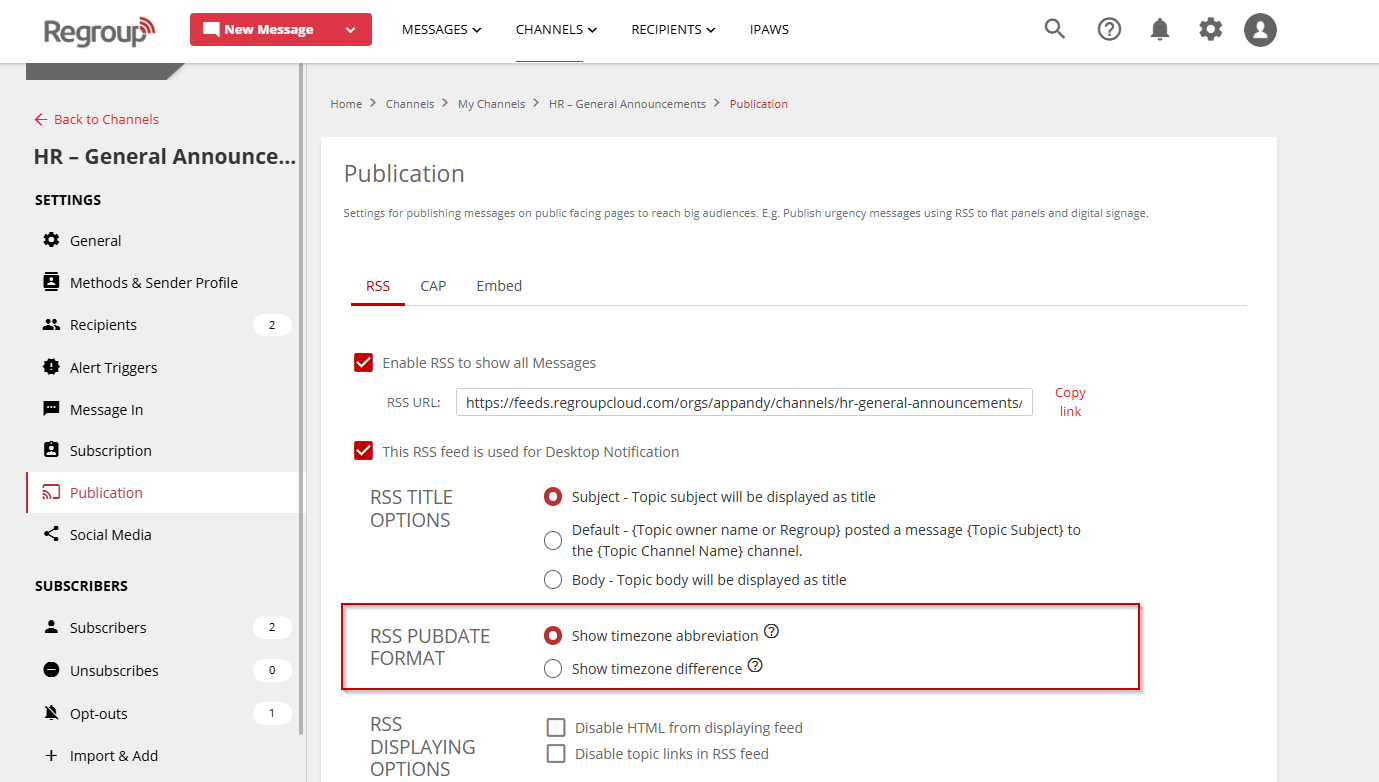
Configure the RSS PubDate Format:
-
Select Show timezone difference.
-
This option is required for desktop notification delivery.
-
-
Configure RSS Displaying Options as needed:
-
Disable HTML from displaying feed: Prevents HTML code from appearing in the feed.
-
Disable topic links in RSS feed: Prevents links from appearing in the feed.
-
-
Scroll down to select Save to apply the settings.
Additional Notes
-
The RSS feed link can be used to publish channel or group content on an external website.
-
To enable desktop notifications, Regroup Support must create a desktop notification user and inbound RSS feed using the provided RSS link.
-
After setup, Regroup Support supplies the required user credentials.