
Overview
You can connect social media accounts such as Facebook and Twitter to share messages directly from your channels. Social media settings can be configured at both the organization and channel levels, and the options are identical for both.
This guide explains how to connect and customize Social Media settings, connect your accounts, choose how messages appear on each platform, and save your preferences. Once configured, you can select Facebook or Twitter as delivery methods when sending messages.
Access Social Media Settings
For Channel-Level Setup:
-
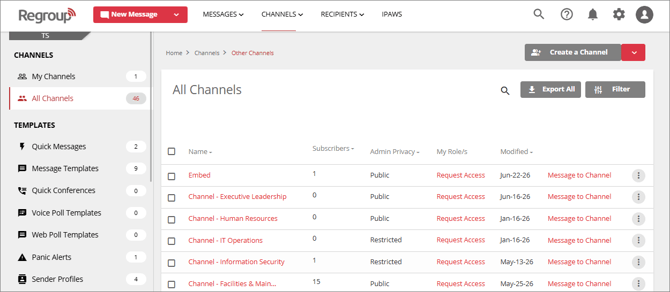
Go to the Channels tab.
-
Select a channel from My Channels or All Channels
To configure at the organization level:
-
Click the cogwheel icon in the top-right navigation bar to access your Organization Settings
-
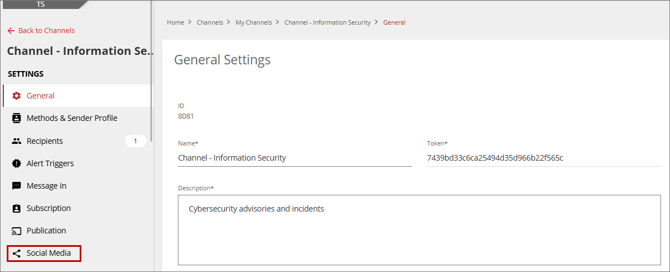
In the left menu, click Social Media.
Connect Social Media Accounts
On the Social Media Settings page:
-
Click Connect to Facebook or Connect to Twitter.
-
Log in to your account or create one if you don't have an existing one.
Note: You can connect one Facebook account per channel. Within that account, you may add and manage multiple Facebook Pages. Posts can be sent only to Pages, not to personal profiles.
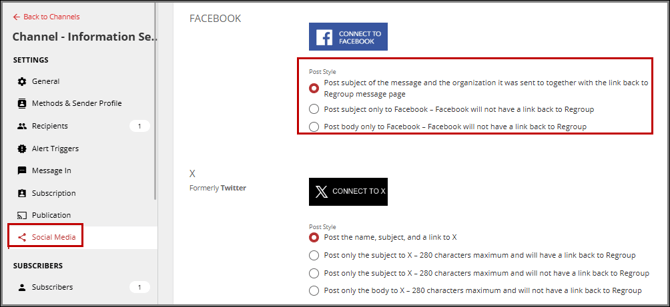
Facebook Post Styles
Choose how your messages appear on Facebook:
-
Subject + Source + Link
Post subject of the message and the organization it was sent to, together with the link back to the Regroup message page
Example: [Subject] was sent to [Channel/Org Name]. Includes a link to the full message on Regroup. -
Subject Only
Post subject only to Facebook – Facebook will not have a link back to Regroup
Example: [Subject]. No link to Regroup.
-
Body Only
Post body only to Facebook – Facebook will not have a link back to RegroupExample: [Message Body]. No link to Regroup.
Important: Facebook posts only support text. To include images or other content, choose a style that includes the link to Regroup.
Twitter Post Styles
Choose how your messages appear on Twitter:
-
Name + Subject + Link
Post the name, subject, and a link to Twitter
Includes the message title, body, and a link to the full message on Regroup. -
Subject + Link (up to 280 characters)
Post only the subject to Twitter – 280 characters maximum and will have a link back to Regroup
Includes the subject and a short link to Regroup.
-
Subject Only
Post only the subject to Twitter – 280 characters maximum and will not have a link back to Regroup
Posts only the message subject. No link to Regroup. -
Body Only
Post only the body to Twitter – 280 characters maximum and will not have a link back to Regroup
Posts only the message body. No link to Regroup.

Note: Twitter also supports text-only posts. To include images or other content, choose a style with a link to Regroup.
Final Step
Click Save to apply your settings.
Once configured, you can post messages directly to Facebook or Twitter by selecting them as delivery methods during message creation.