---
title: Contact Association
description: Overview Contact Association allows admins to link two contact profiles within the same organization. This association helps maintain reporting...
---
[Skip to content](https://resources.regroup.com/regroupkb/docs/contact-association#main-content)
English
Show submenu for translations

Open main navigation
Close main navigation
- English
Show submenu for translations
- [Contact us](https://bit.ly/47rQCNC)
[Contact us](https://bit.ly/47rQCNC)
How can we help you?
- There are no suggestions because the search field is empty.
1. [Regroup Knowledge Base](https://resources.regroup.com/regroupkb)
2. [Configure Recipients and Admins](https://resources.regroup.com/regroupkb/configure-recipients-and-admins)
3. [Manage Organization Contacts](https://resources.regroup.com/regroupkb/configure-recipients-and-admins#manage-organization-contacts)
# Contact Association
##### **Overview**
Contact Association allows admins to link two contact profiles within the same organization. This association helps maintain reporting relationships and allows admins to optionally send a copy of a message to associated contacts. Some examples of relationships for when an associated Contact might need to receive a copy of a Regroup message include:
- Employee and a manager
- Student and a parent/legal guardian
- Family member and healthcare resident
---
### **Enable Contact Association**
Contact Association must be enabled by the Regroup team for your organization.
**When enabled:**
- The Associated Contact field appears on contact profiles with a default label of 'Manager'
- The 'Manager' label can be customized based on your specific use case and relationships
- Contacts can be linked through the Web UI, CSV import, or API import.
---
### **Associate a Contact in the Web UI**
Eligible admins can add or update an associated contact directly from an existing contact profile.
#### **Steps**
1. Open the contact profile.
2. Select **Edit Profile**.
3. In the Associated Contact field, search by email address, username, or database ID. Search results are limited to contacts visible within the admin’s permission scope.
4. Select the appropriate contact.
5. Scroll down and select **Save Finish**
To remove an associated contact, place the cursor in the Manager field and press **Backspace**, then save.
---
### **Associate a Contact via CSV Import**
#### **Steps**
1. Add a column header **link\_to\_manager** (case insensitive).
2. Provide an email, username, or database ID of the contact to be linked
**Note:** The associated contact must already exist in the same Regroup network.
| firstname | lastname | email | phone | groupname | link\_to\_manager |
| --- | --- | --- | --- | --- | --- |
| John | Mathews | [j.mathews@mail.com](mailto:j.mathews@mail.com) | 8557347687 | Operations | [d.smith@mail.com](mailto:d.smith@mail.com) |
#### **Behavior**
- If a matching contact is found, it is linked as the manager.
- If no match is found, the contact is created without a manager.
- Import processing continues even if a manager cannot be linked.
To remove an existing manager, enter **remove** in the **Link to Manager** column.
| firstname | lastname | email | phone | groupname | link\_to\_manager |
| --- | --- | --- | --- | --- | --- |
| John | Mathews | [j.mathews@mail.com](mailto:j.mathews@mail.com) | 8557347687 | Operations | remove |
---
### **Associate a Contact via API Import**
#### **Endpoint**
POST /api/v3/orgs/import\_users
#### **Tag**
"link\_to\_manager": " "
```
{
"users": [
{
"firstname": "John",
"lastname": "Mathews",
"email": "j.mathews@mail.com",
"phone": "8557347687",
"groupname": "Operations",
"link_to_manager": "d.smith@mail.com",
}
]
}
```
#### **Behavior**
- Links the matching contact as the manager if found.
- Ignores invalid or missing values without failing the request.
- Updates the manager when a new valid value is provided.
To remove a manager, set the value to **remove**.
```
{
"users": [
{
"firstname": "John",
"lastname": "Mathews",
"email": "j.mathews@mail.com",
"phone": "8557347687",
"groupname": "Operations",
"link_to_manager": "remove",
}
]
}
```
---
#### **Rules and Conditions**
- A contact can have only one Associated Contact.
- An Associated Contact must already exist within the same Regroup network.
- A Contact cannot be their own Associated Contact.
- If an Associated Contact profile is deleted from the network, it is automatically unlinked.
- If no Associated Contact value is provided during import, the existing association remains unchanged.
---
#### **View Manager Associations**
When a manager is linked, the association appears on the contact’s profile view page. Visibility follows the admin’s permission scope.
---
### Sending Messages to Associated Contacts
#### Steps
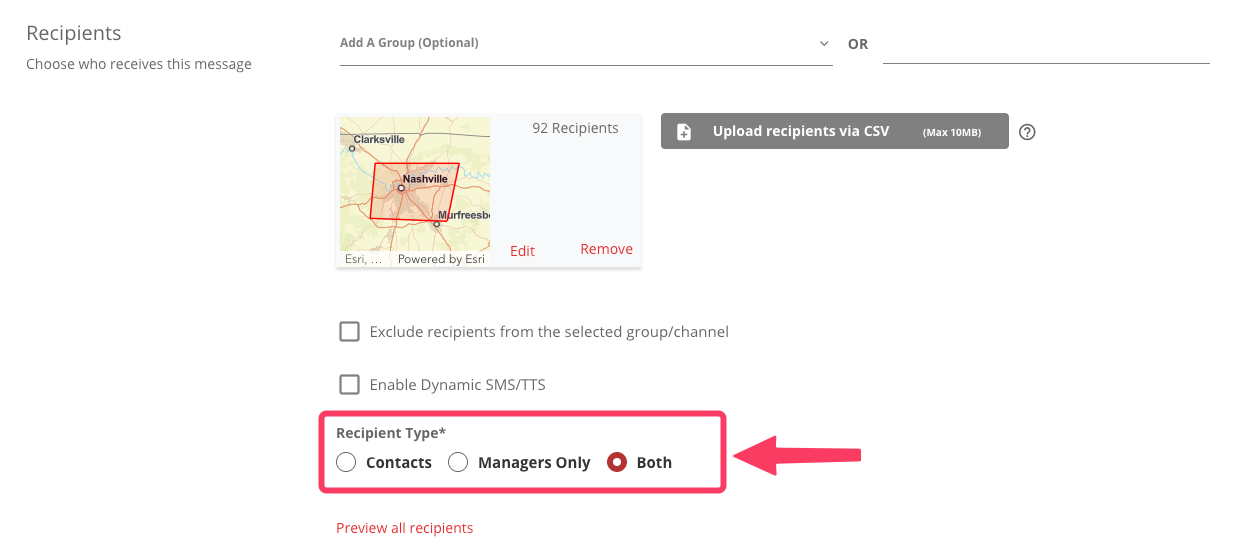
1. Select Ad Hoc Message or Message to Channel
2. Select the required **Recipients**
3. Select **Recipient Type**
i. **Contacts**: The message will only be sent to the selected Recipients
ii. **Managers Only:** Only the Associated Contact for the recipients will receive the message
ii. **Both:** Recipients will receive the message, and their Associated Contact will receive a copy.
4. Complete the rest of the New Message as normal
### **Automating NOAA Weather Alert Messages to Associated Contacts**
**Note:** NOAA Weather Alerts Add On must be enabled. View the complete guides to [Setup NOAA Alert Triggers for a Channel](https://docs.regroup.com/docs/setup-noaa-alert-triggers-to-a-channel/)and [NOAA Alert Best Practices](https://docs.regroup.com/docs/noaa-best-practices/)
#### Steps
1. Select a Channel with NOAA Weather Alerts Enabled
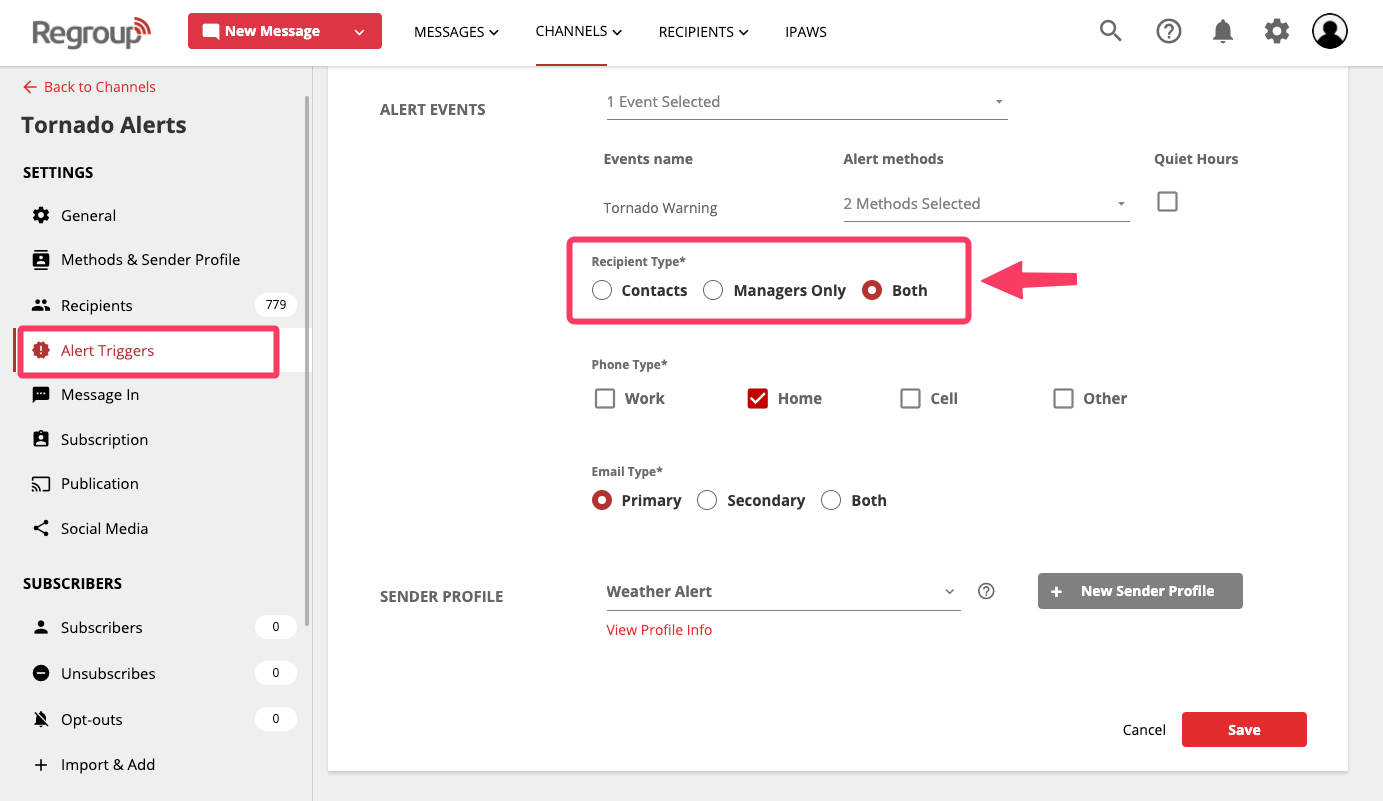
2. Select **Alert Triggers** from the side menu bar
3. Select and configure your **Alert Events**
4. Select **Recipient Type**
i. **Contacts**: The message will only be sent to the selected Recipients
ii. **Managers Only.** Only the Associated Contact for the recipients will receive the message
ii. Both: Recipients will receive the message, and their Associated Contact will receive a copy.
5. Complete the rest of the New Message as normal
#### **Behavior**
- Associated Contacts will appear in the **Preview Recipients** list
- The message sent to an Associated Contact will include a suffix showing the details of the contact who was the primary recipient. This is intended to help them understand it is a copy and not necessarily directed to them.
- [Getting started](https://resources.regroup.com/regroupkb/getting-started)
- [Incident Management](https://resources.regroup.com/regroupkb/incident-management)
- [Set Up Organization Account](https://resources.regroup.com/regroupkb/set-up-organization-account#main-content)
- [Organization Setting](https://resources.regroup.com/regroupkb/set-up-organization-account#organization-setting)
- [Configure Organization Sign-Up Pages](https://resources.regroup.com/regroupkb/set-up-organization-account#configure-organization-sign-up-pages)
- [Manage Group Automation](https://resources.regroup.com/regroupkb/set-up-organization-account#manage-group-automation)
- [Configure Message Default Settings](https://resources.regroup.com/regroupkb/set-up-organization-account#configure-message-default-settings)
- [Manage Add-Ons](https://resources.regroup.com/regroupkb/set-up-organization-account#manage-add-ons)
- [Configure Social Media Preferences](https://resources.regroup.com/regroupkb/set-up-organization-account#configure-social-media-preferences)
- [View and Download Message Reports](https://resources.regroup.com/regroupkb/set-up-organization-account#view-and-download-message-reports)
- [Configure Contacts Management](https://resources.regroup.com/regroupkb/configure-contacts-management)
- [Set Up Admins and Roles](https://resources.regroup.com/regroupkb/set-up-admins-and-roles#main-content)
- [Manage Roles](https://resources.regroup.com/regroupkb/set-up-admins-and-roles#manage-roles)
- [Managing Existing Admins](https://resources.regroup.com/regroupkb/set-up-admins-and-roles#managing-existing-admins)
- [Manage Roles](https://resources.regroup.com/regroupkb/manage-roles)
- [Manage Groups](https://resources.regroup.com/regroupkb/manage-groups#main-content)
- [Create Groups Using Import](https://resources.regroup.com/regroupkb/manage-groups#create-groups-using-import)
- [Add Groups Using FTP Import](https://resources.regroup.com/regroupkb/manage-groups#add-groups-using-ftp-import)
- [Create or Update Group Hierarchy](https://resources.regroup.com/regroupkb/manage-groups#create-or-update-group-hierarchy)
- [Manage Group Files](https://resources.regroup.com/regroupkb/manage-groups#manage-group-files)
- [Manage Group Admin Profile](https://resources.regroup.com/regroupkb/manage-groups#manage-group-admin-profile)
- [Export Groups](https://resources.regroup.com/regroupkb/manage-groups#export-groups)
- [Configure Recipients and Admins](https://resources.regroup.com/regroupkb/configure-recipients-and-admins#main-content)
- [Add Recipients to Groups](https://resources.regroup.com/regroupkb/configure-recipients-and-admins#add-recipients-to-groups)
- [Manage Group Contacts](https://resources.regroup.com/regroupkb/configure-recipients-and-admins#manage-group-contacts)
- [Manage Organization Contacts](https://resources.regroup.com/regroupkb/configure-recipients-and-admins#manage-organization-contacts)
- [Manage Floating Contacts](https://resources.regroup.com/regroupkb/configure-recipients-and-admins#manage-floating-contacts)
- [Manage Communication Channels](https://resources.regroup.com/regroupkb/manage-communication-channels#main-content)
- [Create Channels](https://resources.regroup.com/regroupkb/manage-communication-channels#create-channels)
- [Create Channels Using Import](https://resources.regroup.com/regroupkb/manage-communication-channels#create-channels-using-import)
- [Setup Channels](https://resources.regroup.com/regroupkb/manage-communication-channels#setup-channels)
- [Create and Manage Sender Profiles](https://resources.regroup.com/regroupkb/manage-communication-channels#create-and-manage-sender-profiles)
- [Setup Social Media](https://resources.regroup.com/regroupkb/manage-communication-channels#setup-social-media)
- [Add Recipients to Channel](https://resources.regroup.com/regroupkb/manage-communication-channels#add-recipients-to-channel)
- [Manage Existing Channel Admins](https://resources.regroup.com/regroupkb/manage-communication-channels#manage-existing-channel-admins)
- [Setup Channel Subscriptions](https://resources.regroup.com/regroupkb/manage-communication-channels#setup-channel-subscriptions)
- [Manage Subscribers](https://resources.regroup.com/regroupkb/manage-communication-channels#manage-subscribers)
- [Manage Messages](https://resources.regroup.com/regroupkb/manage-messages#main-content)
- [WhatsApp Messaging](https://resources.regroup.com/regroupkb/manage-messages#whatsapp-messaging)
- [Set Up Message Defaults While Messaging](https://resources.regroup.com/regroupkb/manage-messages#set-up-message-defaults-while-messaging)
- [Message Templates](https://resources.regroup.com/regroupkb/manage-messages#message-templates)
- [Manage Voice Recordings](https://resources.regroup.com/regroupkb/manage-messages#manage-voice-recordings)
- [Sent Messages and Reports](https://resources.regroup.com/regroupkb/manage-messages#sent-messages-and-reports)
- [Set Up Map Region](https://resources.regroup.com/regroupkb/manage-messages#set-up-map-region)
- [Scheduled Messages](https://resources.regroup.com/regroupkb/manage-messages#scheduled-messages)
- [Manage Quick Messages](https://resources.regroup.com/regroupkb/manage-messages#manage-quick-messages)
[](http://www.regroup.com)
[mailto:email@email.com](mailto:email@email.com)
Copyright © 2026, Regroup Mass Notification