
Overview
To send messages from Regroup to Microsoft Teams, you need to set up an Incoming Webhook in your Teams channel and link it to a Regroup channel. During the setup, Microsoft Teams will generate a webhook URL, which must be added to your Regroup channel settings to complete the integration.
This topic walks you through the configuration steps in both Microsoft Teams and your organization's Regroup network.
-
Navigate to Microsoft Teams app.
-
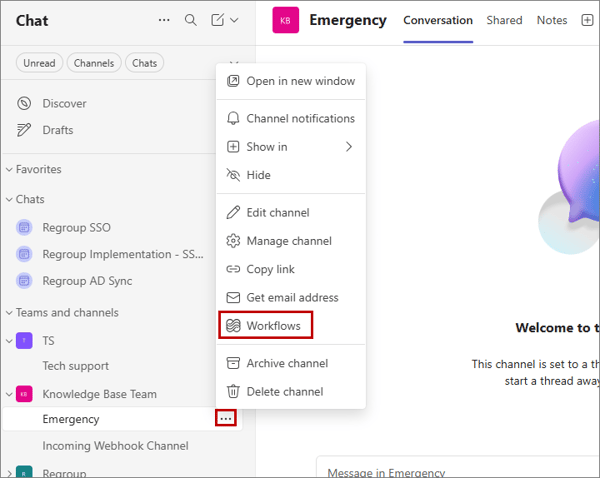
In the left pane, click the ellipsis (three-dot) next to the channel you want to connect with Regroup.
-
From the popup menu, click Workflows.
-
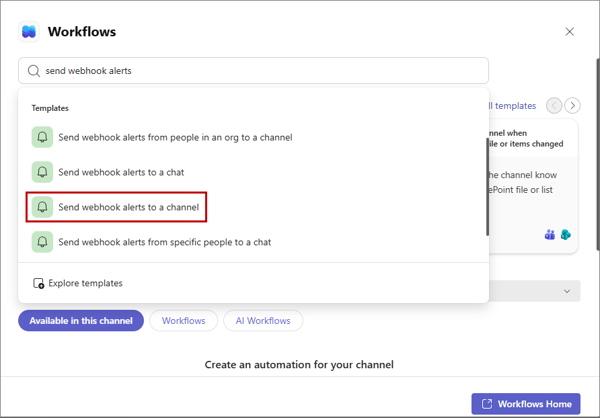
In the Workflows dialog, under Find Templates, search for and select the Send Webhook Alerts to a Channel template.
-
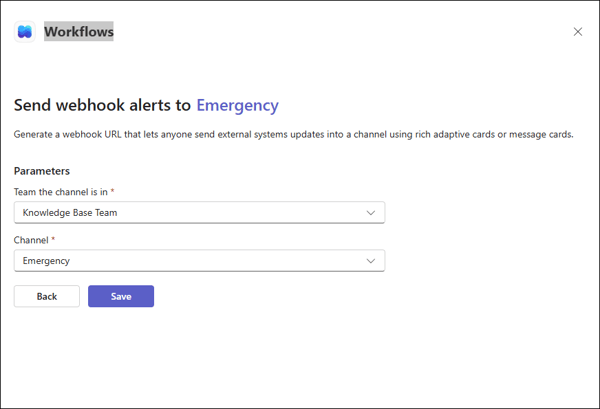
Under the Parameters section, configure the following settings, then click Save:
-
In Team the channel is in field, select the team that contains the channel.
-
In the Channel field, select the channel that you want to connect to Regroup.
-
-
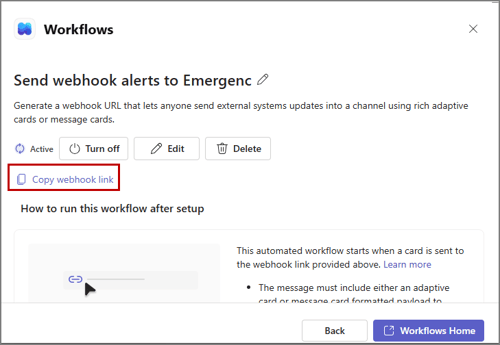
Once the webhook is created, click Copy webhook link to copy the webhook URL to clipboard.
-
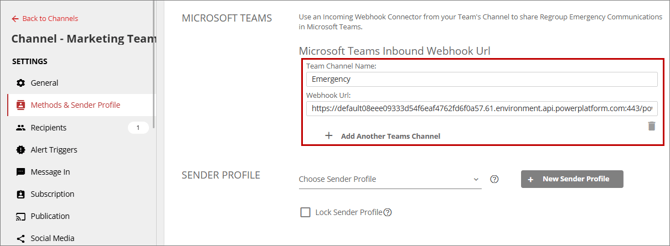
Access your Regroup account and navigate to Channels > My Channels > Channel_Name > Methods and Sender Profile.
-
In Methods and Sender Profile, under Microsoft Teams section, click Add Another Teams Channel, then specify the following:
-
Team Channel Name: Specify a name for the Microsoft Teams Channel.
-
Webhook URL: Paste the webhook URL you copied from the Microsoft Teams.
-
-
Save the setting in Regroup.
-
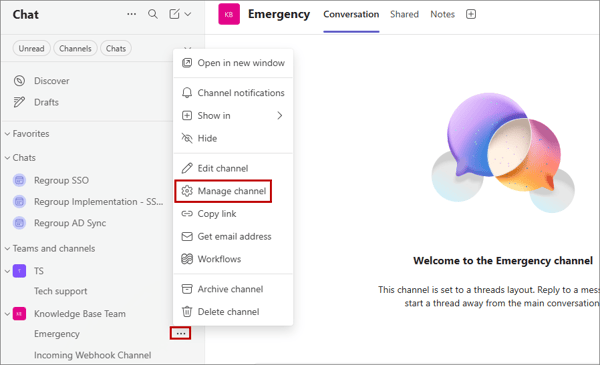
Navigate to Microsoft Teams, then in the left pane, click the ellipsis (three-dot) icon next to the channel, and then select Manage Channel from the pop-up menu.
-
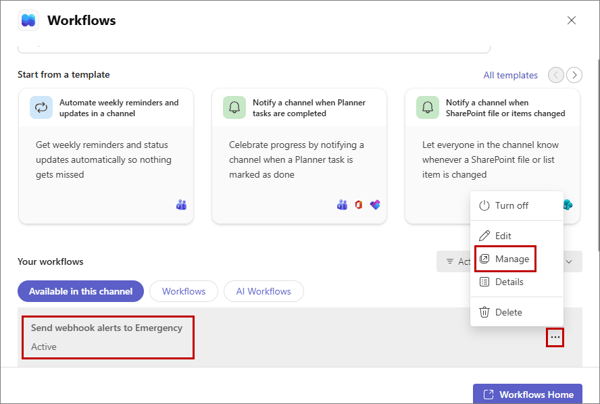
In the Workflows dialog, under Your Workflows, click the ellipsis (three-dot) icon next to the Send webhook alerts to . For example, Send webhook alerts to Emergency.
-
From the popup menu, click Manage.
The Power Automate page opens, displaying the selected workflow.
-
Click Edit.
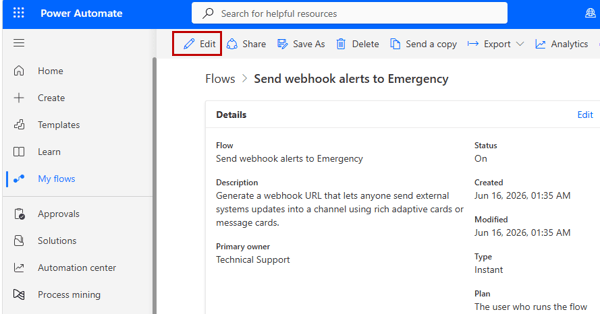
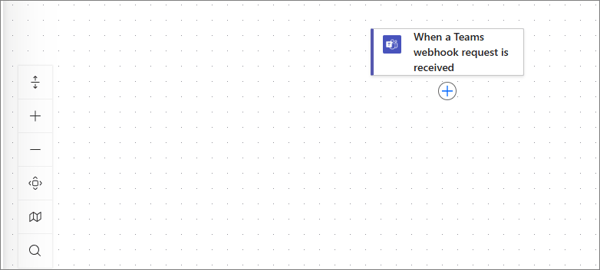
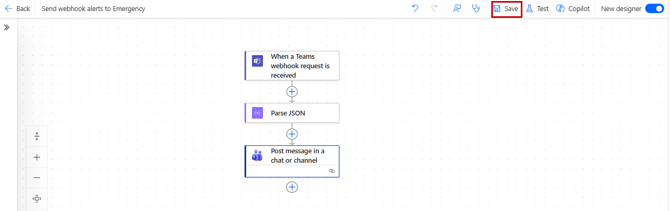
The workflow opens with several actions configured by default. Remove all actions except When a Teams webhook request is received.
-
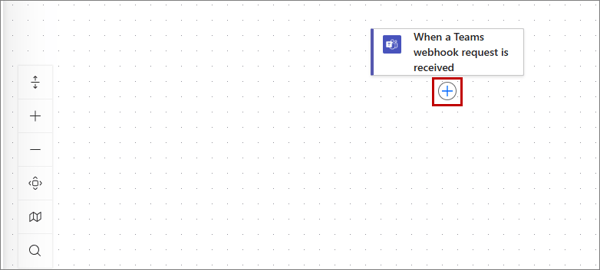
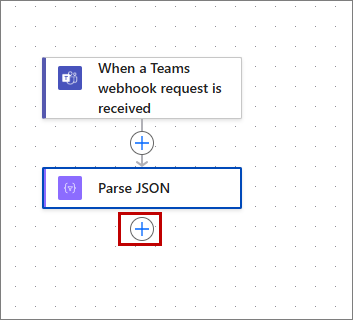
Click the Add icon to add an action.
-
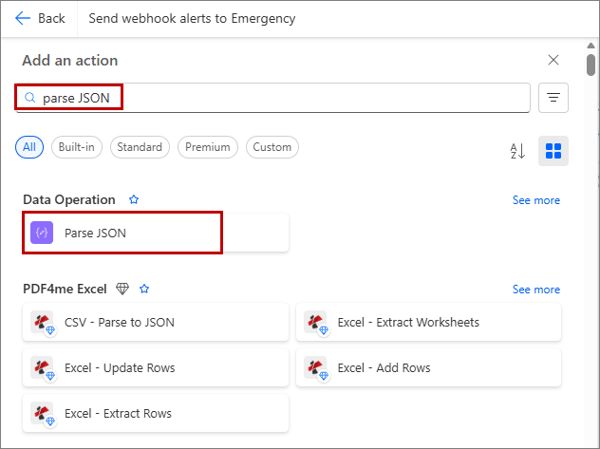
In the Add an Action pane, search for and select Parse JSON.
-
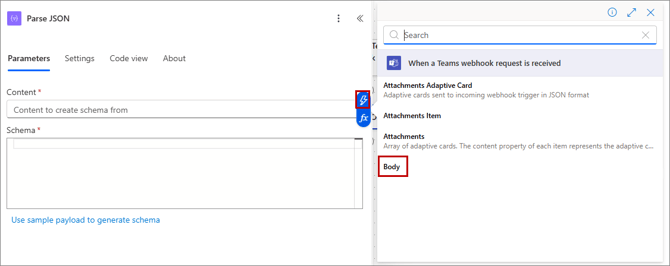
After selecting the Parse JSON action, in the Content field, click the Insert Data icon, and then select Body.
-
Under Schema, enter the following:
{"type": "object","properties": {"text": {"type": "string"}}}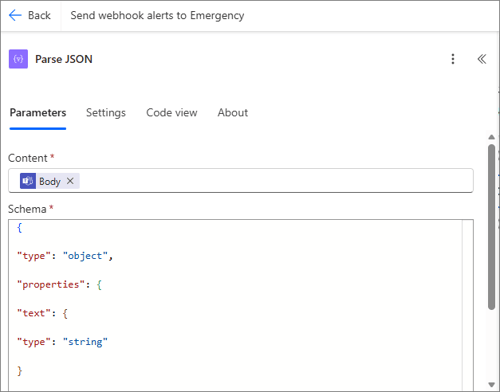
-
Collapse the Parse JSON action.
-
Click the Add icon to add another action.
-
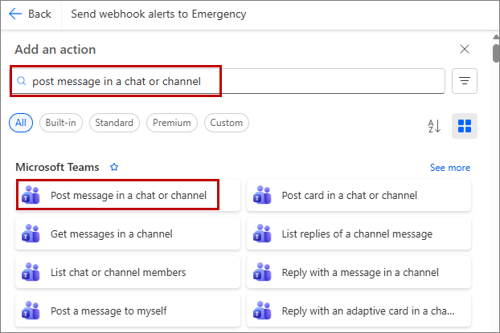
In the Add an Action pane, search for and select Post message in a chat or channel.
-
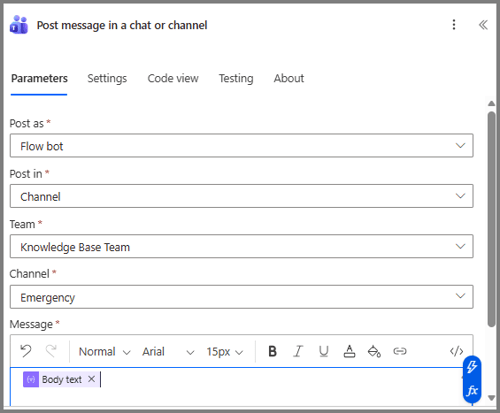
Under Post message in a chat or channel, specify the following:
-
From Post as dropdown, select Flow bot
-
In Post in dropdown, select Channel.
-
From Team dropdown, select the desired Team.
-
From Channel dropdown, select the desired channel.
-
In the Message field, click the Insert data icon and select the body text a a value.
-
-
Collapse the action and click Save to save the workflow.
You can now send message from Regroup to your MS Teams channel configured above. See the Send Messages to Microsoft Teams Using Regroup topic for additional information.