
The following procedure focuses on steps specific to sending voice poll messages. See the topic Send New Messages to know all the options available for sending a message.
-
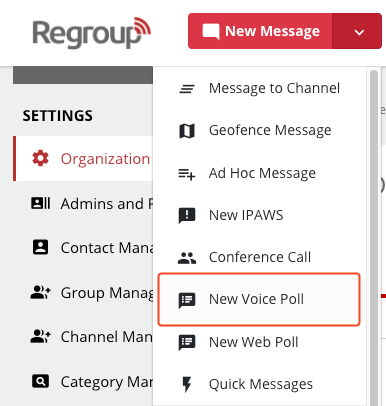
Click the New Message dropdown and select New Voice Poll.
2. Enter a title for your poll and select your recipients and sender profile
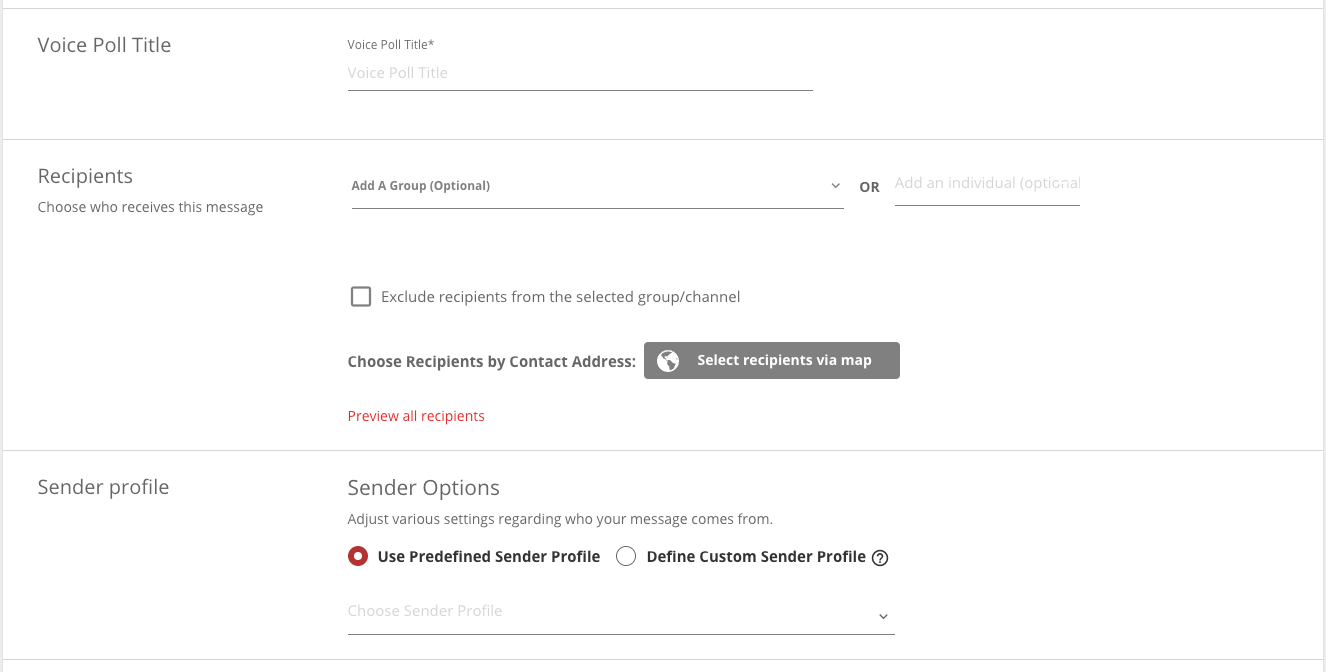
Note: Voice poll uses Call (TSS) as the default delivery method. Only the details like Caller Name, Caller ID, and Voice Profile are required in the sender profile.
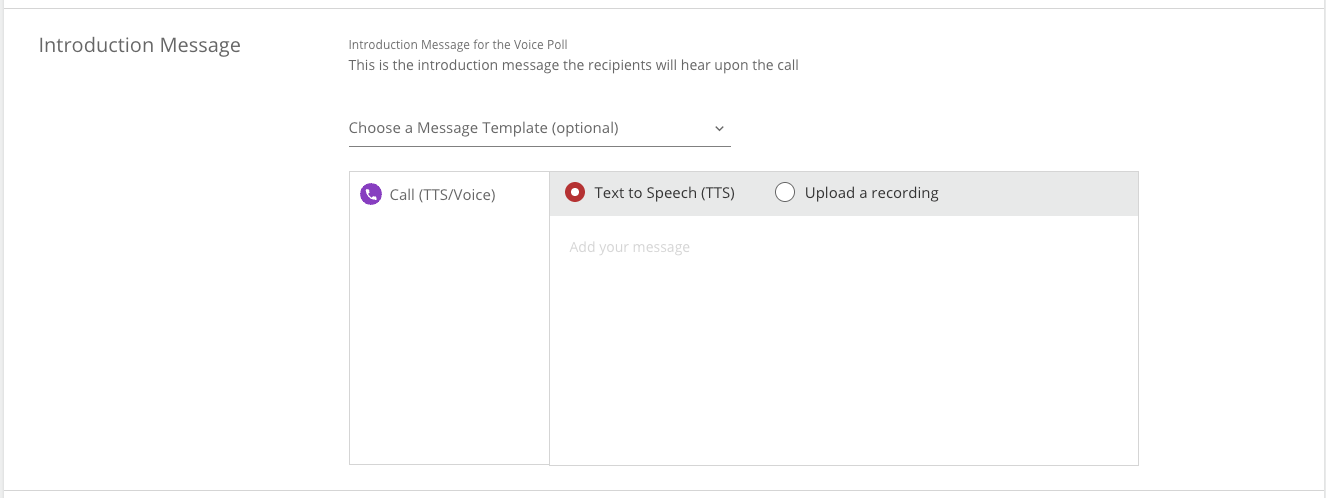
3. Enter an introduction message to play before your poll questions are given or choose from an existing template. See the topic Create Voice Poll Templates to create a new template.
Text to Speech (TTS): create written message content to be converted to a voice call.
Upload a Recording: upload a voice clip to play on a call. Click Recording Settings to record or upload a clip.
To learn more about uploading voice recordings, see step 3 of the topic Create Voice Recordings.
4. Enter the poll questions in the text field of the Poll section.
In the Response section, you can enable recipients to enter their responses in two ways:
Recording: If you click this radio button, recipients can record their voice response after the beep tone. The recipient can record their voice, listen to it, re-record it if required, and press # to finalize the recording.
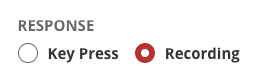
Key Press: If you click this radio button, recipients can register their responses by pressing the assigned keys.
You can assign a response to each key entry as follows:
Click the Key dropdown to select which key the recipients must click to register their response.
Click the Response dropdown to select what response corresponds to the selected key.
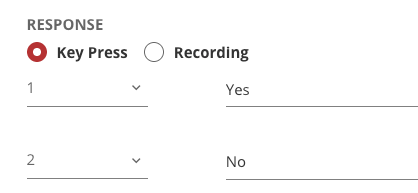
5. Click Proceed to next question dropdown to determine what the system should do when it receives a response. Proceed to next question or End the poll
6. Click Add Another Question to create new questions and responses.
7. When all questions have been created, enter a Conclusion Message.
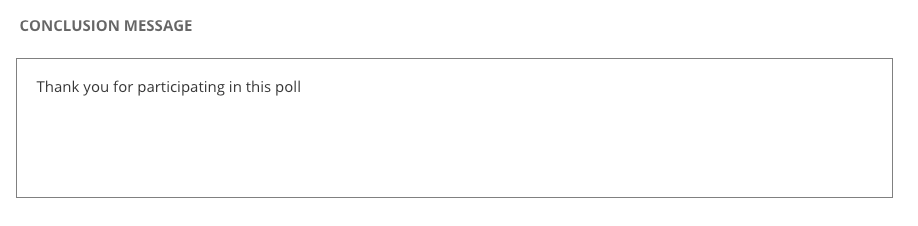
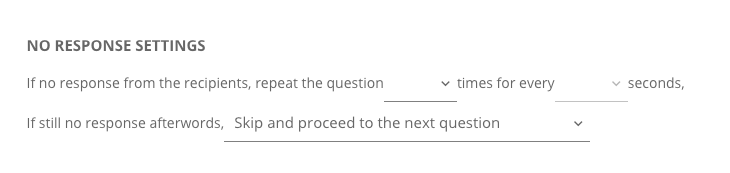
8. In the No Response Settings, you can configure what the system should do when there is no response from the recipient:
- Select the numbers dropdown to select the number of times the question must repeat in a specific interval.
- Select the time dropdown to select the time frame for the question to be repeated. See the following image:
- Select the final dropdown to determine what the system should do when the recipient does not respond even after the repetition:
9. If required, click Save as Voice Poll Template to save all voice poll settings for later use. The template saves the following details.
- Voice Poll Title
- Introduction Message
- Poll questions and response options
- No Response Settings
10. Schedule for later to select a date and time to send the voice poll.
11. Send test to myself to send the voice poll to all delivery methods provided in your associated contact profile.
12. Click Send Now to send the voice poll.