
A message template is the pre-saved message content. You can choose a message template and add recipients and delivery methods to send messages quickly to groups, channels or contacts.
Here is how you create a message template:
-
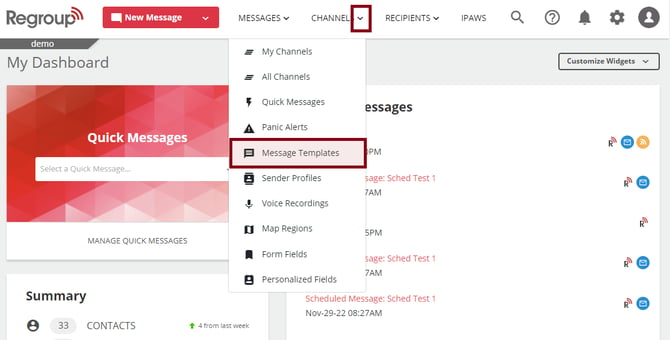
Click Channels dropdown and select Message Templates. See the following image:
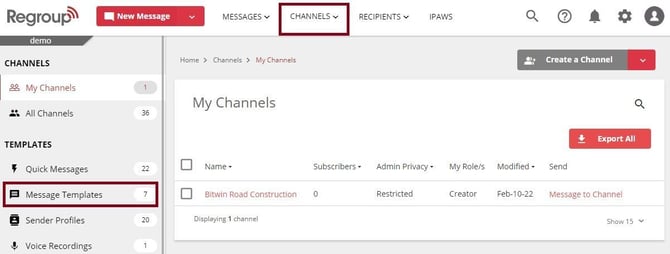
Otherwise, you can click Messages Templates under the Templates section on the left navigation pane of the channels tab. See the following image:
-
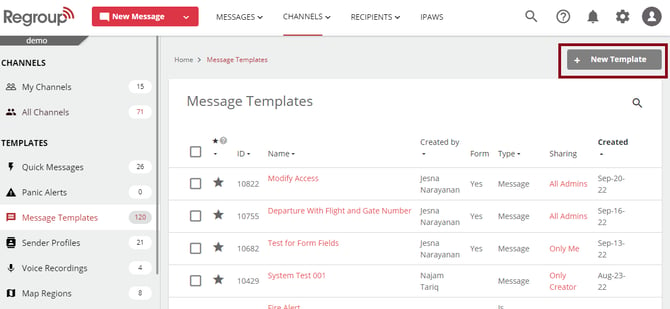
Click New Template button. See the following image:
The New Message Template page opens. All delivery methods are preselected in the Compose Message field. You can create the required content for all methods.
-
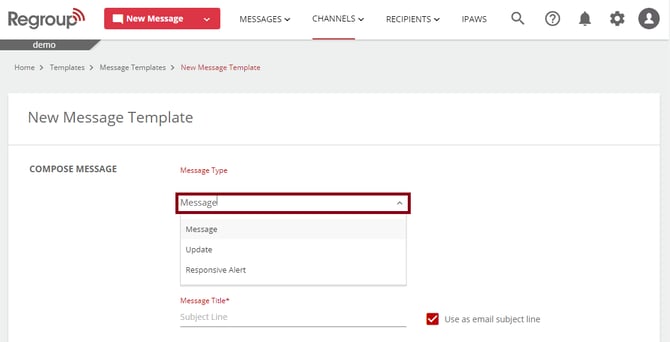
Click the Message Type dropdown and select the required message type:
-
Message: Message content that you can send as Ah-Hoc and Channel messages.
-
Update: Message content you can use specifically for message updates.
-
Responsive Alert Templates: Message content and poll responses that you use to alert recipients to receive their responses. See Manage Responsive Alerts.
See the following image:
-
-
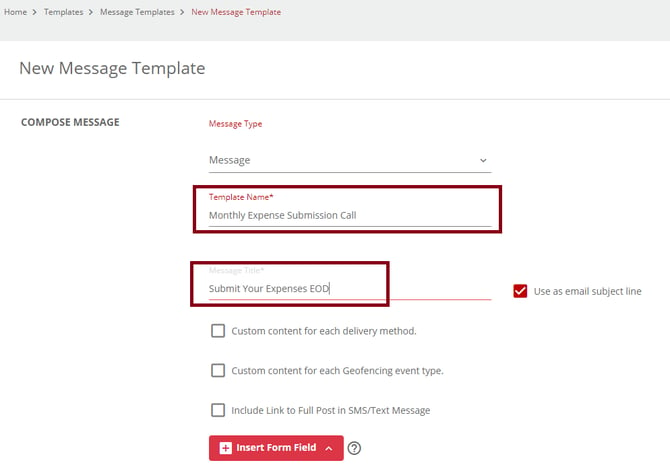
Enter a name in the Template Name field. Choose the name that allows users to recognize the specialty of the template.
-
Enter the message heading in the Message Title field. For updates, you cannot add a message title.
See the following image:
-
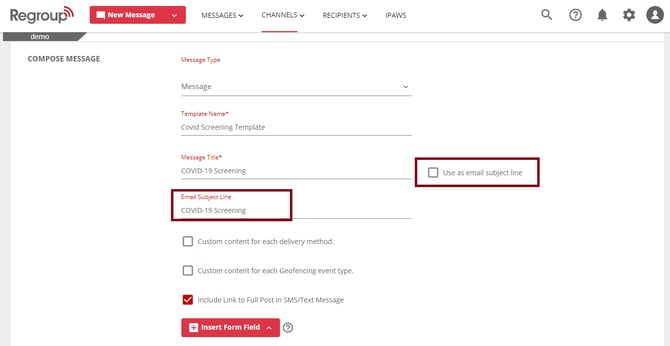
The Use as email subject line checkbox, enabled by default, allows using the message title as the email subject line. If disabled, enter an Email Subject Line. See the following image:
-
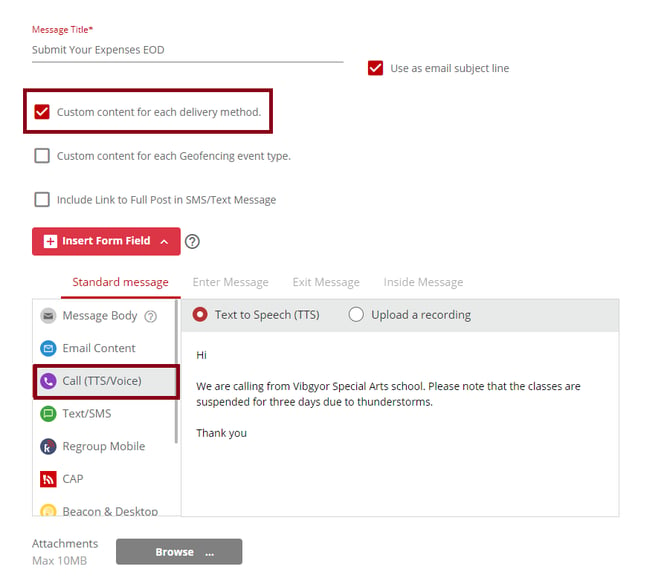
Click to enable the Custom content for each delivery method check-box to enter separate content per delivery method.
If Custom content is selected, click each delivery method in the message body to compose a separate message. See the following image:
-
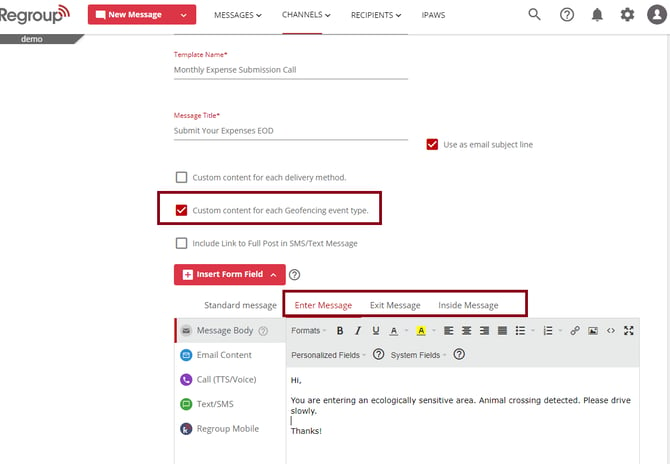
If creating this template for geofencing messaging, click the Custom content for each Geofencing event type checkbox.
You can enter the enter, exit and inside messages in the message body. See the following image:
-
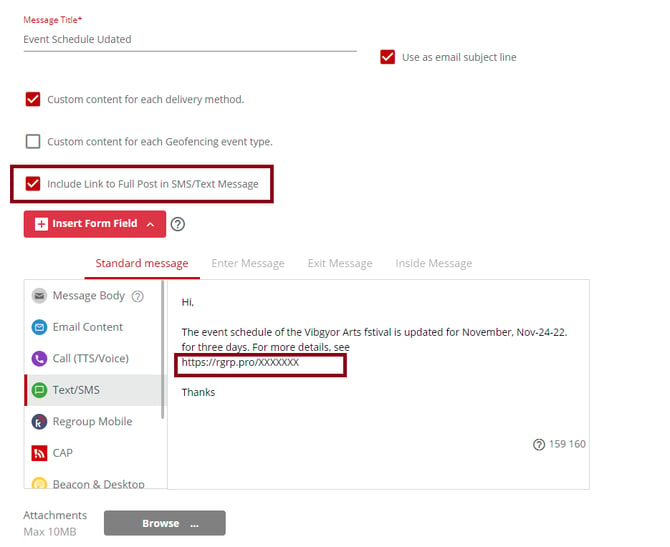
Click the Include Link to Full Post in SMS/text Message to share a URL to the entire message in the SMS text. See the following image:
-
With the delivery method Call (TTS/Voice), you can send text-to-speech messages or upload or record a voice clip. See the topic: Send Calls (TTS/Voice) with Text, Voice Files, or Attachments.
-
Click Browse and upload a file as an attachment.
-
To share the template with other admins and groups, select any of the following:
-
Only Me: Do not share with anyone.
-
All Admins: Share with all the admins in your organization. Allow them to Read, Modify or Delete the quick message.
Tip: With the Modify permission, admins can edit the template; however, if it is locked, they cannot edit it on the New Message page.
-
Select Groups or Channels or Individual Admins: Share with admins of your choice.
Click Add a Group, Add a Channel or Add an Admin fields to find and provide access permissions.
-
-
Click Lock the template checkbox to prevent admins from editing the template when creating and sending the message. See the following image:
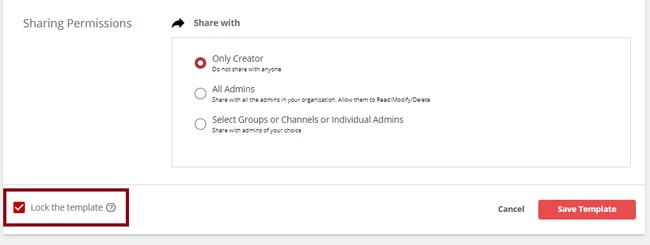
Note: Even if an admin has the Modify permission with a template, they cannot edit it on the New Message page if it is locked.
-
Click Save Template.