
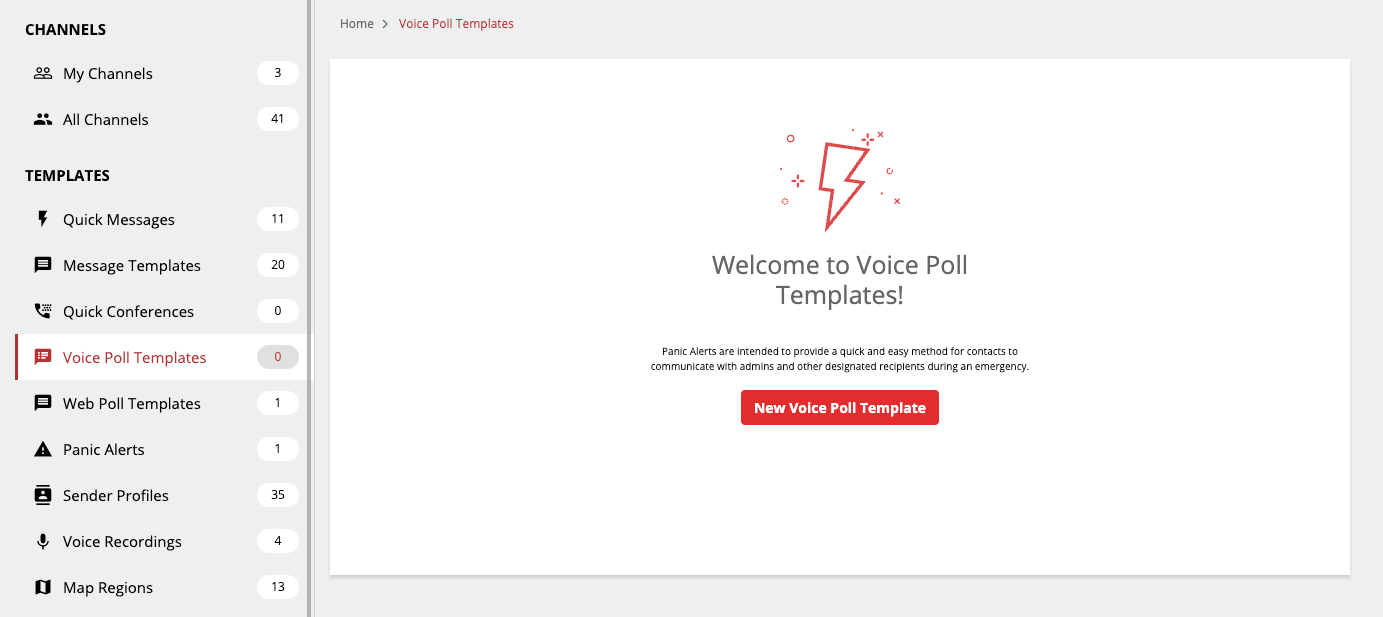
You create a new voice poll template from the Channels drop-down > Voice Poll Templates. You can also save the voice polls you create in the Create Voice Poll page right before you send it by clicking the Save as Voice Poll Template checkbox.
-
Click Channels dropdown and select Voice Poll Templates.
-
Click the New Voice Poll Template button.
-
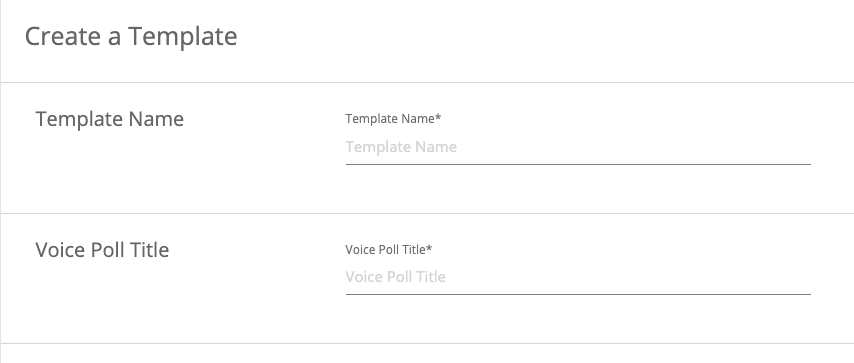
Enter Template Name field. and Voice Poll Title field. The template name identifies the template and the poll title is related to the specific message report.
-
Enter the Introduction Message, Poll -Questions and Responses, and No Response Settings.
To know more about each of these fields, see the Send Voice Poll Messages topic.
-
In the Sharing Permissions section, select who can access, modify and delete this template. The following are the options:
-
Only Creator: Do not share with anyone. Only the creator of the template can use this.
-
All Admins: Share this with all admins in the organization. Click the following to allow admins in the organization to:
-
Modify: make changes to the voice poll template.
-
Delete: Delete the voice poll template.
-
-
Select Groups or Channels or Individual Admins: Group or channel admins of the selected group and channel can access it. You can also add the mail address of individual admin to allow access.
-
-
Click Create Voice Poll Template to create the template.