
You create a GeoJSON file to upload a map region to Regroup. Follow these rules while creating the GeoJSON file:
-
Each GeoJSONLayer will only accept one geometry type. If there are multiple types of geometries, only the type specified in geometryType will be loaded. If geometryType is not specified, it will default to the geometry type of the first geometry.
-
Each GeoJSONLayer will only accept one schema of the properties. The fields property can be used to specify the desired fields for the layer. If fields are not defined, the schema used by the first feature will be used to deduce the field’s schema for the layer.
-
GeometryCollection is not supported.
-
Using Object as the attribute value for GeoJSON features is not supported.
-
Geometries that cross the Antimeridian line are not currently supported.
-
There are three formats for lat lng:
-
Decimal degrees (DD): 41.40338, 2.17403
-
Degrees, minutes, and seconds (DMS): 41°24'12.2"N 2°10'26.5"E
-
Degrees and decimal minutes (DMM): 41 24.2028, 2 10.4418
-
Note: We support only DD only.
Here is how you create a GeoJSON file:
-
We recommend you use the following GeoJSON converter https://mygeodata.cloud/converter/
-
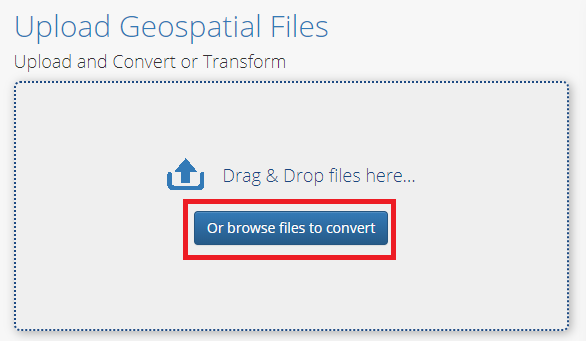
Click Browse files to convert and choose the zip file.
-
Now click Add Files, and choose your zip file.
The selected file gets uploaded to the application.
-
Press Continue to import the input data.
The selected Input data appears on the left side of the screen.
-
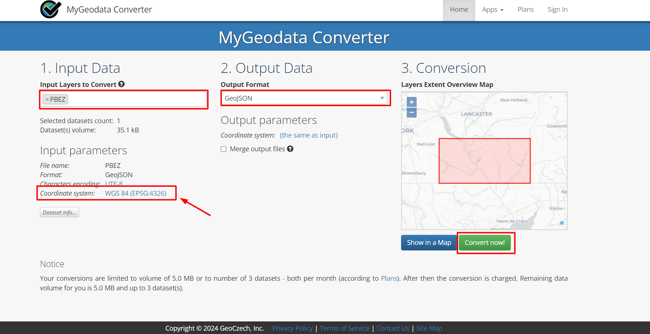
in the Output Data section, choose GEOJSON. See the following image:
-
In the Input Data section, select WGS 84 (EPSG:4326) as the Coordinate System.
Note: The Coordinate System in the Input Data MUST be WGS 84 (EPSG:4326)
-
Click Convert Now at the bottom right.
You can now download the converted data in GEOJSON format.
To upload the GeoJSON file to Regroup, follow the procedure: Set Up a Map Region or Location.