
After you schedule a message, you can edit the message content and its schedule settings. You can edit a canceled message and rename it if required.
Here is how you edit a message after it is scheduled:
-
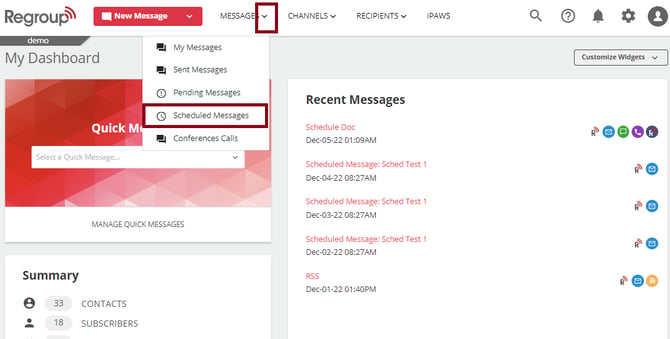
Click the Messages dropdown and select Scheduled Messages. See the following image:
-
You can also click the Messages tab and click the Scheduled Messages on the left navigation panel. See the following image:
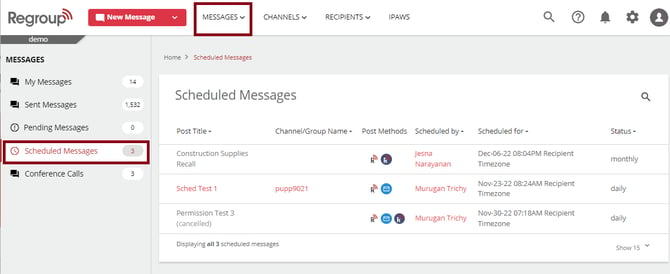
You can view all the scheduled messages with the scheduled date, time and recurrence status.
-
Search and locate the message you want to edit.
-
Click the vertical ellipsis corresponding to the message and click Edit. See the following image:
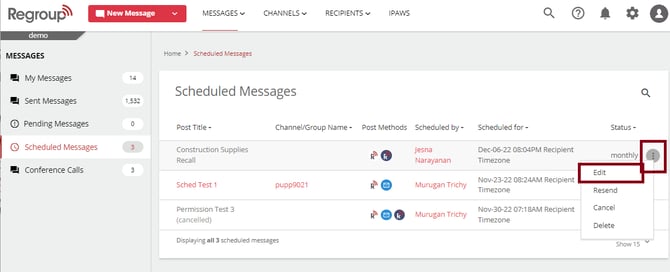
The Edit Message page opens.
Tip: You can edit a canceled message and resend it if required.
-
You can click the Email Subject Line to update the subject
-
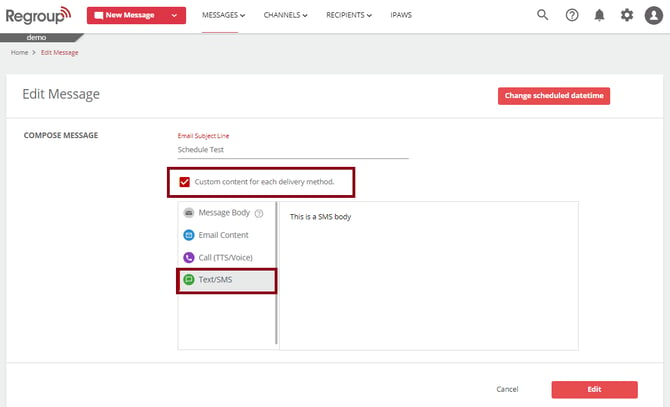
Click the Custom content for each delivery method checkbox to update the message content of each delivery method.
See the following image:
-
To change the scheduled date and time, click Change Scheduled Date Time button. See the following image:
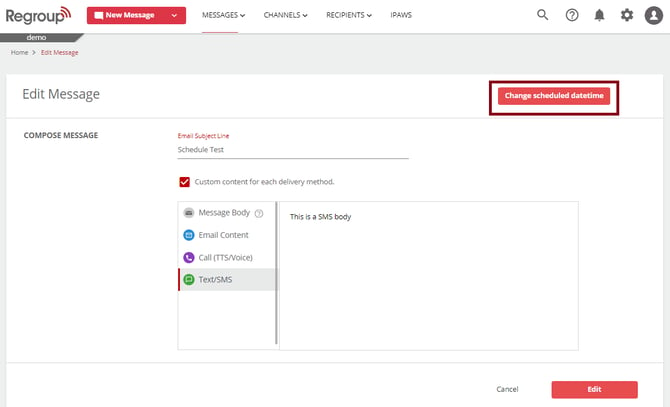
The Schedule message for later page opens. To know more about scheduling, see the topic Schedule the Message.
-
Click Edit to save your changes.