
You can now export the sent messages of a group from the Sent Message page of each group. The group admins can download the CSV of the group’s sent messages from the group itself. The channel admins can download the CSV of the channel’s sent messages from the channel itself.
Tip: The procedure explains how to download a channel's sent messages. The same steps apply to groups as well. Instead of opening the required channel, you should open the required Group. After opening the required group, perform the following task, step 4 onwards.
Here is how you export all the messages you send from a group or channel:
-
Click the Channels tab. See the following image:
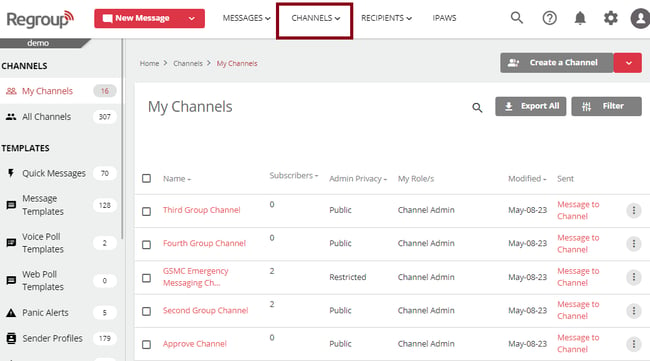
The My Channels page opens.
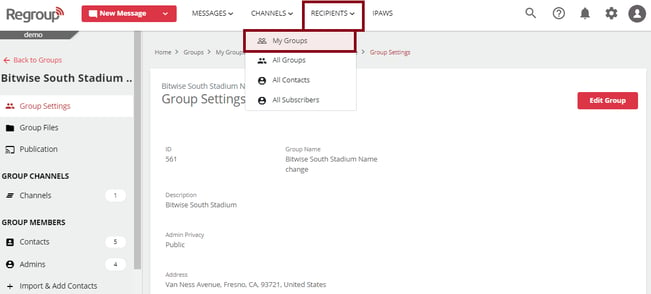
To open groups, click My Group under the Recipients tab. See the following image:
-
Search and locate the channel to download all sent messages (click the search icon, enter the channel name, and click enter on your keyboard).
See the following image:
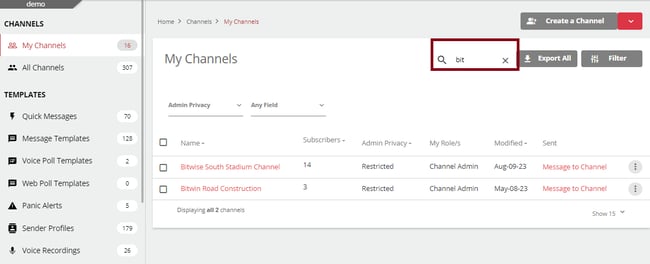
The organization admins can download sent messages from channels on the All Channels tab too.
-
Click the channel name to open it.
The General Settings page opens.
-
Scroll the left navigation panel to the bottom and locate the Messages section
-
Click Sent Messages. See the following image:
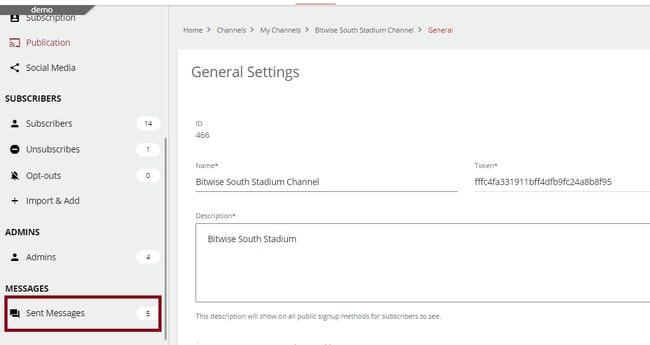
The Sent Messages page opens.
-
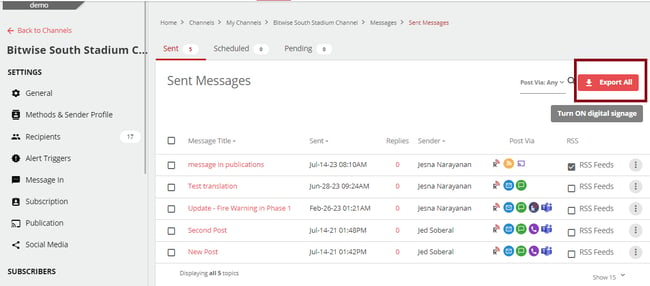
Click Export All.
See the following image:
-
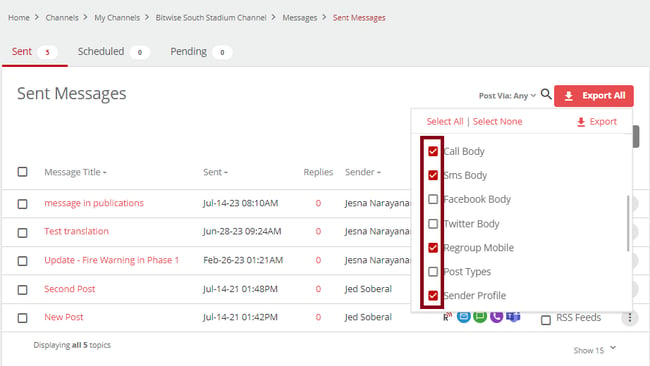
Click the checkboxes corresponding to each attribute to select what information of the message you want to export.
See the following image:
-
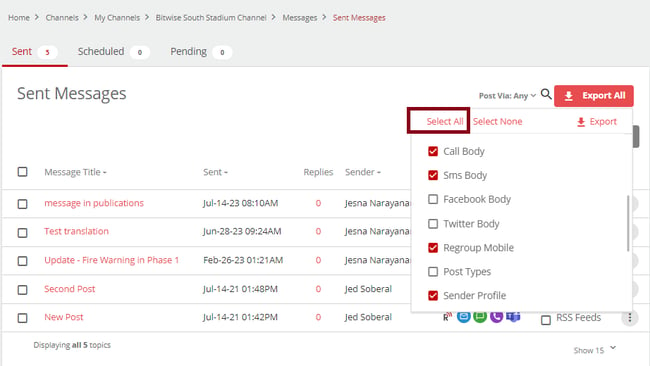
Click Select All to export all message attributes into a CSV. See the following image:
-
Click Export. See the following image:
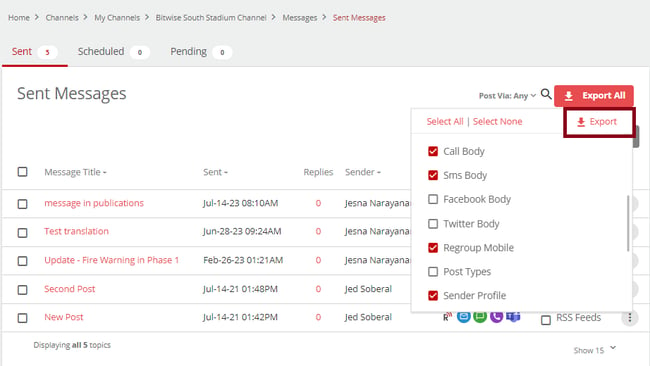
The CSV with selected message attributes gets downloaded to your computer.
-
Click Save to save the file to your local system.