
To use WhatsApp as a delivery method in Regroup, you need to generate a WhatsApp Token and a WhatsApp Phone Number ID from your Meta Business portfolio and then provide those credentials within Regroup. These credentials allow Regroup to securely connect to your WhatsApp Business account and send alert notifications.
To generate WhatsApp token and WhatsApp phone number ID, you need to perform the following activities sequentially:
Before proceeding, ensure that the following are already configured on your Meta business portfolio:
-
WhatsApp Business App
-
WhatsApp Business Phone Number
Access Meta Business Portfolio
Follow the steps to access your Meta business portfolio:
-
Navigate to business.facebook.com to access Meta Business Suite.
-
Log into the Meta Business Suite using your credentials.
-
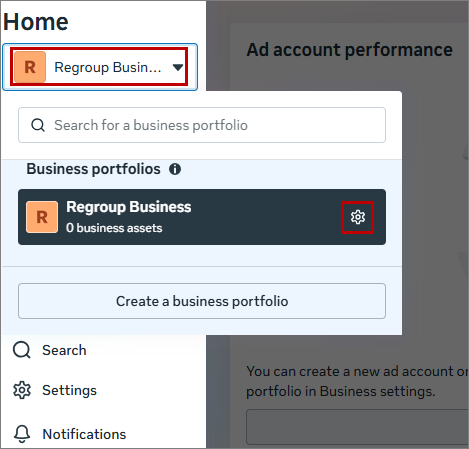
In the Left navigation pane, click the Business portfolio.
The list of your created business portfolios displays.
-
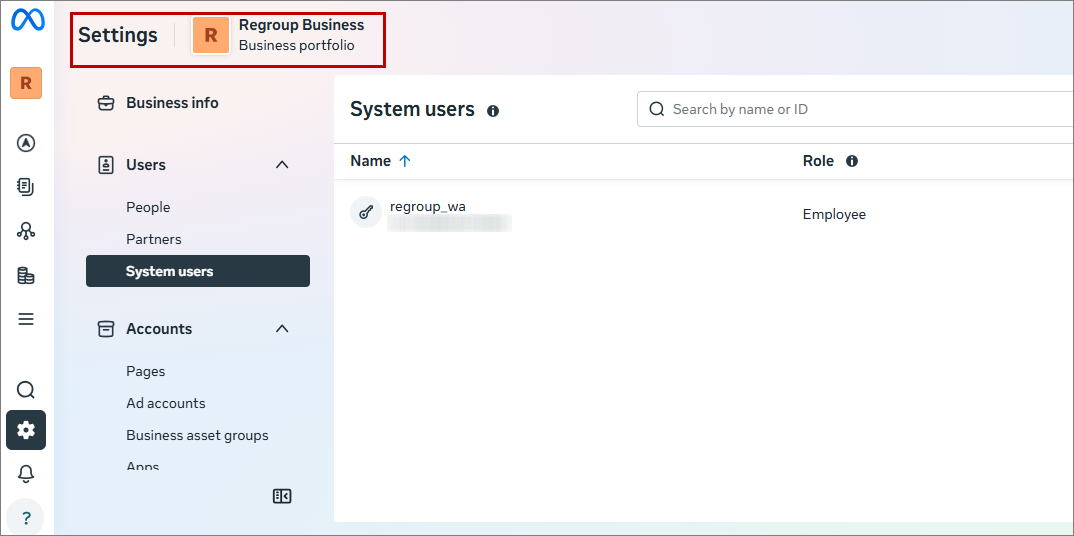
Click the Settings icon for the portfolio that has a WhatsApp Business app and WhatsApp Business phone number configured.
You are navigated to the Settings page of the Business Portfolio.
Next, you have to create a system user. See the Create a System User topic for additional information.
Create a System User
Follow the steps to create a system user:
Note: You can skip this process if a system user is already available within your Business portfolio.
-
Select your Business Portfolio and access its Settings.
-
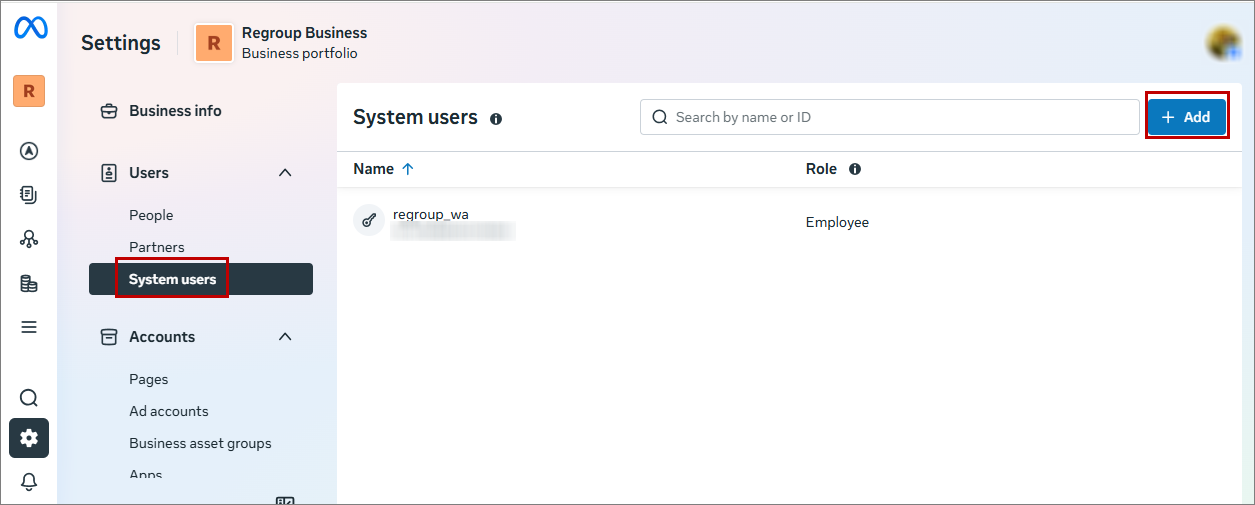
On the Settings page, click System users.
-
Click the +Add button to create a new system user.
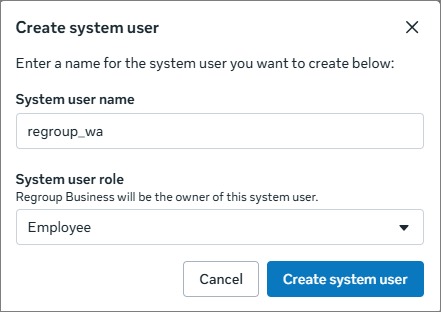
The Create system user dialog displays.
-
In the Create system user dialog, specify the following:
-
System user name: Specify a system user name.
-
System user role: Select Employee as a system user role.
-
-
Click the Create system user button.
The system user has been created.
Next, you have to assign a WhatsApp Business App to the system user. See the Assign App to System User topic for additional information.
Assign App to System User
Follow the steps to assign a WhatsApp Business app to a system user:
-
Select your Business Portfolio and access its Settings.
-
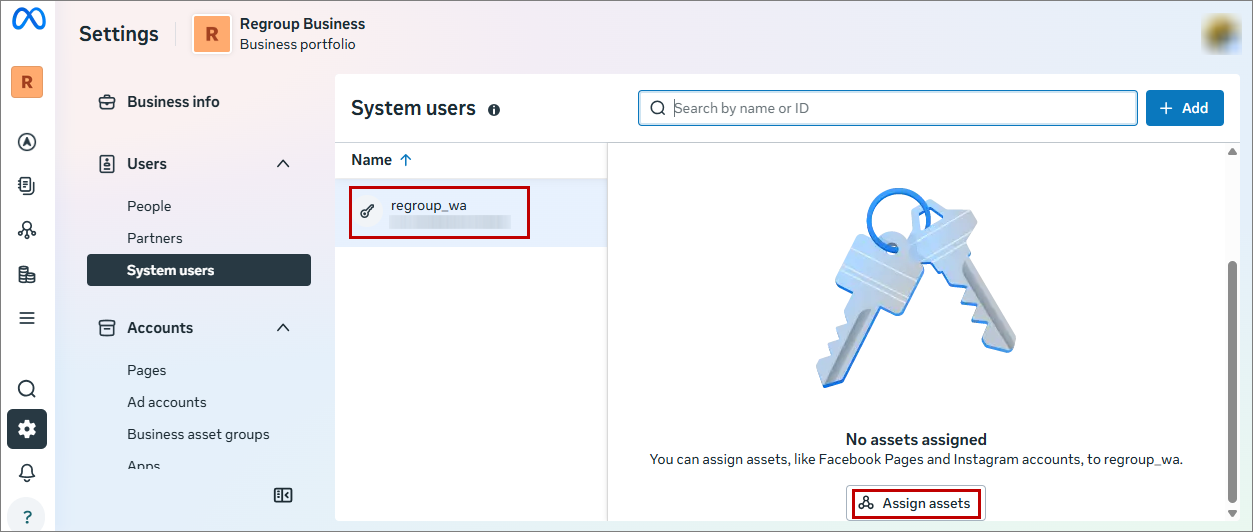
On the Settings page, click System users.
The System Users page displays.
-
On the System users page, select the required system user, then click the Assign Assets button.
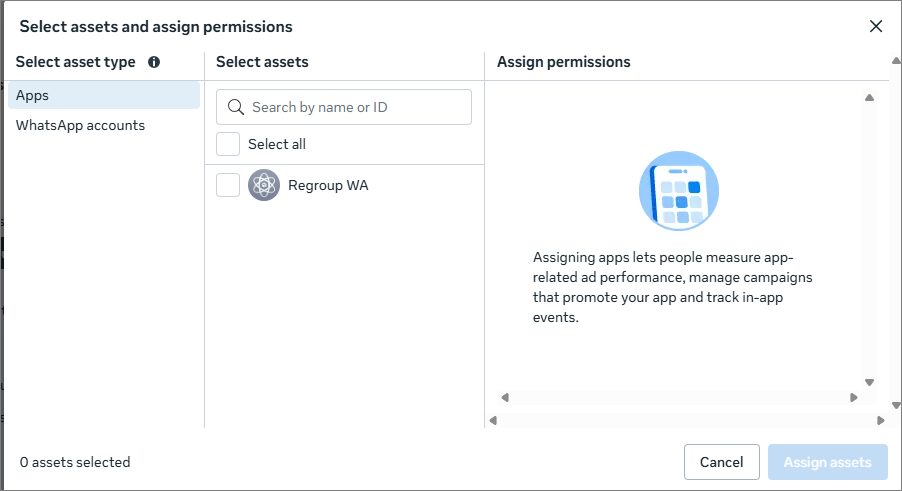
The Select assets and assign permissions dialog displays.
-
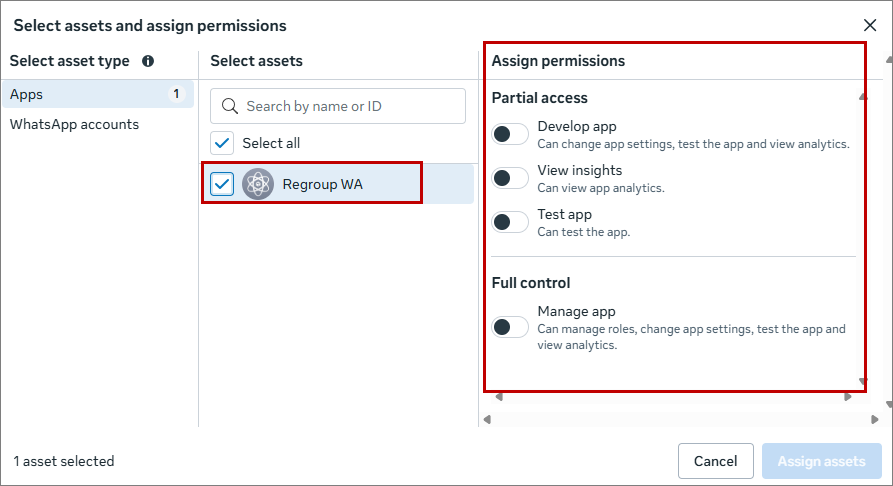
In the Select assets and assign permissions dialog, under Select assets, choose the app you configured for WhatsApp.
The Assign permissions section displays the app permissions that can be assigned to the system user.
-
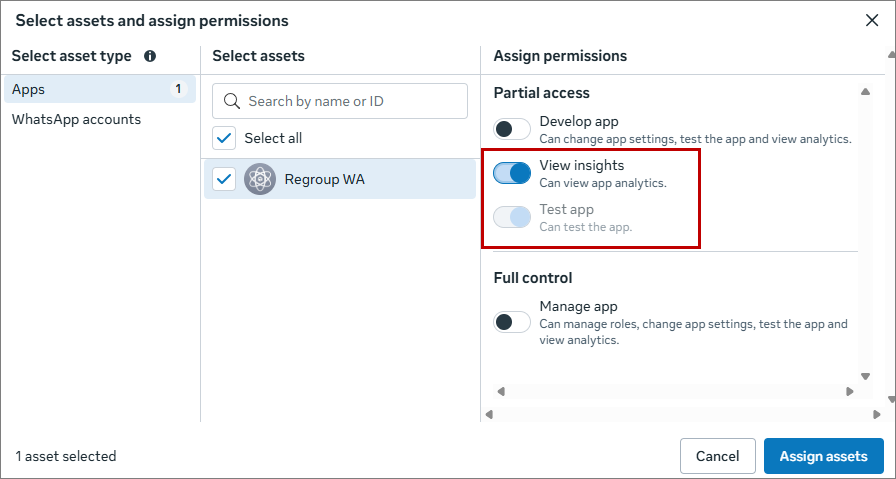
In the Assign permissions section, enable the following app permissions to assign them to the system user:
-
View Insights
-
Test App
-
-
Click the Assign assets button.
The selected app permissions have been assigned to the system user.
Next, you have to assign the WhatsApp Business account to the system user. See the Assign WhatsApp Business Account to System User topic for addition information.
Assign WhatsApp Business Account to System User
Follow these steps to assign the configured WhatsApp Business account from your Business Portfolio to the system user.
-
Select your Business Portfolio and access its Settings.
-
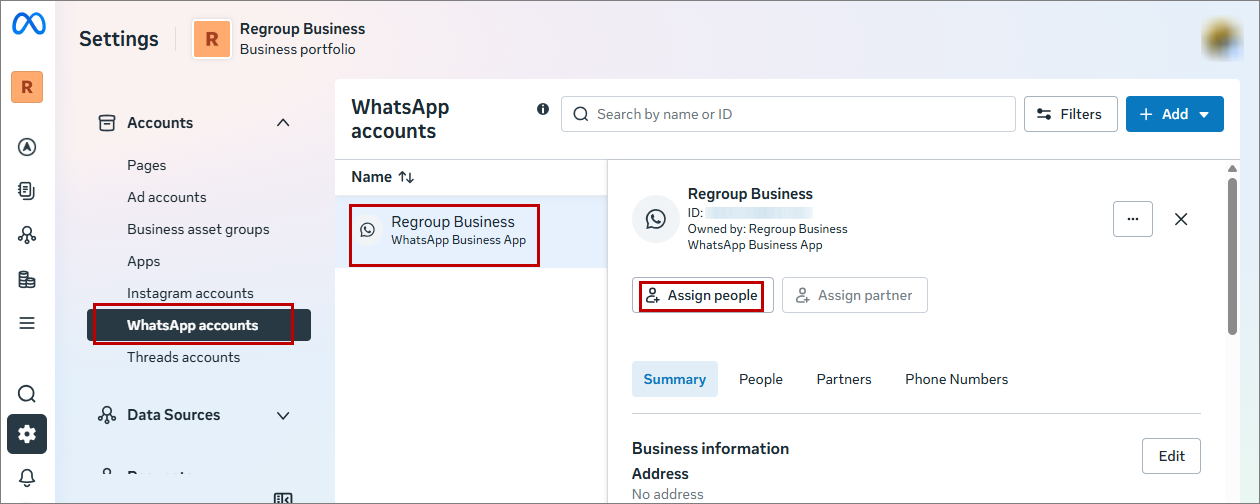
Click WhatsApp accounts under Accounts.
The Business WhatsApp account(s) associated with the business portfolio displays.
-
Select the desired Business WhatsApp account, then click Assign People for that number.
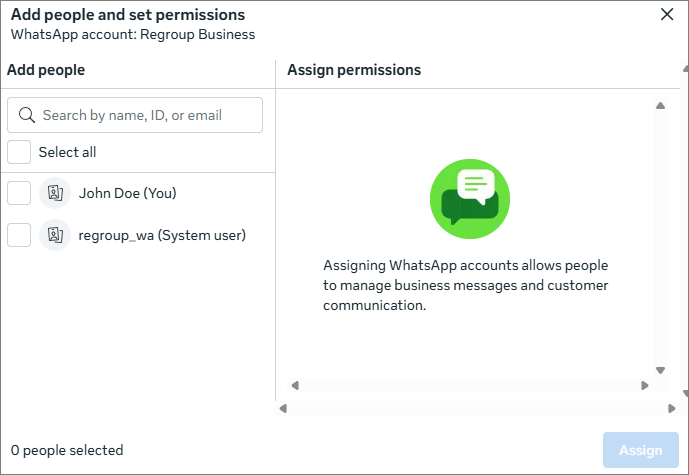
The Add People and set permissions dialog displays.
-
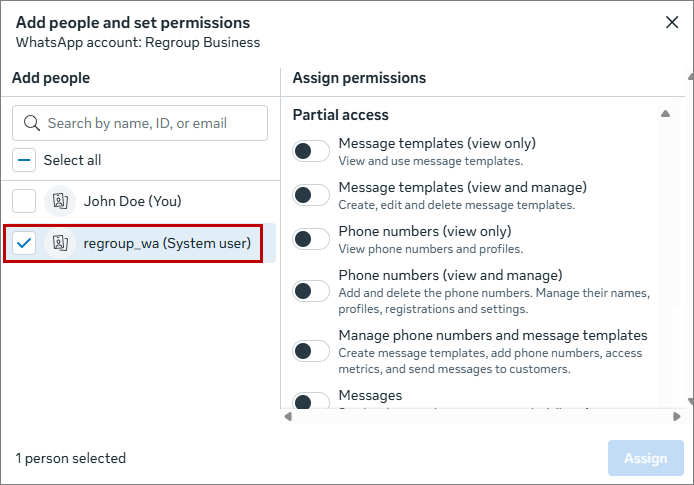
Under Add People, select the system user for which you want to generate the token.
The Assign Permissions section appears, listing the WhatsApp permissions that can be assigned to the system user.
-
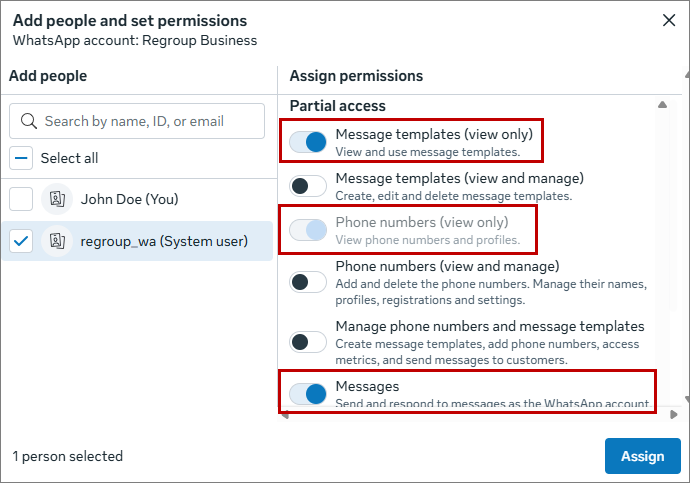
In the Assign Permissions section, enable the following permissions to assign them to the system user:
-
Manage templates (view only)
-
Phone numbers (view only)
-
Messages
-
-
After assigning the permissions, click the Assign button.
Next, you have to generate the WhatsApp token. See the Generate WhatsApp Token topic for addition information.
Generate WhatsApp Token
Follow the steps to generate the WhatsApp token:
-
Select your Business Portfolio and access its Settings.
-
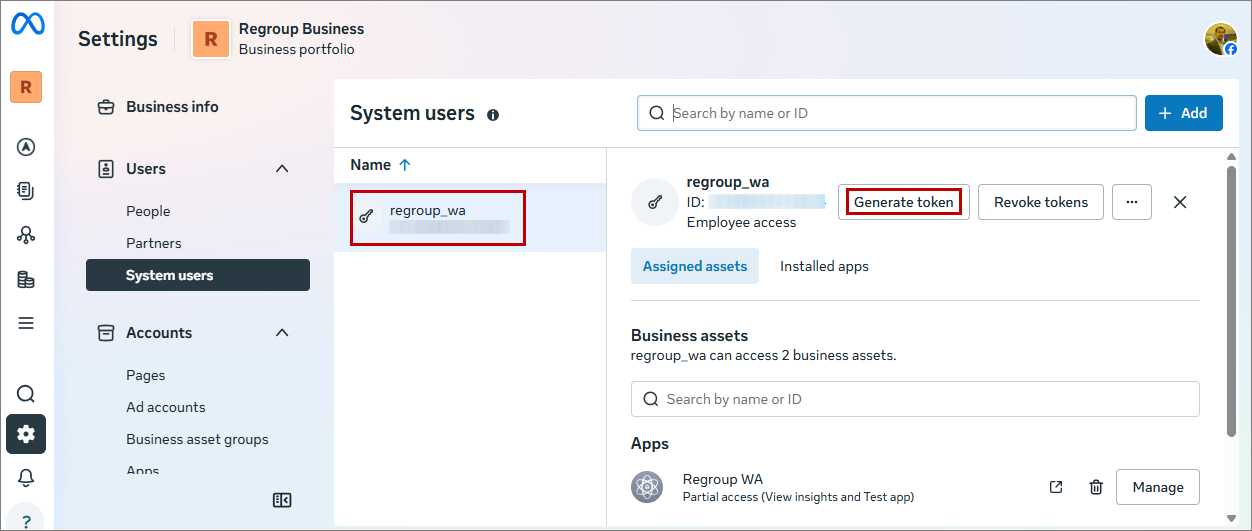
In the Settings page, click System users.
The System Users page displays.
-
On the System Users page, select the required system user for whom you want to generate a token, then click Generate Token.
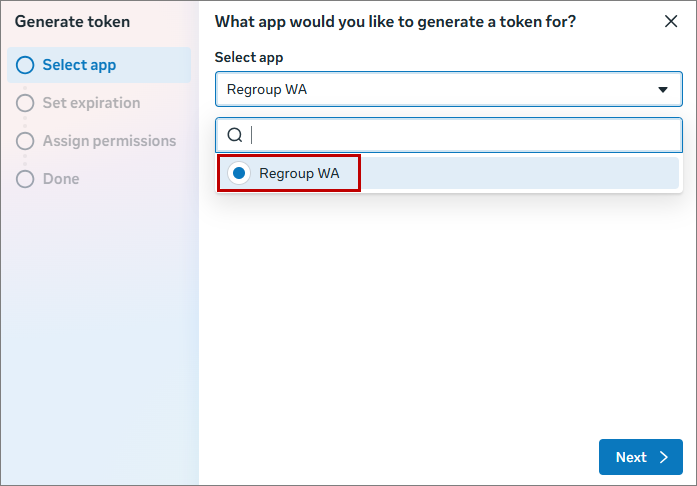
The Generate Token dialog displays.
-
Select an app from the dropdown you want to use with Regroup for WhatsApp notifications, then click Next.
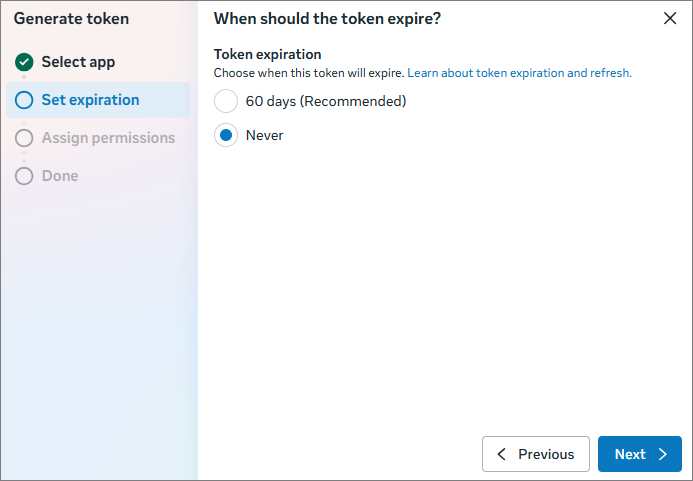
The token expiration options display.
-
Set token expiration time to Never, then click Next.
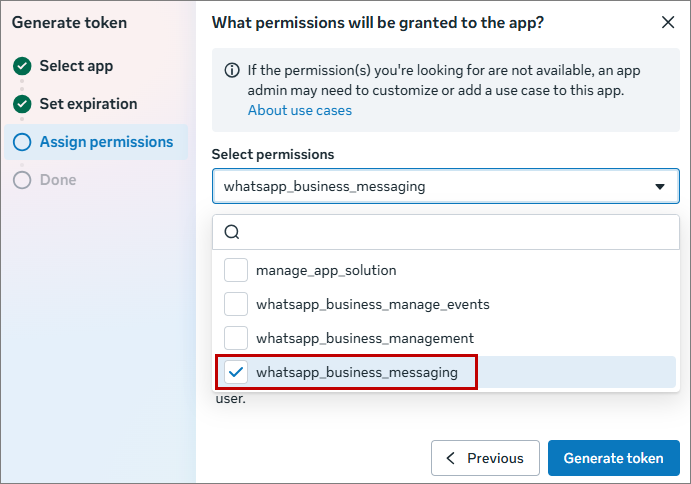
The permission selection displays.
-
From the Select Permissions dropdown, select whatsapp_business_messaging.
-
Click the Generate Token button.
The WhatsApp token is generated.
-
Copy the generated WhatsApp token and paste it in the WHATSAPP_TOKEN field in the Regroup. See the WhatsApp Messaging topic for additional information.
Next, you have to generate the WhatsApp Business Phone Number ID. See the Generate WhatsApp Business Phone Number ID topic for addition information.
Generate WhatsApp Business Phone Number ID
Follow the steps to generate the WhatsApp Business Phone Number ID:
-
Select your Business Portfolio and access its Settings.
-
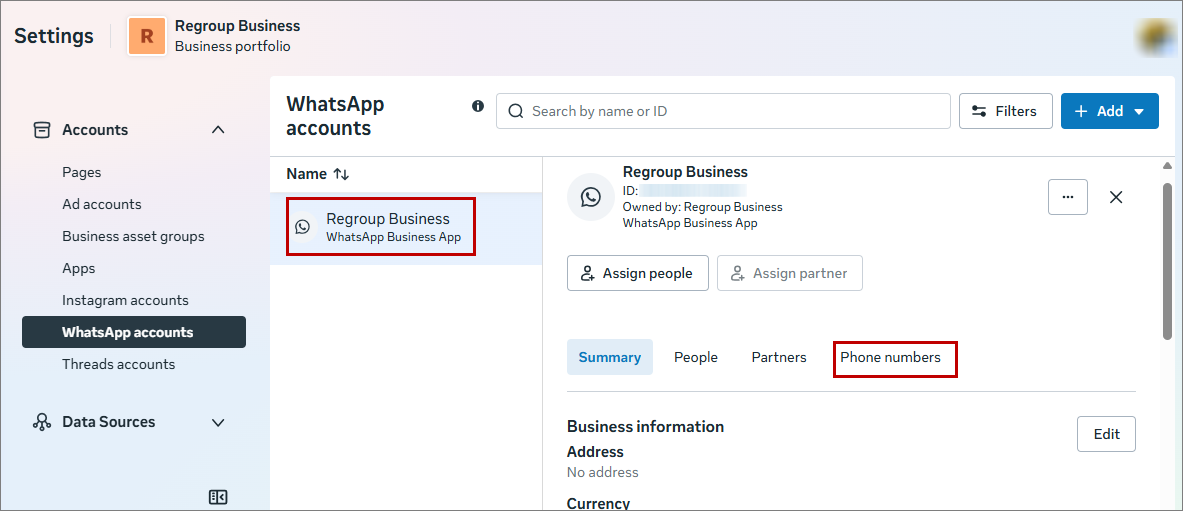
Click WhatsApp accounts under Accounts.
The Business WhatsApp account(s) associated with the business portfolio displays.
-
Select the desired Business WhatsApp account, then click the Phone numbers tab for that number.
-
In the Phone Number tab, click the phone number.
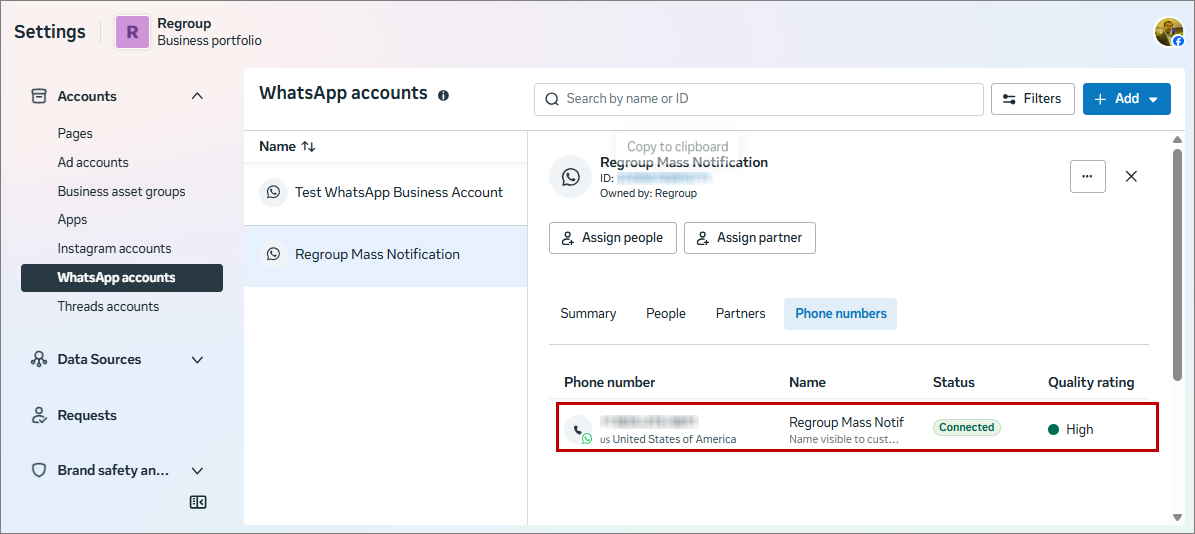
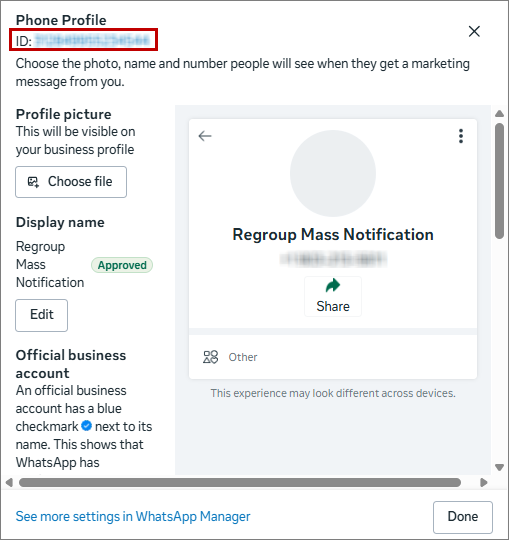
The Phone Profile pane displays.
-
In the Phone Profile pane, click the ID number.
The phone ID number is copied to the clipboard.
-
Paste the phone number ID in the WHATSAPP_PHONE_NUMBER_ID field in the Regroup. See the WhatsApp Messaging topic for additional information.