
Overview
You can integrate Microsoft Teams with any Regroup channel to automatically send messages to Teams. This is done by connecting the channel using Microsoft Teams' Incoming Webhook URLs. Once connected, messages sent through the Regroup channel will appear in the selected Teams channels. You can also set Teams as a default delivery method for easier messaging.
To push messages from Regroup into one or more Teams channels, add each channel’s Incoming Webhook URL in your Regroup channel settings.
-
Navigate to the Channels tab
-
On My Channels, locate the channel you want to integrate
-
Click the channel name to Open channel settings
-
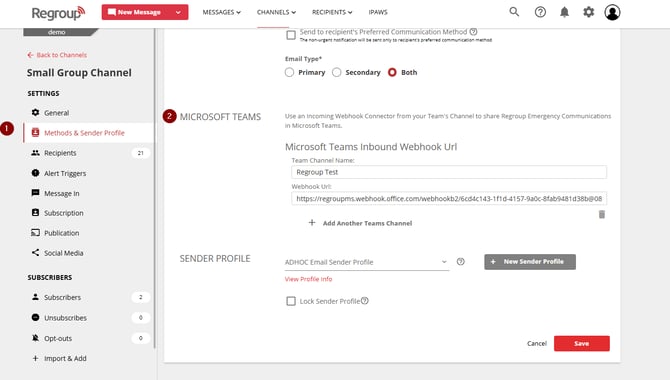
Select Methods & Sender Profile on the left navigation panel.
-
Scroll down to find the Microsoft Teams section, click + Add Another Teams Channel.
-
Enter the Microsoft Teams channel name (where you copied the Webhook URL from).
-
Paste the Webhook Connector URL in the provided field.
-
(Need the Webhook URL? See: Create an Incoming Webhook in a Microsoft Teams Channel.)
-
-
Click Add Another Teams Channel to integrate additional Teams channels if needed.
-
Set Teams as a default delivery method
-
(Optional) In the Default Message Method, check Teams to preselect it as the default delivery method for messages sent from this channel.
-
Save and test
-
Click Save to confirm the integration.
-
Send a test message to verify the connection.