
Overview
This topic describes how to create IPAWS templates and send IPAWS alerts. You can send alerts either by using a predefined IPAWS template or by manually configuring the required alert parameters.
Create an IPAWS Template
IPAWS templates allow you to preconfigure alert details required for sending IPAWS alerts, including IPAWS keys, distribution channels, geographic targeting, message content, and compliance settings. Templates help streamline alert creation and ensure consistency during time-sensitive events.
An IPAWS template can also be used when sending alerts with Regroup delivery methods. When Regroup delivery is enabled during message creation, message content is automatically populated from the IPAWS alert data defined in the template.
IPAWS templates allow you to save pre-configured alerts containing:
-
IPAWS keys
-
Delivery methods
-
Message details
-
Advanced options
You can create an IPAWS template to save an alert for quick access. An alert template includes pre-saved IPAWS keys, delivery methods, message details, and additional required options.
To create an IPAWS template:
-
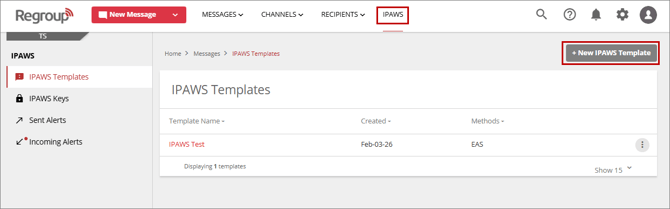
In the header menu, click IPAWS.
-
On the IPAWS Templates page, click the NEW IPAWS Template button.
-
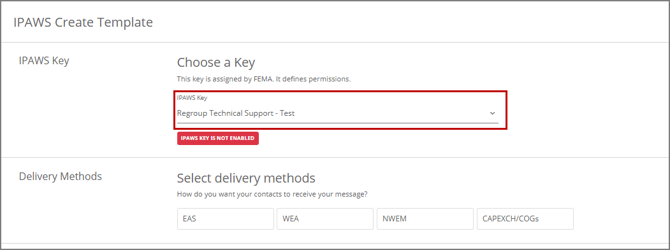
From the IPAWS key dropdown, select a key assigned by FEMA.
When a key is selected, the delivery methods are automatically populated based on the selected key.
Tip: After selecting an IPAWS key, wait a few moments for the system to populate the related fields automatically.
-
In the Delivery Methods section, click the desired delivery methods to select them for IPAWS alerts.

-
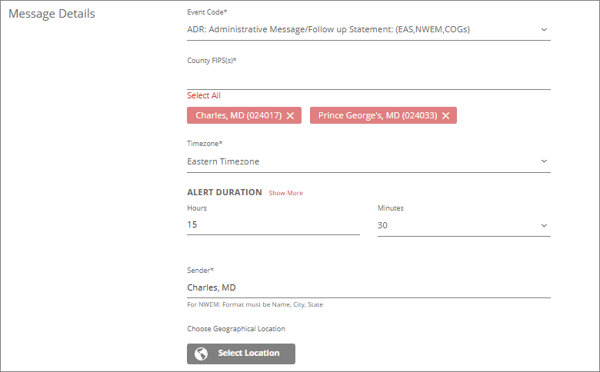
In the Message Details section, specify the following parameters:
-
Event Code: Select an event code from the dropdown. This field is mandatory.
-
COG(s): Select a COG from the dropdown. This field becomes available only when CAPEXCH/COGs is selected as the delivery method. This field is applicable to COGs delivery method only.
-
Country FIPS(s): Select FIP(s) country codes from the dropdown. You can select multiple values.
-
Timezone: Select a timezone from the dropdown. This field is mandatory.
-
Alert Duration: Defines the length of time the alert remains in effect. Specify the duration in hours and minutes to automatically calculate the alert's expiration date and time.For EAS, CMAS and HazCollect, all messages are deemed to be effective from the time they are sent to IPAWS. Although the expires element is optional per the CAP specification, it is a required element for all messages relayed to IPAWS for routing to these three systems.
For WEA alerts duration cannot exceed 24 hrs or the Alert will fail to send.
-
Alert Duration is required.
-
Alert Duration must not exceed sent time by more than 360 minutes.
-
Alert Duration must differ from sent time in exactly 15 minute intervals up to 120 minutes.
-
Alert Duration must differ from sent time in exactly 30 minute intervals between 120 and 360 minutes.
-
For EAS
-
Alert Duration is required.
-
Check that Alert Duration does not exceed sent time by 24 hours.
-
-
For WEA:
-
Alert Duration is required.
-
Check that Alert Duration does not exceed sent time by 24 hours.
-
-
-
Sender: Specify the name of the alert sender, such as your organization or county. For NWEM: Format must be Name, City, State.
-
Choose Geographical Location: Optionally, click Select Location to choose the geographic area for the alert. For details on selecting geographical location, see the Send Geofence Messages topic, starting at Step 4.
-
-
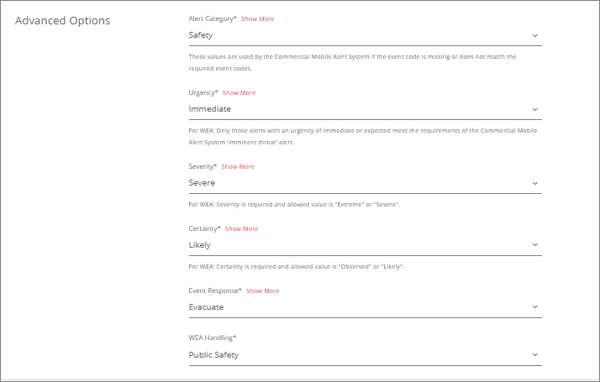
In the Advanced Options section, specify the following parameters:
-
Alert Category: Select an alert category from the dropdown list. The Alert Category is used by the Commercial Mobile Alert System if the event code is missing or does not match the required event codes.
The available alert categories are:
-
Safety: General emergency and public safety
-
Geo: Geophysical (including landslides)
-
Met: Meteorological (including floods)
-
Security: Law enforcement, military, homeland and local/private security
-
Rescue: Rescue and recovery
-
Fire: Fire suppression and rescue
-
Health: Medical and public health
-
Env: Pollution and other environmental
-
Transport: Public and private transportation
-
Infra: Utility, telecommunication, other non-transport infrastructure
-
CBRNE: Chemical, Biological, Radiological, Nuclear or High-Yield Explosive threat or attack
-
Other: Other events
-
-
Urgency: Indicates how quickly recipients should take protective or responsive action after receiving the alert. The available options are:
-
Immediate : Responsive action should be taken immediately.
-
Expected: Responsive action should be taken soon (within next hour).
-
Future: Responsive action should be taken in the near future.
-
Past: Responsive action is no longer required
-
Unknown: Urgency not known
Note: For WEA (Wireless Emergency Alerts), only alerts with an urgency of Immediate or Expected meet the requirements for a Commercial Mobile Alert System (CMAS) imminent threat alert.
-
-
Severity: Specifies the expected impact of the event on life and property. The available options are:
-
Extreme: Extraordinary threat to life or property.
-
Severe: Significant threat to life or property
-
Moderate: Possible threat to life or property
-
Minor: Minimal to no known threat to life or property
-
Unknown: Severity unknown
Note: For WEA, the allowed Severity values are Extreme or Severe.
-
-
Certainty: Specifies the likelihood that the event is expected to occur. The available options are:
-
Observed: Determined to have occurred or to be ongoing.
-
Likely: Probability is greater than or equal to 50%.
-
Possible: Probability is less than 50%.
-
Unlikely: Not expected to occur.
-
Unknown: Certainty unknown.
-
Unknown: Severity unknown
Note: For WEA, the allowed Certainty values are Observed or Likely.
-
-
Event Response: Specifies the recommended protective action that recipients should take in response to the alert. The available options are:
-
Shelter: Take shelter in place or per instruction.
-
Evacuate: Relocate as instructed in the instruction
-
Prepare: Make preparations per the instruction
-
Executive: Execute a pre-planned activity identified in instruction
-
Avoid: Avoid the subject event as per the instruction
-
Monitor: Attend to information sources as described in instruction only
-
Unknown: Severity unknown
Note: For non-WEA alerts, all Event Response values are supported. For WEA alerts, “Shelter”, “Evacuate”, “Prepare”, “Execute”, “Avoid”, and “Monitor” are supported.
-
-
WEA Handling: Specifies how the alert is categorized and delivered through the Wireless Emergency Alerts (WEA) system. This field is applicable to WEA delivery method only. Select from one of the following options:
-
Imminent Threat: Alerts for urgent threats to life or property that require immediate attention and action.
-
Public Safety: Alerts that provide important public safety information but may not require immediate action.
-
AMBER: Alerts related to child abduction emergencies issued through the AMBER Alert program.
-
WEA Test: Test alerts used to verify the functionality of the WEA system and alerting processes.
-
-
-
In the Compose message section, specify the following parameters:
-
WEA Short Text (English): Enter the WEA message in English. This text is sent as the alert message displayed on compatible mobile devices and is limited to a maximum of 90 characters. This field is applicable to WEA alerts only and it is optional.
-
WEA Long Text (English): Enter the extended WEA message in English. This field supports up to 360 characters and can be used to provide additional details beyond the WEA Short Text. If a WEA Long Text is not provided, the system automatically uses the content from the WEA Short Text field as the long text included with the alert. This field is applicable to WEA alerts only and it is optional.
-
Headline: Enter a brief, human-readable title that summarizes the alert. The headline is displayed to recipients and helps them quickly understand the nature of the emergency or notification. This field supports up to 160 characters, including spaces.
Internet services may use the headline value to populate SMS text, intended for subscriber-based, non-CMAS mobile systems, in which case the number of characters may be limited to 140.
-
Description: Enter a detailed description of the emergency, hazard, or event that prompted the alert. This field should provide recipients with important contextual information, including what has occurred, who is affected, when the event is taking place, and where it is occurring. This field is required when “EAS/NWEM” are selected as delivery methods and optional for “WEA/CMAS” alerts.
This value is not used by the Commercial Mobile Alert System, but should be used for all alerts routed to the Emergency Alert System and HazCollect.
-
Instructions: Enter the recommended actions recipients should take in response to the alert. This value is not used by the Commercial Mobile Alert System, but should be used for all alerts routed to the Emergency Alert System and HazCollect. This field is optional.
Broadcast EAS messages are limited by FCC rules to two minutes. For HazCollect, the total number of words for the description and instruction combined should not exceed 160 words, and this is a good rule of thumb for all EAS messages.
-
-
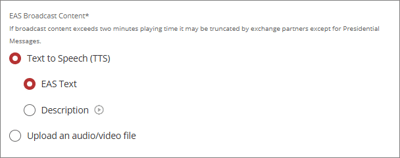
Under EAS Broadcast content, select the content source that will be used to generate the audio portion of the Emergency Alert System (EAS) broadcast. Select from one of the following options:
-
Text to Speech (TTS): Select this option to have the system automatically generate EAS audio using text-to-speech technology. When selected, you can choose which content should be converted into spoken audio for the broadcast.
-
EAS Text:
-
Description: Select this option to use the content entered in the Description field as the source for the EAS broadcast audio.
-
-
Upload an audio/video file: Select this option to upload a pre-recorded audio or video file for use in the EAS broadcast. After selecting this option, click the Browse button to upload an audio/video file.
-
-
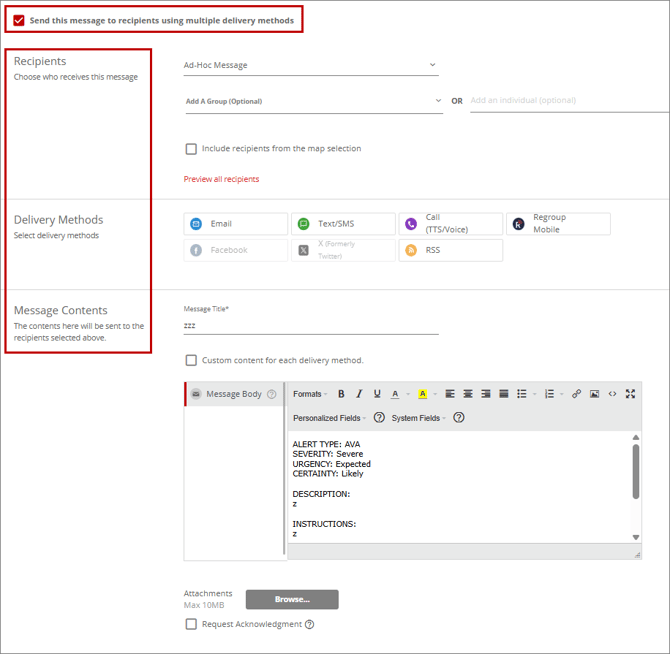
Optionally, enable Send this message to recipients using multiple delivery methods to distribute the IPAWS alert through Regroup using the configured delivery methods in addition to IPAWS delivery.
When this option is enabled, additional parameters related to the Regroup alert become available for configuration.
Note: The Send this message to recipients using multiple delivery methods option is enabled only when all mandatory IPAWS alert parameters have been configured.
-
Specify the following parameters:
-
From the Message Type dropdown list, select either Ad-hoc Message or Channel Message.
In the Recipients section, select recipient(s) using one of the following methods:
-
Add Groups
-
Add Individual(s)
See the Send New Messages topic for additional information.
-
-
In the Delivery Methods section, select one or more methods for message delivery. See the Send New Messages topic for additional information.
-
In the Message Contents section, define the message content. See the Send New Messages topic for additional information about defining the message content.
-
Optionally, enable Request Acknowledgement to request an acknowledgement from the recipient(s).
-
-
In the Template Name field, enter a name for the template.
-
Click Save Template.
The template is created. Once created, the template is available in the IPAWS Templates list and can be selected when sending an IPAWS alert.
Send an IPAWS Message
This topic explains how to send an IPAWS alert message. You can send an IPAWS alert by using a predefined IPAWS template or by manually specifying the alert parameters.
To send an IPAWS alert:
-
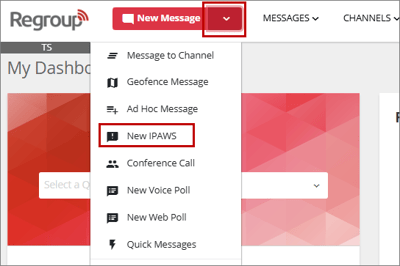
In the header menu, click the New Message dropdown, then select New IPAWS.
-
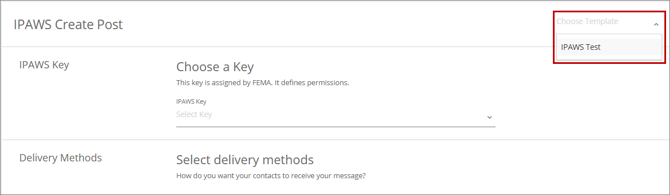
On the IPAWS Create Post page, select an IPAWS template from the Template dropdown.
or
Specify the IPAWS alert parameters manually.
-
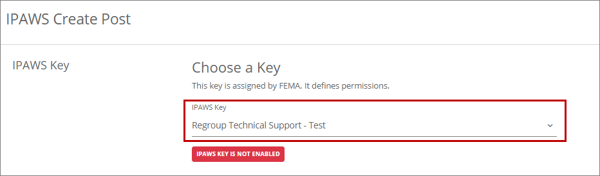
From the IPAWS key dropdown, select a key assigned by FEMA.
When a key is selected, the delivery methods are automatically populated based on the selected key.
Tip: After selecting an IPAWS key, wait a few moments for the system to populate the related fields automatically.
-
In the Delivery Methods section, click the desired delivery methods to select them for IPAWS alerts.
-
In the Message Details section, specify the following parameters:
-
Event Code
-
COG(s)
-
Country FIPS(s)
-
Timezone
-
Alert Duration
-
Sender
-
Choose Geographical Location
See the Create an IPAWS Template topic for addition information.
-
-
In the Advanced Options section, specify the following parameters:
-
Alert Category
-
Urgency
-
Severity
-
Certainty
-
Event Response
-
WEA Handling
-
-
In the Compose message section, specify the following parameters:
-
WEA Short Text (English)
-
WEA Long Text (English)
-
Headline
-
Description
-
Instructions
See the Create an IPAWS Template topic for addition information.
-
-
Under EAS Broadcast content, Select the content source that will be used to generate the audio portion of the Emergency Alert System (EAS) broadcast. See the Create an IPAWS Template topic for addition information.
-
Optionally, enable Send this message to recipients using multiple delivery methods to distribute the IPAWS alert through Regroup using the configured delivery methods in addition to IPAWS delivery.
When this option is enabled, additional parameters related to the Regroup alert become available for configuration.
-
Specify the following parameters:
-
From the Message Type dropdown list, select either Ad-hoc Message or Channel Message.
-
In the Recipients section, select recipient(s) using one of the following methods:
-
Add Groups
-
Add Individual(s)
See the Send New Messages topic for additional information.
-
-
In the Delivery Methods section, select one or more methods for message delivery. See the Send New Messages topic for additional information.
-
In the Message Contents section, define the message content for the phase. See the Send New Messages topic for additional information about defining the message content.
-
Optionally, enable Request Acknowledgement to request an acknowledgement from the recipient(s).
-
-
Optionally, select Save as an IPAWS Template.
-
Click Preview & Send.
The Preview IPAWS dialog is displayed, allowing you to review the IPAWS parameters configured for the alert. If a security code has been configured for launching IPAWS alerts, an Enter Code to Send field is shown. Enter the required code and click Send Alert to send the IPAWS alert. See the Configure a Launch Code For IPAWS Alerts topic for additional information on configuring a launch code for IPAWS alerts.