---
title: Manage and Respond to Replies
description: In the Replies tab, you can view the replies received from each recipient. You can also reply to individuals or all recipients. You can perform the...
---
[Skip to content](https://resources.regroup.com/regroupkb/docs/manage-and-respond-to-replies#main-content)
English
Show submenu for translations

Open main navigation
Close main navigation
- English
Show submenu for translations
- [Contact us](https://bit.ly/47rQCNC)
[Contact us](https://bit.ly/47rQCNC)
How can we help you?
- There are no suggestions because the search field is empty.
1. [Regroup Knowledge Base](https://resources.regroup.com/regroupkb)
2. [Manage Messages](https://resources.regroup.com/regroupkb/manage-messages)
3. [Sent Messages and Reports](https://resources.regroup.com/regroupkb/manage-messages#sent-messages-and-reports)
# Manage and Respond to Replies
In the **Replies** tab, you can view the replies received from each recipient. You can also reply to individuals or all recipients. You can perform the following in the **Replies** tab:
- Reply to an individual recipient (**step 6**).
- Configuring the **Reply Settings**. Use this to re-send failed messages using a different delivery method. (**step 7**)
- Reply to all recipients. (**step 8**)
Here is how you manage and send replies:
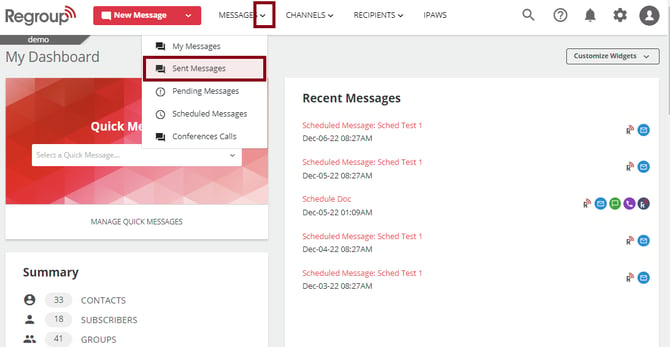
1. Click the **Messages** dropdown and select **Sent Messages**. See the following image:
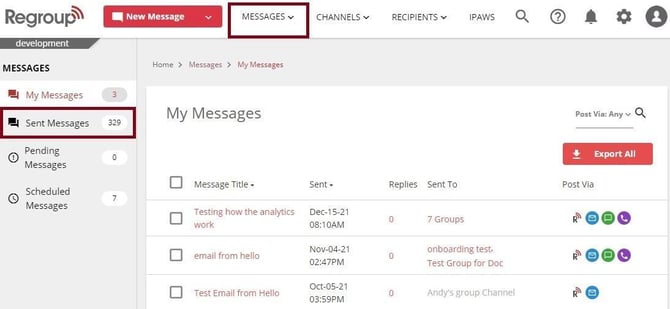
Otherwise, click the **Messages** tab and **Send Messages** on the left navigation panel. See the following image:
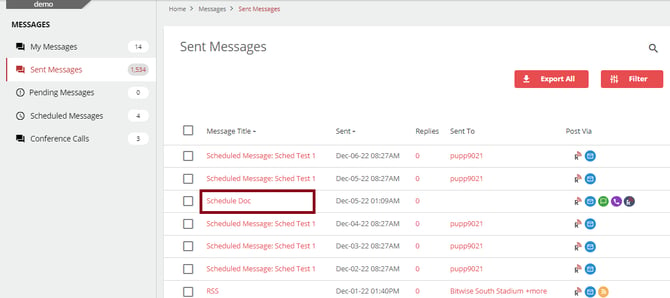
The **Sent Message** page opens with the list of messages sent from your organization.
2. Locate the required message and click its title to open the message. See the following image:
3. Click the **Replies** tab. See the following image:

4. You can click each recipient’s name to view the conversation.
5. You can search the conversations using any word in the message content or the recipient's name. See the following image:
6. To reply to a recipient:
1. Click the message from the recipient to respond.
2. Scroll to the bottom of the conversation pane on the left side.
3. Compose the message. See the following image:

4. Click **Send Message**.
You see a pop-up message confirming that your message has been sent. The sent response appears at the top of the conversation.
1. To update reply settings:
**Tip**: Use this to resend a failed message using a different delivery method.
1. Click the **Reply Settings** button. See the following image:

The Reply Settings page opens.
2. Select a delivery method from Email, SMS text and Regroup Mobile.
3. Click the **Send to recipient's Preferred Communication Method** checkbox to send all non-urgent messages to the recipient’s chosen delivery method. See the following image:

4. Click **Use Predefined Sender Profile** button to select a predefined sender profile**.**
5. Or, click **Define Custom Sender Profile** button to create a new sender profile.
6. Click and select one from the **FROM** section to determine what appears as the message's sender.
7. Enable or disable the SMS prefix. If enabled, enter the SMS prefix.
8. Click **Save Changes**.
You can now click the **Send Message** option to send the reply with the updated reply setting.
2. To reply to a set of recipients at a time:
1. Click **Compose Reply** button. See the following image:

The Compose Bulk Reply page opens.
2. Click the **Recipient** field and enter the recipient's name or email.
**Tip**: You can select more than one recipient from the original message’s recipients.
3. You can also click the **All Replied** or **All Not Replied** checkboxes to send replies to these categories. By selecting both, you can reply to all. See the following image:

4. Enable the **Send Individual Replies** check box to send individual replies to each recipient. Their replies appear in separate chat boxes.
5. To engage all the recipients in a conversation, disable the **Send Individual Replies** check box. See the following image:

6. Enter the name for the chat window in the **Bulk chat window name** field.
7. Click **Reply Methods** field and select the required delivery methods.
8. Click the **Send to recipient's Preferred Communication Method** checkbox to send all non-urgent messages to the recipient’s chosen delivery method.
9. In the **Sender Options** section, you can select the sender profile as required.
10. Compose the message content in the **Message** field. See the following image:

11. Click **Send Message**. A pop-up message appears confirming sending the bulk reply.
- [Getting started](https://resources.regroup.com/regroupkb/getting-started)
- [Incident Management](https://resources.regroup.com/regroupkb/incident-management)
- [Set Up Organization Account](https://resources.regroup.com/regroupkb/set-up-organization-account#main-content)
- [Organization Setting](https://resources.regroup.com/regroupkb/set-up-organization-account#organization-setting)
- [Configure Organization Sign-Up Pages](https://resources.regroup.com/regroupkb/set-up-organization-account#configure-organization-sign-up-pages)
- [Manage Group Automation](https://resources.regroup.com/regroupkb/set-up-organization-account#manage-group-automation)
- [Configure Message Default Settings](https://resources.regroup.com/regroupkb/set-up-organization-account#configure-message-default-settings)
- [Manage Add-Ons](https://resources.regroup.com/regroupkb/set-up-organization-account#manage-add-ons)
- [Configure Social Media Preferences](https://resources.regroup.com/regroupkb/set-up-organization-account#configure-social-media-preferences)
- [View and Download Message Reports](https://resources.regroup.com/regroupkb/set-up-organization-account#view-and-download-message-reports)
- [Configure Contacts Management](https://resources.regroup.com/regroupkb/configure-contacts-management)
- [Set Up Admins and Roles](https://resources.regroup.com/regroupkb/set-up-admins-and-roles#main-content)
- [Manage Roles](https://resources.regroup.com/regroupkb/set-up-admins-and-roles#manage-roles)
- [Managing Existing Admins](https://resources.regroup.com/regroupkb/set-up-admins-and-roles#managing-existing-admins)
- [Manage Roles](https://resources.regroup.com/regroupkb/manage-roles)
- [Manage Groups](https://resources.regroup.com/regroupkb/manage-groups#main-content)
- [Create Groups Using Import](https://resources.regroup.com/regroupkb/manage-groups#create-groups-using-import)
- [Add Groups Using FTP Import](https://resources.regroup.com/regroupkb/manage-groups#add-groups-using-ftp-import)
- [Create or Update Group Hierarchy](https://resources.regroup.com/regroupkb/manage-groups#create-or-update-group-hierarchy)
- [Manage Group Files](https://resources.regroup.com/regroupkb/manage-groups#manage-group-files)
- [Manage Group Admin Profile](https://resources.regroup.com/regroupkb/manage-groups#manage-group-admin-profile)
- [Export Groups](https://resources.regroup.com/regroupkb/manage-groups#export-groups)
- [Configure Recipients and Admins](https://resources.regroup.com/regroupkb/configure-recipients-and-admins#main-content)
- [Add Recipients to Groups](https://resources.regroup.com/regroupkb/configure-recipients-and-admins#add-recipients-to-groups)
- [Manage Group Contacts](https://resources.regroup.com/regroupkb/configure-recipients-and-admins#manage-group-contacts)
- [Manage Organization Contacts](https://resources.regroup.com/regroupkb/configure-recipients-and-admins#manage-organization-contacts)
- [Manage Floating Contacts](https://resources.regroup.com/regroupkb/configure-recipients-and-admins#manage-floating-contacts)
- [Manage Communication Channels](https://resources.regroup.com/regroupkb/manage-communication-channels#main-content)
- [Create Channels](https://resources.regroup.com/regroupkb/manage-communication-channels#create-channels)
- [Create Channels Using Import](https://resources.regroup.com/regroupkb/manage-communication-channels#create-channels-using-import)
- [Setup Channels](https://resources.regroup.com/regroupkb/manage-communication-channels#setup-channels)
- [Create and Manage Sender Profiles](https://resources.regroup.com/regroupkb/manage-communication-channels#create-and-manage-sender-profiles)
- [Setup Social Media](https://resources.regroup.com/regroupkb/manage-communication-channels#setup-social-media)
- [Add Recipients to Channel](https://resources.regroup.com/regroupkb/manage-communication-channels#add-recipients-to-channel)
- [Manage Existing Channel Admins](https://resources.regroup.com/regroupkb/manage-communication-channels#manage-existing-channel-admins)
- [Setup Channel Subscriptions](https://resources.regroup.com/regroupkb/manage-communication-channels#setup-channel-subscriptions)
- [Manage Subscribers](https://resources.regroup.com/regroupkb/manage-communication-channels#manage-subscribers)
- [Manage Messages](https://resources.regroup.com/regroupkb/manage-messages#main-content)
- [WhatsApp Messaging](https://resources.regroup.com/regroupkb/manage-messages#whatsapp-messaging)
- [Set Up Message Defaults While Messaging](https://resources.regroup.com/regroupkb/manage-messages#set-up-message-defaults-while-messaging)
- [Message Templates](https://resources.regroup.com/regroupkb/manage-messages#message-templates)
- [Manage Voice Recordings](https://resources.regroup.com/regroupkb/manage-messages#manage-voice-recordings)
- [Sent Messages and Reports](https://resources.regroup.com/regroupkb/manage-messages#sent-messages-and-reports)
[](http://www.regroup.com)
[mailto:email@email.com](mailto:email@email.com)
Copyright © 2026, Regroup Mass Notification