---
title: Export Sent Message Reports
description: The Reports page on the Messages tab summarizes the delivery status and comprehensive reports of your sent messages. In the Reports section of each...
---
[Skip to content](https://resources.regroup.com/regroupkb/docs/manage-reports-and-email-analytics#main-content)
English
Show submenu for translations

Open main navigation
Close main navigation
- English
Show submenu for translations
- [Contact us](https://bit.ly/47rQCNC)
[Contact us](https://bit.ly/47rQCNC)
How can we help you?
- There are no suggestions because the search field is empty.
1. [Regroup Knowledge Base](https://resources.regroup.com/regroupkb)
2. [Manage Messages](https://resources.regroup.com/regroupkb/manage-messages)
3. [Sent Messages and Reports](https://resources.regroup.com/regroupkb/manage-messages#sent-messages-and-reports)
# Export Sent Message Reports
The **Reports** page on the Messages tab summarizes the delivery status and comprehensive reports of your sent messages.
In the **Reports** section of each sent message, you can do the following:
- Export two types of message reports:
- **Summary Report** option to download a comprehensive report for each delivery method you use. You can see the message details, including the sender, recipient groups and channels, percent of delivery statuses per method, and duration of voice TTS calls.
To know about the fields available in the summary report, see [Analytics and Details Available in Summary Report](https://docs.regroup.com/docs/summary-report/).
- **Delivery Status Report** with or without custom attributes. The report summarises the statuses of each delivery method and recipient.
To know about the fields available in the delivery status report, see [Attributes Available in Delivery Status Report](https://docs.regroup.com/docs/delivery-status-report/).
- **[View Email Analytics](https://docs.regroup.com/docs/access-email-analytics/)** that summarizes the delivery status and the interaction of emails per device. You can also understand email delivery, bounce status, engagement, and browser details.
Admins can view and download the message reports of a group or channel only if they have permission to send messages to those groups and channels.
Here is how you access reports of your sent messages:
1. Click the **Messages** dropdown and select **Sent Messages**.

Otherwise, click the **Messages** tab and **Send Messages** on the left navigation panel.
See the following image:

The **Sent Message** page opens with the list of messages sent from your organization.
2. Click the **Message Title** of any message to see the message reports. See the following image:

3. By default, the messages page opens the **Reports** tab. Otherwise, click the **Reports** tab to see the email analytics, text, and voice message summary.
See the following image:

The following are the different delivery statuses:
- **Delivered**: The message is delivered to this recipient.
- **Dropped**: The message is not delivered.
- **Opened**: The recipient has opened the message.
- **Bounced**: The message is not delivered.
**Note**: Click the **Auto-Refresh** checkbox or the refresh icon to get the latest report.
4. You can click the **Report Type** dropdown to select the type of report. See the following image:
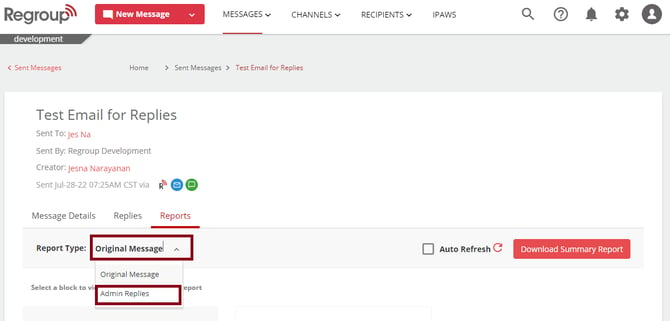
5. Click the tiles for **Email**, **Text,** or **Voice** to see the analytics, reposts, and status for each of them. See the following image highlighting the email section:

6. In the **Recipients and Status** report of delivery method**,** click the recipient name or group to see their details. See the following image:

**Tip**: In the **Recipients and Status** report of delivery methods such as Emails, TTS, or SMS, you can view a column titled **Language** if the message uses the autotranslation feature. The language column lists the contact’s preferred languages into which a message is translated.

You can hover over the pie chart icon to view a pie chart representing the percentage of languages used to auto-translate the message into the recipient's preferred language. See the following image:

7. Click **View Email Analytics** to see a detailed report of email delivery. For more details on email analytics, see the topic, [Access Email Analytics](https://docs.regroup.com/docs/access-email-analytics/). See the following image:

8. Click the **Export** button to download the following two types of reports:
- **Summary Report** option to download a comprehensive report for each delivery method you use. You can see the message details, including the sender, recipient groups and channels, percent of delivery statuses per method, and duration of voice TTS calls.
- **Delivery Status Report** with or without custom attributes. The report summarises the statuses of each delivery method and recipient.
See the following image:

**Note**: When you download message reports with more than 1,000 recipients, our system emails you the report as a CSV Export Link. You can click the link to download the zipped report. Reports of messages with fewer recipients get directly downloaded to your computer.
9. If you click **Download Summary Report**, the summary report of the message gets downloaded to your system.
10. If you click **Delivery Status Report**, you get options to download the delivery status of each delivery method with or without listing the custom attributes. See the following image:

To know about the fields available in the **Summary Report**, see [Analytics and Details Available in Summary Report](https://docs.regroup.com/docs/summary-report/).
To know about the fields available in the **Delivery Status Report**, see [Attributes Available in Delivery Status Report](https://docs.regroup.com/docs/delivery-status-report/).
- [Getting started](https://resources.regroup.com/regroupkb/getting-started)
- [Incident Management](https://resources.regroup.com/regroupkb/incident-management)
- [Set Up Organization Account](https://resources.regroup.com/regroupkb/set-up-organization-account#main-content)
- [Organization Setting](https://resources.regroup.com/regroupkb/set-up-organization-account#organization-setting)
- [Configure Organization Sign-Up Pages](https://resources.regroup.com/regroupkb/set-up-organization-account#configure-organization-sign-up-pages)
- [Manage Group Automation](https://resources.regroup.com/regroupkb/set-up-organization-account#manage-group-automation)
- [Configure Message Default Settings](https://resources.regroup.com/regroupkb/set-up-organization-account#configure-message-default-settings)
- [Manage Add-Ons](https://resources.regroup.com/regroupkb/set-up-organization-account#manage-add-ons)
- [Configure Social Media Preferences](https://resources.regroup.com/regroupkb/set-up-organization-account#configure-social-media-preferences)
- [View and Download Message Reports](https://resources.regroup.com/regroupkb/set-up-organization-account#view-and-download-message-reports)
- [Configure Contacts Management](https://resources.regroup.com/regroupkb/configure-contacts-management)
- [Set Up Admins and Roles](https://resources.regroup.com/regroupkb/set-up-admins-and-roles#main-content)
- [Manage Roles](https://resources.regroup.com/regroupkb/set-up-admins-and-roles#manage-roles)
- [Managing Existing Admins](https://resources.regroup.com/regroupkb/set-up-admins-and-roles#managing-existing-admins)
- [Manage Roles](https://resources.regroup.com/regroupkb/manage-roles)
- [Manage Groups](https://resources.regroup.com/regroupkb/manage-groups#main-content)
- [Create Groups Using Import](https://resources.regroup.com/regroupkb/manage-groups#create-groups-using-import)
- [Add Groups Using FTP Import](https://resources.regroup.com/regroupkb/manage-groups#add-groups-using-ftp-import)
- [Create or Update Group Hierarchy](https://resources.regroup.com/regroupkb/manage-groups#create-or-update-group-hierarchy)
- [Manage Group Files](https://resources.regroup.com/regroupkb/manage-groups#manage-group-files)
- [Manage Group Admin Profile](https://resources.regroup.com/regroupkb/manage-groups#manage-group-admin-profile)
- [Export Groups](https://resources.regroup.com/regroupkb/manage-groups#export-groups)
- [Configure Recipients and Admins](https://resources.regroup.com/regroupkb/configure-recipients-and-admins#main-content)
- [Add Recipients to Groups](https://resources.regroup.com/regroupkb/configure-recipients-and-admins#add-recipients-to-groups)
- [Manage Group Contacts](https://resources.regroup.com/regroupkb/configure-recipients-and-admins#manage-group-contacts)
- [Manage Organization Contacts](https://resources.regroup.com/regroupkb/configure-recipients-and-admins#manage-organization-contacts)
- [Manage Floating Contacts](https://resources.regroup.com/regroupkb/configure-recipients-and-admins#manage-floating-contacts)
- [Manage Communication Channels](https://resources.regroup.com/regroupkb/manage-communication-channels#main-content)
- [Create Channels](https://resources.regroup.com/regroupkb/manage-communication-channels#create-channels)
- [Create Channels Using Import](https://resources.regroup.com/regroupkb/manage-communication-channels#create-channels-using-import)
- [Setup Channels](https://resources.regroup.com/regroupkb/manage-communication-channels#setup-channels)
- [Create and Manage Sender Profiles](https://resources.regroup.com/regroupkb/manage-communication-channels#create-and-manage-sender-profiles)
- [Setup Social Media](https://resources.regroup.com/regroupkb/manage-communication-channels#setup-social-media)
- [Add Recipients to Channel](https://resources.regroup.com/regroupkb/manage-communication-channels#add-recipients-to-channel)
- [Manage Existing Channel Admins](https://resources.regroup.com/regroupkb/manage-communication-channels#manage-existing-channel-admins)
- [Setup Channel Subscriptions](https://resources.regroup.com/regroupkb/manage-communication-channels#setup-channel-subscriptions)
- [Manage Subscribers](https://resources.regroup.com/regroupkb/manage-communication-channels#manage-subscribers)
- [Manage Messages](https://resources.regroup.com/regroupkb/manage-messages#main-content)
- [WhatsApp Messaging](https://resources.regroup.com/regroupkb/manage-messages#whatsapp-messaging)
- [Set Up Message Defaults While Messaging](https://resources.regroup.com/regroupkb/manage-messages#set-up-message-defaults-while-messaging)
- [Message Templates](https://resources.regroup.com/regroupkb/manage-messages#message-templates)
- [Manage Voice Recordings](https://resources.regroup.com/regroupkb/manage-messages#manage-voice-recordings)
- [Sent Messages and Reports](https://resources.regroup.com/regroupkb/manage-messages#sent-messages-and-reports)
[](http://www.regroup.com)
[mailto:email@email.com](mailto:email@email.com)
Copyright © 2026, Regroup Mass Notification