
You can add existing organization contacts to a specific group. Here is how you search and add existing contacts to a group:
-
Click the Recipients tab. See the following image:
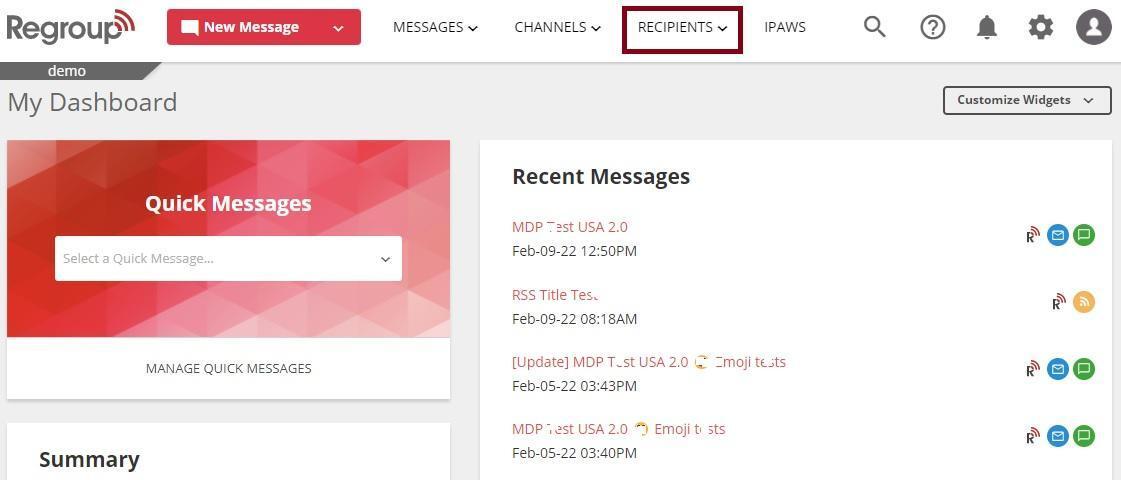
My Groups page appears.
-
Search and locate the group to add the contacts in the My Groups tab. Organization admins can add contacts to the groups on the All Groups tab.
-
Click the group name and open it. Otherwise, click Edit Group from the vertical ellipsis.
See the following image:
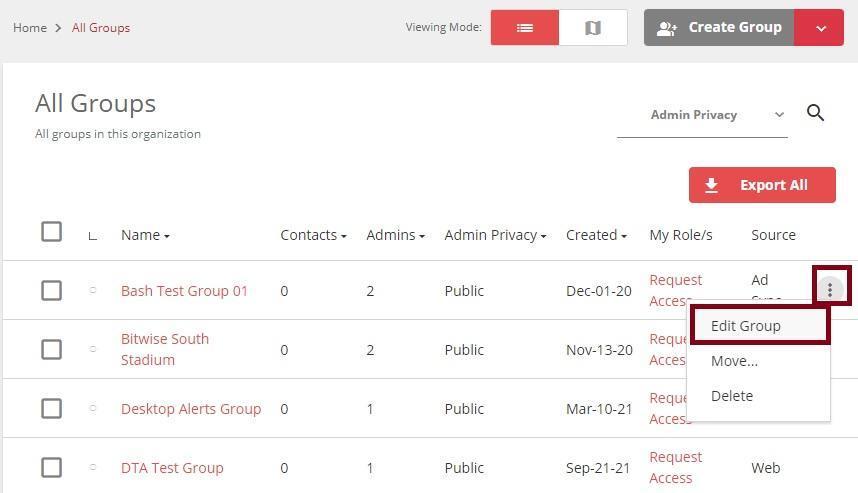
The Group Settings page opens.
-
Click Import & Add Contacts under the Group Members section on the left navigation panel. See the following image:
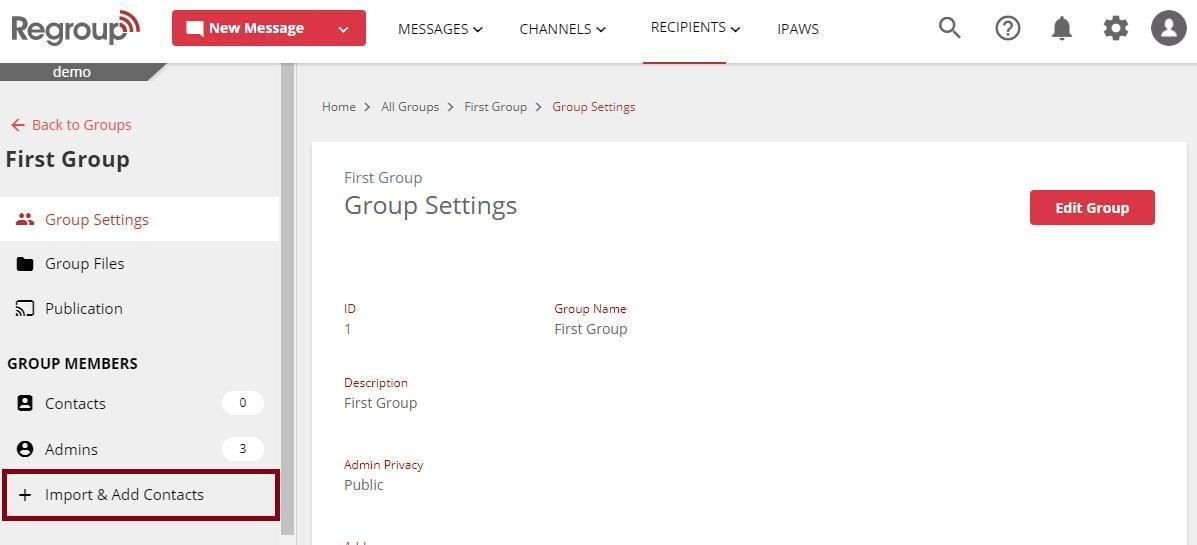
The Add Contacts page appears.
-
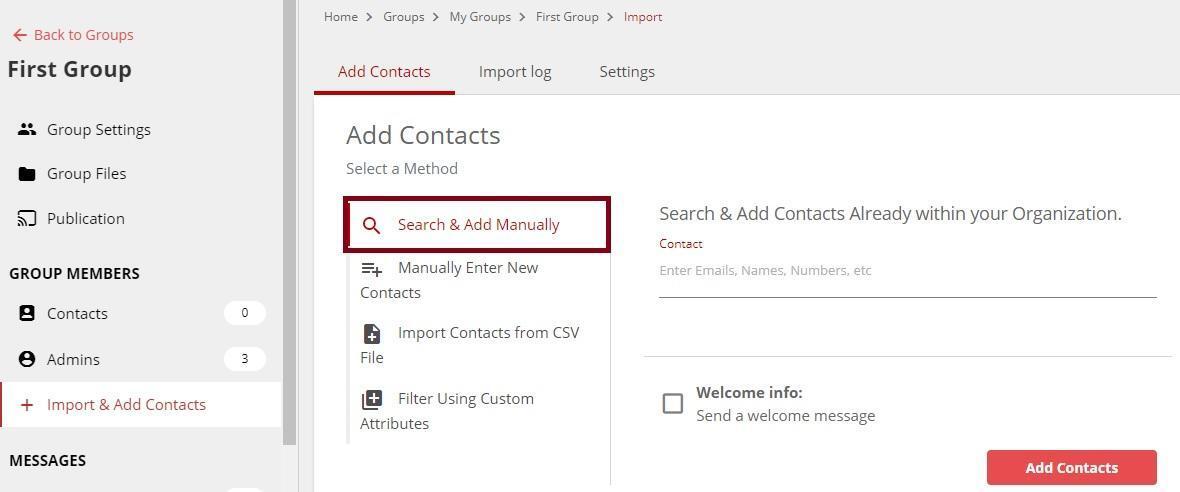
The Search and Add Manually option opens by default. Otherwise, click it.
See the following image:
-
Click the Contact dropdown to search for a contact using their email, name or phone number.
Tip: You can add multiple contacts at a time.
-
To send a welcome message to the newly added contacts, do the following:
-
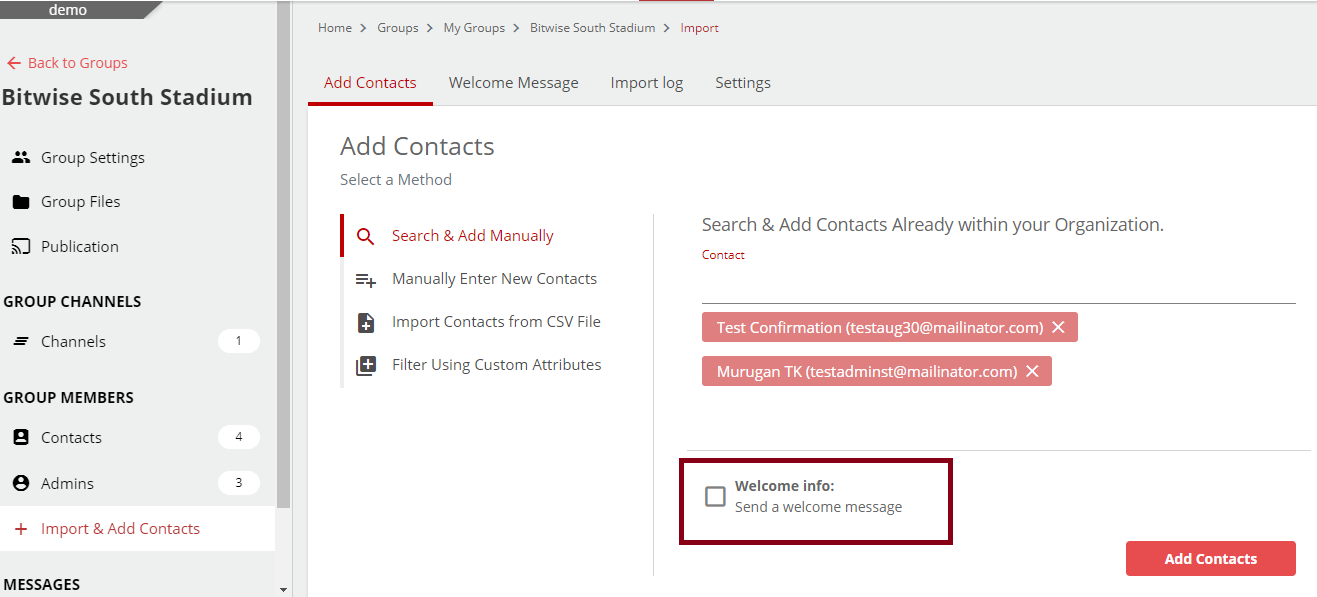
Click the Welcome Info checkbox. See the following image:
-
Verify and update the Name and Email in the sender information section.
-
Verify and update the Subject of the welcome message.
Note: The placeholder [group_name] will be updated with the group name when the message is sent.
-
Click the message content to update the predefined welcome message.
-
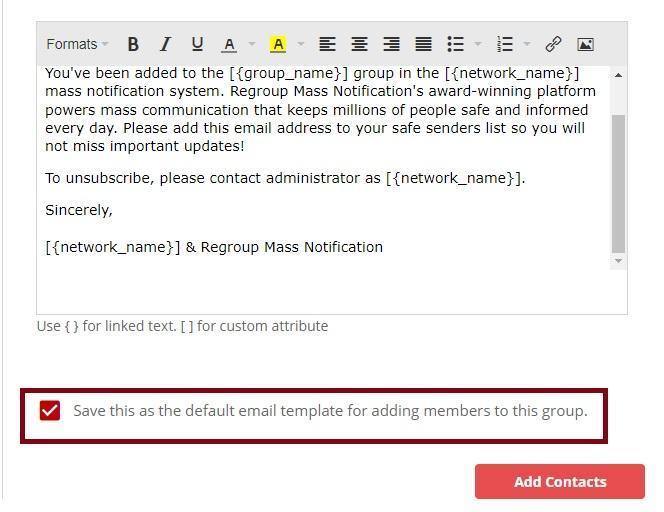
You can click the following checkbox to save this email template for future use:
-
-
Click Add Contacts.
A confirmation message appears confirming the number of recipients added successfully.