---
title: Add Existing Contacts to a Group
description: "You can add existing organization contacts to a specific group. Here is how you search and add existing contacts to a group: Click the Recipients tab ...."
---
[Skip to content](https://resources.regroup.com/regroupkb/docs/manually-search-and-add-existing-contacts-to-a-group-0#main-content)
English
Show submenu for translations

Open main navigation
Close main navigation
- English
Show submenu for translations
- [Contact us](https://bit.ly/47rQCNC)
[Contact us](https://bit.ly/47rQCNC)
How can we help you?
- There are no suggestions because the search field is empty.
1. [Regroup Knowledge Base](https://resources.regroup.com/regroupkb)
2. [Configure Recipients and Admins](https://resources.regroup.com/regroupkb/configure-recipients-and-admins)
3. [Add Recipients to Groups](https://resources.regroup.com/regroupkb/configure-recipients-and-admins#add-recipients-to-groups)
# Add Existing Contacts to a Group
You can add existing organization contacts to a specific group. Here is how you search and add existing contacts to a group:
1. Click the **Recipients tab**. See the following image:
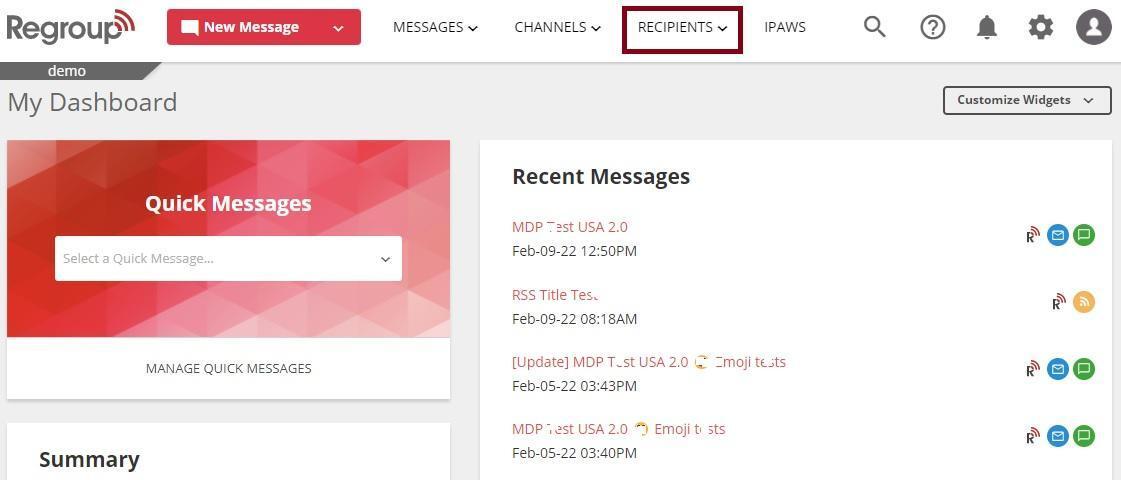
My Groups page appears.
2. Search and locate the group to add the contacts in the **My Groups** tab.Organization admins can add contacts to the groups on the **All Groups** tab.
3. Click the group name and open it. Otherwise, click **Edit Group** from the vertical ellipsis.
See the following image:
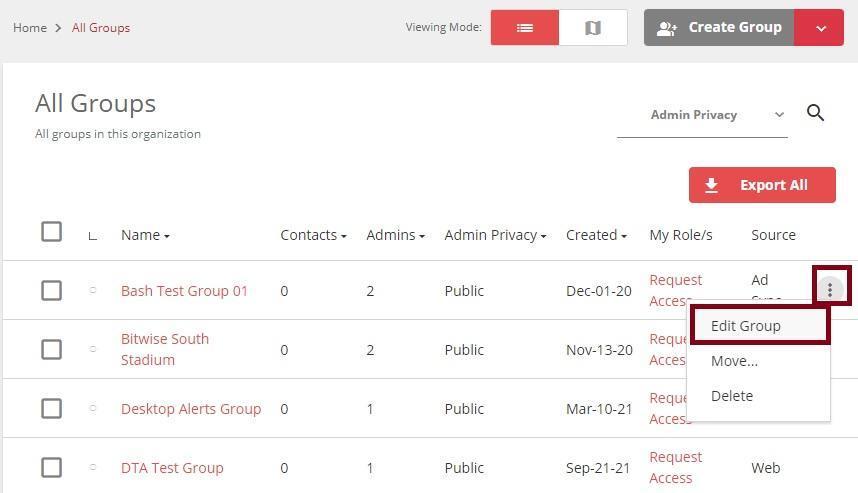
The **Group Settings** page opens.
4. Click **Import & Add Contacts** under the **Group Members** section on the left navigation panel. See the following image:
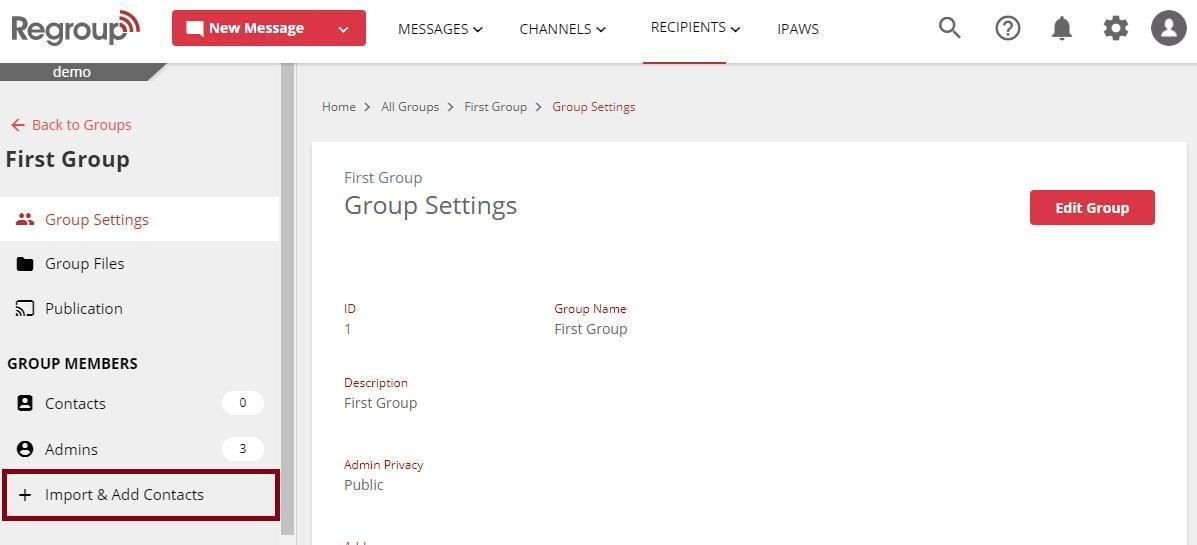
The Add Contacts page appears.
5. The **Search and Add Manually** option opens by default. Otherwise, click it.
See the following image:
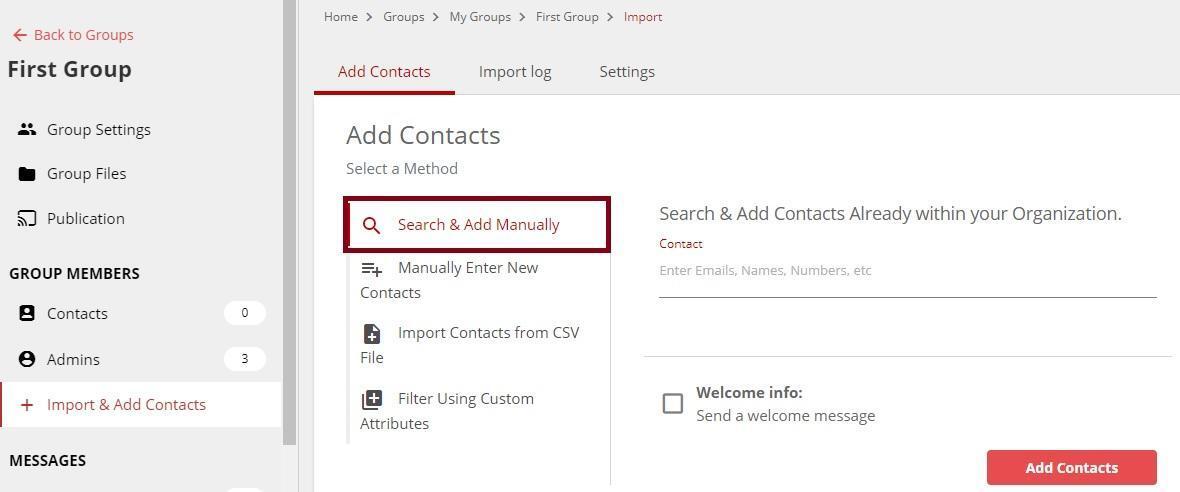
6. Click the **Contact** dropdown to search for a contact using their email, name or phone number.
**Tip**: You can add multiple contacts at a time.
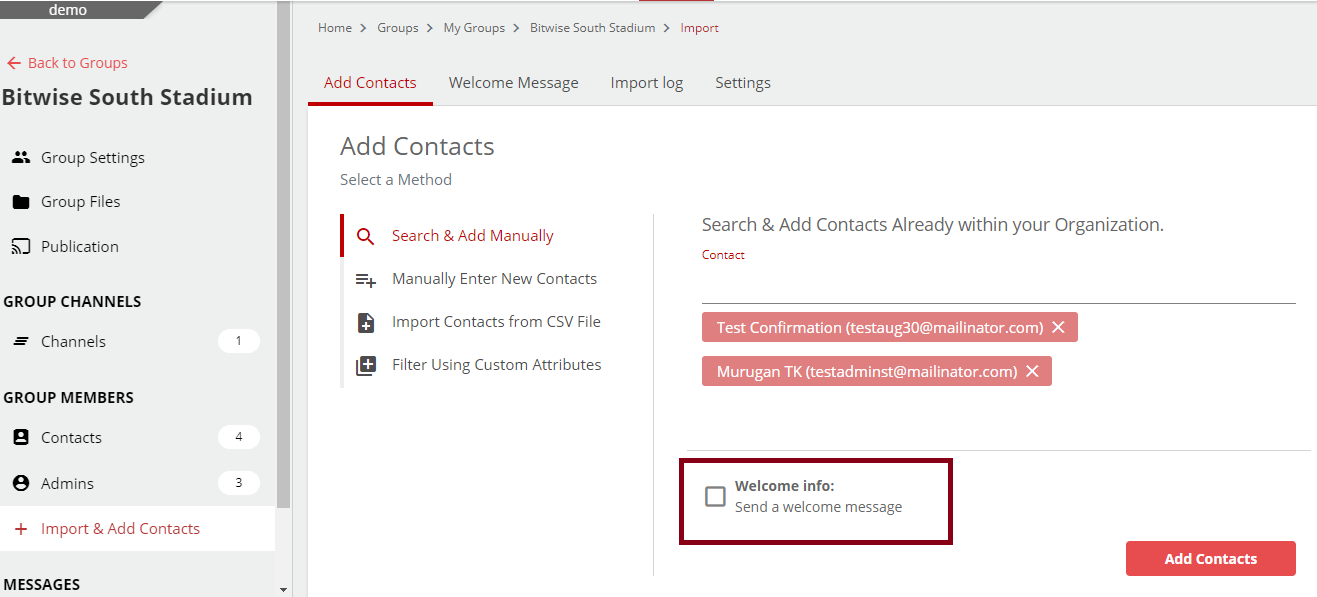
7. To send a welcome message to the newly added contacts, do the following:
1. Click the **Welcome Info** checkbox. See the following image:
2. Verify and update the **Name** and **Email** in the sender information section.
3. Verify and update the **Subject** of the welcome message.
**Note**: The placeholder \[group\_name\] will be updated with the group name when the message is sent.
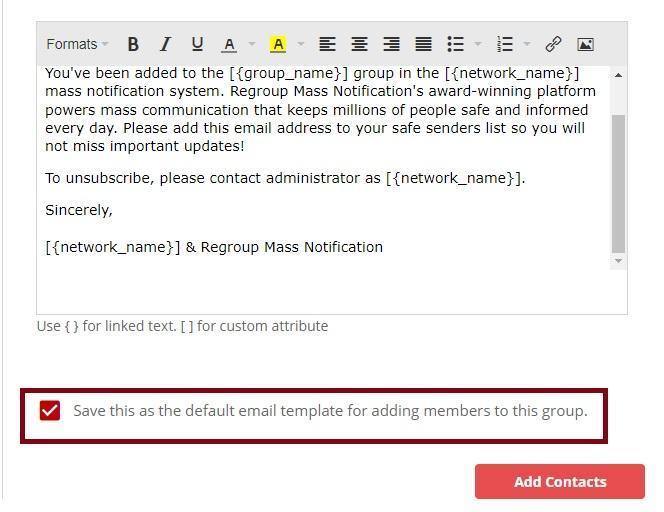
4. Click the message content to update the predefined welcome message.
5. You can click the following checkbox to save this email template for future use:
8. Click **Add Contacts**.
A confirmation message appears confirming the number of recipients added successfully.
- [Getting started](https://resources.regroup.com/regroupkb/getting-started)
- [Incident Management](https://resources.regroup.com/regroupkb/incident-management)
- [Set Up Organization Account](https://resources.regroup.com/regroupkb/set-up-organization-account#main-content)
- [Organization Setting](https://resources.regroup.com/regroupkb/set-up-organization-account#organization-setting)
- [Configure Organization Sign-Up Pages](https://resources.regroup.com/regroupkb/set-up-organization-account#configure-organization-sign-up-pages)
- [Manage Group Automation](https://resources.regroup.com/regroupkb/set-up-organization-account#manage-group-automation)
- [Configure Message Default Settings](https://resources.regroup.com/regroupkb/set-up-organization-account#configure-message-default-settings)
- [Manage Add-Ons](https://resources.regroup.com/regroupkb/set-up-organization-account#manage-add-ons)
- [Configure Social Media Preferences](https://resources.regroup.com/regroupkb/set-up-organization-account#configure-social-media-preferences)
- [View and Download Message Reports](https://resources.regroup.com/regroupkb/set-up-organization-account#view-and-download-message-reports)
- [Configure Contacts Management](https://resources.regroup.com/regroupkb/configure-contacts-management)
- [Set Up Admins and Roles](https://resources.regroup.com/regroupkb/set-up-admins-and-roles#main-content)
- [Manage Roles](https://resources.regroup.com/regroupkb/set-up-admins-and-roles#manage-roles)
- [Managing Existing Admins](https://resources.regroup.com/regroupkb/set-up-admins-and-roles#managing-existing-admins)
- [Manage Roles](https://resources.regroup.com/regroupkb/manage-roles)
- [Manage Groups](https://resources.regroup.com/regroupkb/manage-groups#main-content)
- [Create Groups Using Import](https://resources.regroup.com/regroupkb/manage-groups#create-groups-using-import)
- [Add Groups Using FTP Import](https://resources.regroup.com/regroupkb/manage-groups#add-groups-using-ftp-import)
- [Create or Update Group Hierarchy](https://resources.regroup.com/regroupkb/manage-groups#create-or-update-group-hierarchy)
- [Manage Group Files](https://resources.regroup.com/regroupkb/manage-groups#manage-group-files)
- [Manage Group Admin Profile](https://resources.regroup.com/regroupkb/manage-groups#manage-group-admin-profile)
- [Export Groups](https://resources.regroup.com/regroupkb/manage-groups#export-groups)
- [Configure Recipients and Admins](https://resources.regroup.com/regroupkb/configure-recipients-and-admins#main-content)
- [Add Recipients to Groups](https://resources.regroup.com/regroupkb/configure-recipients-and-admins#add-recipients-to-groups)
- [Manage Group Contacts](https://resources.regroup.com/regroupkb/configure-recipients-and-admins#manage-group-contacts)
- [Manage Organization Contacts](https://resources.regroup.com/regroupkb/configure-recipients-and-admins#manage-organization-contacts)
- [Manage Floating Contacts](https://resources.regroup.com/regroupkb/configure-recipients-and-admins#manage-floating-contacts)
- [Manage Communication Channels](https://resources.regroup.com/regroupkb/manage-communication-channels#main-content)
- [Create Channels](https://resources.regroup.com/regroupkb/manage-communication-channels#create-channels)
- [Create Channels Using Import](https://resources.regroup.com/regroupkb/manage-communication-channels#create-channels-using-import)
- [Setup Channels](https://resources.regroup.com/regroupkb/manage-communication-channels#setup-channels)
- [Create and Manage Sender Profiles](https://resources.regroup.com/regroupkb/manage-communication-channels#create-and-manage-sender-profiles)
- [Setup Social Media](https://resources.regroup.com/regroupkb/manage-communication-channels#setup-social-media)
- [Add Recipients to Channel](https://resources.regroup.com/regroupkb/manage-communication-channels#add-recipients-to-channel)
- [Manage Existing Channel Admins](https://resources.regroup.com/regroupkb/manage-communication-channels#manage-existing-channel-admins)
- [Setup Channel Subscriptions](https://resources.regroup.com/regroupkb/manage-communication-channels#setup-channel-subscriptions)
- [Manage Subscribers](https://resources.regroup.com/regroupkb/manage-communication-channels#manage-subscribers)
- [Manage Messages](https://resources.regroup.com/regroupkb/manage-messages#main-content)
- [WhatsApp Messaging](https://resources.regroup.com/regroupkb/manage-messages#whatsapp-messaging)
- [Set Up Message Defaults While Messaging](https://resources.regroup.com/regroupkb/manage-messages#set-up-message-defaults-while-messaging)
- [Message Templates](https://resources.regroup.com/regroupkb/manage-messages#message-templates)
[](http://www.regroup.com)
[mailto:email@email.com](mailto:email@email.com)
Copyright © 2026, Regroup Mass Notification