
After you configure the LDAP Sync on the add-ons page, you can map the Active Directory attributes as follows:
-
Click the Organization Settings icon on the top right corner. See the following image:
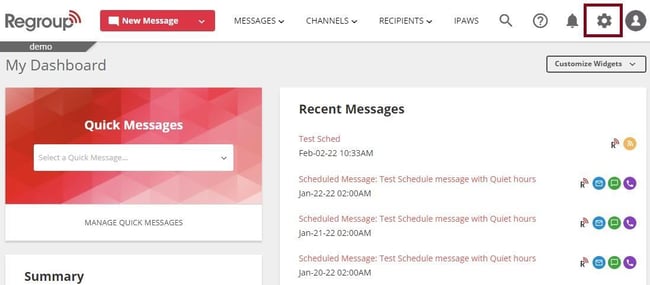
The Organization Settings page opens.
-
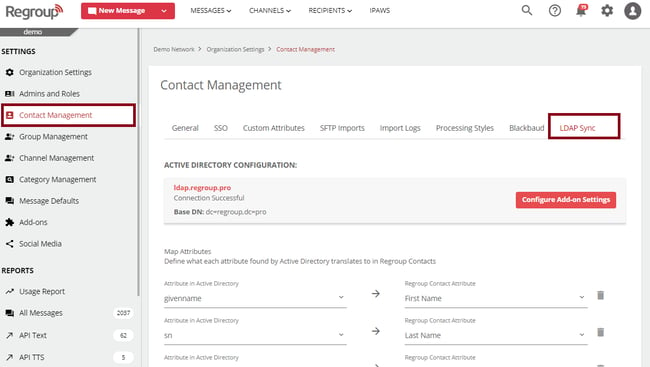
Click the Contact Management segment on the left navigation panel.
-
Click the LDAP Sync tab. See the following image:
-
Map the AD Attributes to their appropriate Regroup companion. For example, map Active Directory’s ‘sn’ to ‘First Name’ in Regroup.
Tip: Your Contact Methods are matched with Regroup Phone and Email types. Select according to your communication goals.
See the following image:
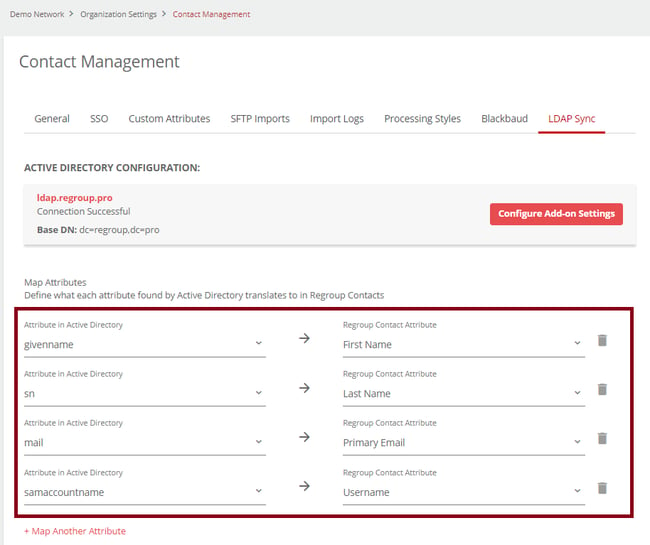
Note: If you cannot find an attribute in the Regroup Contact Attribute field, you must add it as a custom attribute on the Custom Attributes tab of Contact Management. See the topic: Configure Custom Attributes for Contacts.
-
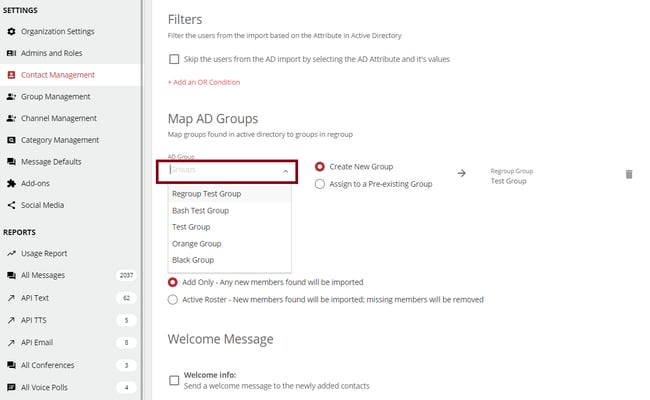
In the Map AD Groups section, map your active directory groups with a Regroup group.
-
Click the AD Group field to select the AD group you want to import to Regroup.
See the following image:
-
-
-
Click Preview AD Group Import to view the contacts in the AD Group that will be imported to the Regroup Group. See the following image:
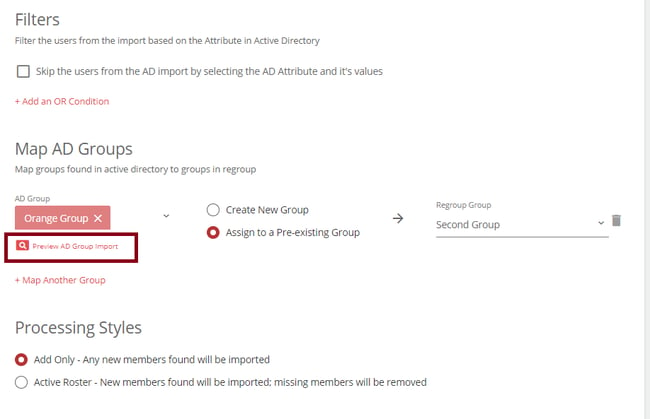
Note: Each AD Group must exist within the Base Domain or an Organizational Unit (OU) to that Base Domain. Additionally, the LDAP User-provided must have Read-Only Access over each desired OU for import sync to Regroup.
-
You can map your AD group to a newly created group in Regroup or an existing one as follows:
-
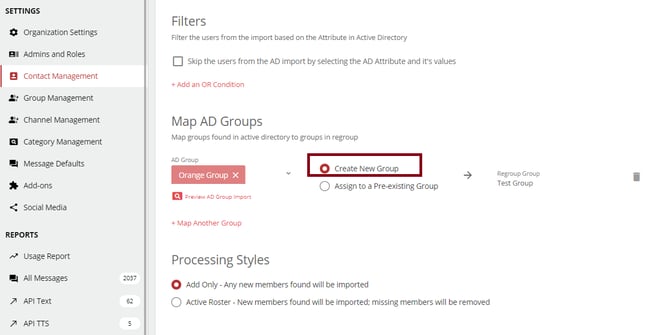
Create a New Group: The system creates a new group based on the AD group name.
Tip: If you change the group’s name, the system creates another new group with the selected AD Group name during the import.
See the following image:
-
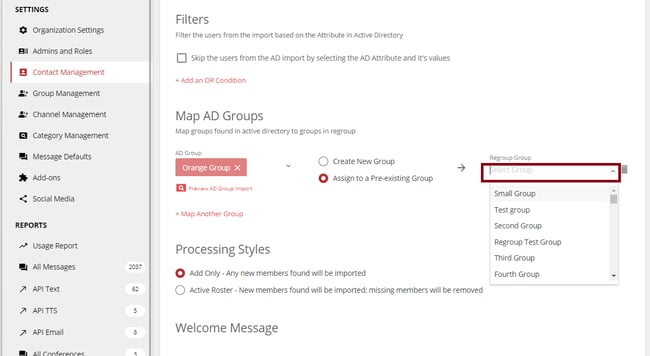
Assign a Pre-existing Group: You can choose the required group from the Regroup Group dropdown.
See the following image:
-
-
-
In the Processing Style section, select a processing style to determine how the system process the imported data:
-
Add Only - All new members in the AD group will be imported to the Regroup group.
-
Active Roster - New members found in the AD group will be imported, and any missing members will be removed from the Regroup group.
Note: The system processes the imported files using the combination of the processing styles you select here and at the organization level.
See the topic Configure Organization-Level Processing Style to create an organization-level processing style.
See the topic processing style combinations to understand how the combination of organization and group-level processing styles creates multiple outcomes.
-
-
Click the Welcome Message checkbox to configure and compose a welcome message to all imported members.
-
In the Schedule Settings, schedule when the sync occurs if any repetition is desired. You can select Daily (at a selected time), One-Time, Weekly, and Monthly.
Your imported groups and users now get updated and populated in your Regroup organization.