
You can monitor and reply to the Responsive Alert recipient's responses on the Replies tab of the Sent Messages page. You can also reply to recipients who sent a specific response.
The Geolocation tab on the Sent Messages page contains a map with location pins of all the recipients who have responded with the location.
Here is how you monitor Responsive Alert responses and reply to them:
-
Click Messages dropdown and select Sent Messages. See the following image:
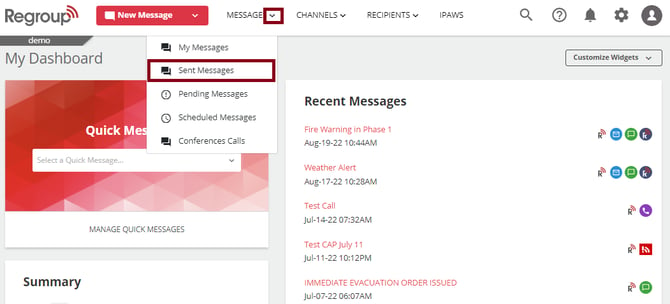
The Sent Message page opens.
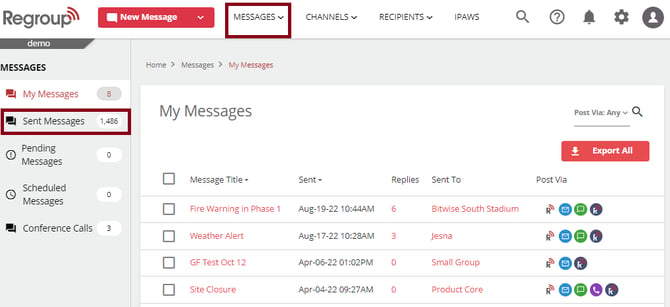
You can reach the Sent Message page by clicking the Sent Messages on the left navigation pane of the Messages tab. See the following image:
-
Click the Message Title of the message you want to monitor. See the following image:
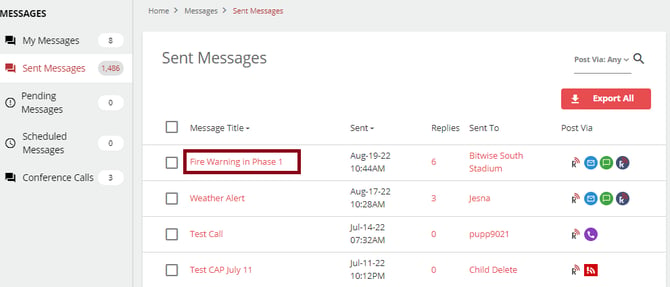
The Reports page of the selected message opens.
-
Click the Replies tab to view and respond to the replies.
See the following image:
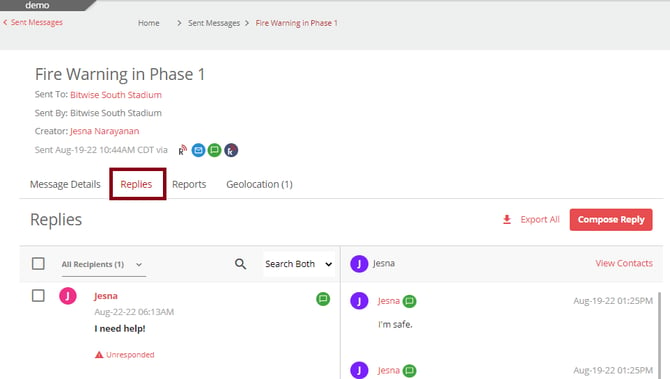
The Replies tab opens.
Tip: To view the latest replies, click the Replies tab or refresh the page.
-
To reply to a set of recipients or recipients with a specific response:
-
Click Compose Reply. See the following image:
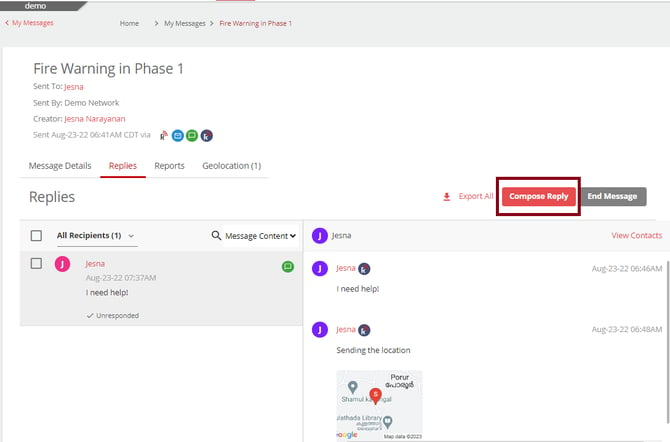
The Compose Bulk Reply page opens.
-
If needed, enter the recipient's email address in the Recipients field.
-
Otherwise, check the required set of recipients from the following:
-
Sets of recipient responses: Categories of recipients based on their responses to your poll.
-
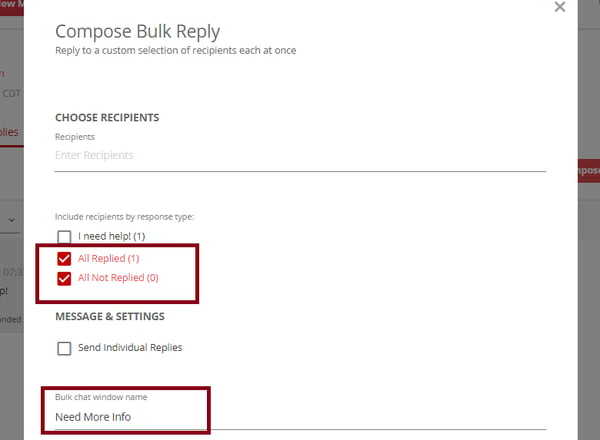
All Replied: All recipients who responded with any poll response.
-
All Not Replied: Set of recipients who did not respond to your poll.
Note: If you select All Replied and All Not Replied, you must enter a name for the new chat window to separate this conversation from the main message.
See the following image:
-
-
Select all relevant information in the Message & Settings section.
-
Compose the message in the Message field.
-
Click Send Message.
-
-
To reply to an individual recipient:
-
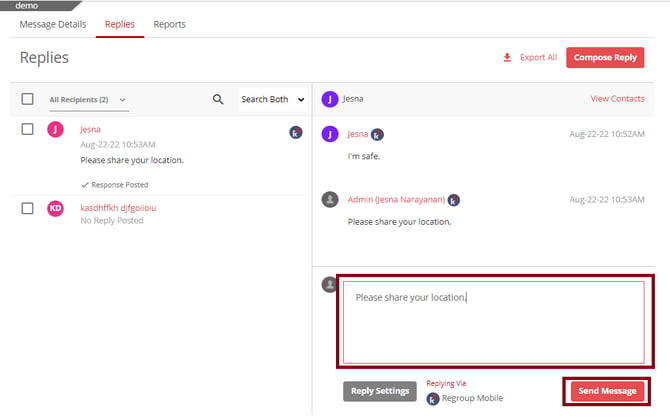
Enter your reply in the replies box.
-
Click Send Message to send your response.
See the following image:
-
-
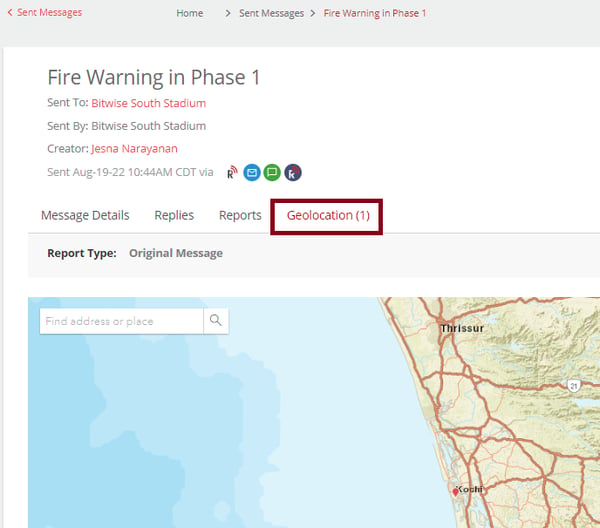
Click the Geolocation tab to view all the shared locations.
See the following image:
-
You can click on any pins to see who sent that location.
-
You can view and sort recipients with a specific response at the bottom of the map.
-
You can click the recipient's name to view their reply in the Replies tab and respond to it.