
You can move contacts from one group to another.
Here is how you do it:
-
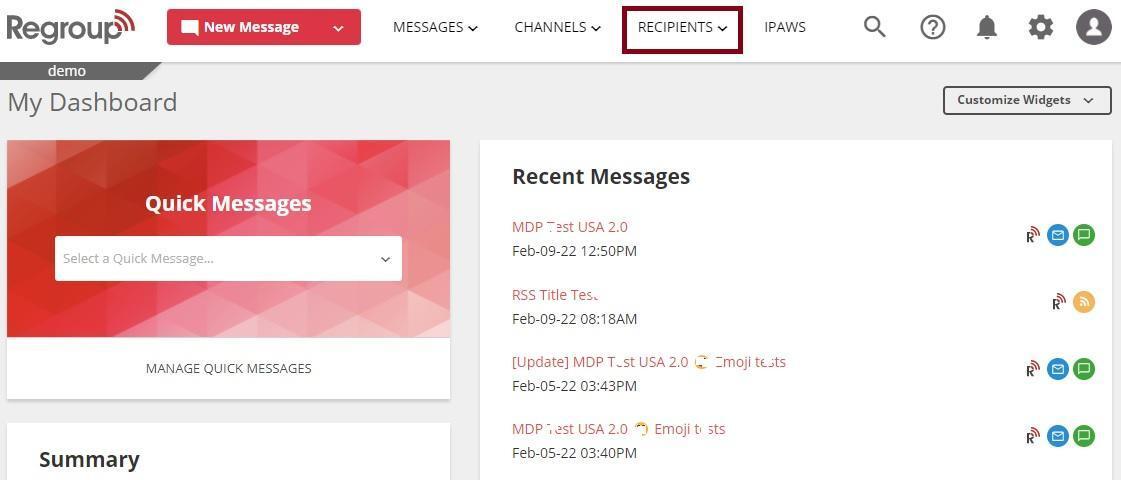
Click the Recipients tab. The following image shows the recipient tab:
The My Groups page appears.
-
Search and locate the group to add the contacts in the My Groups tab. Organization admins can add contacts to the groups on the All Groups tab.
-
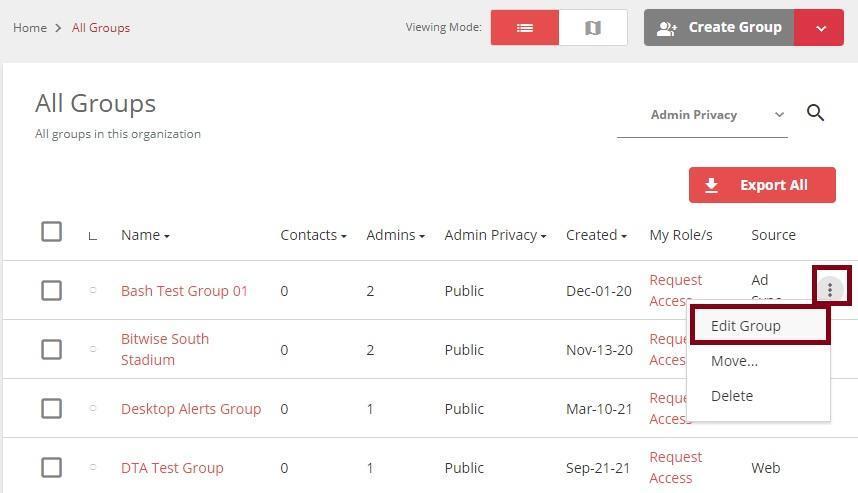
Click the group name and open it. Otherwise, click Edit Group from the vertical ellipsis. See the following image:
The Group Settings page opens.
-
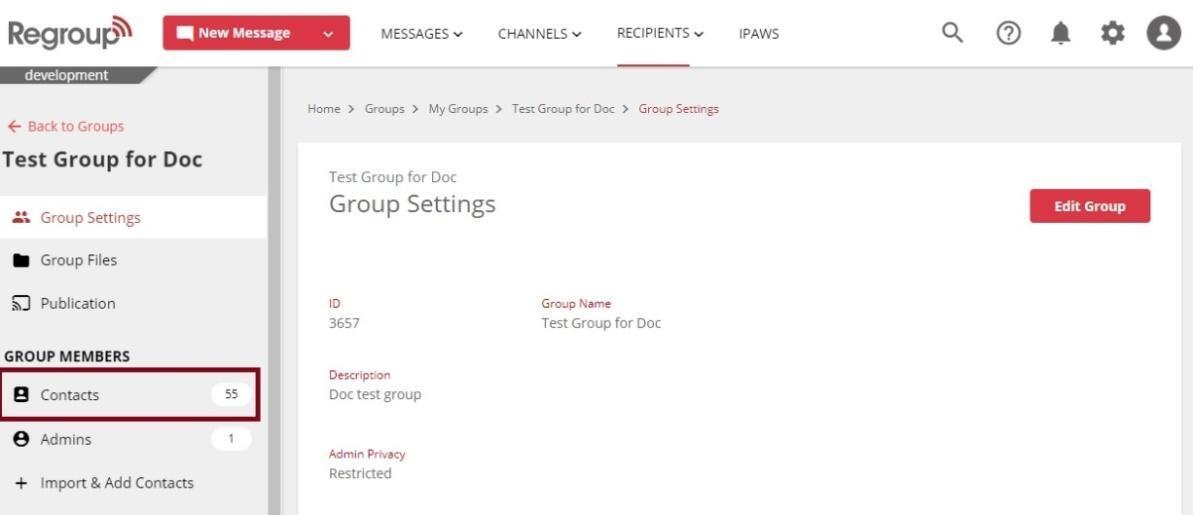
Click Contacts under the Group Members section on the left navigation panel. See the following image:
-
Search and locate the contact profile to edit. You can search using the name, mail ID or any custom attribute.
-
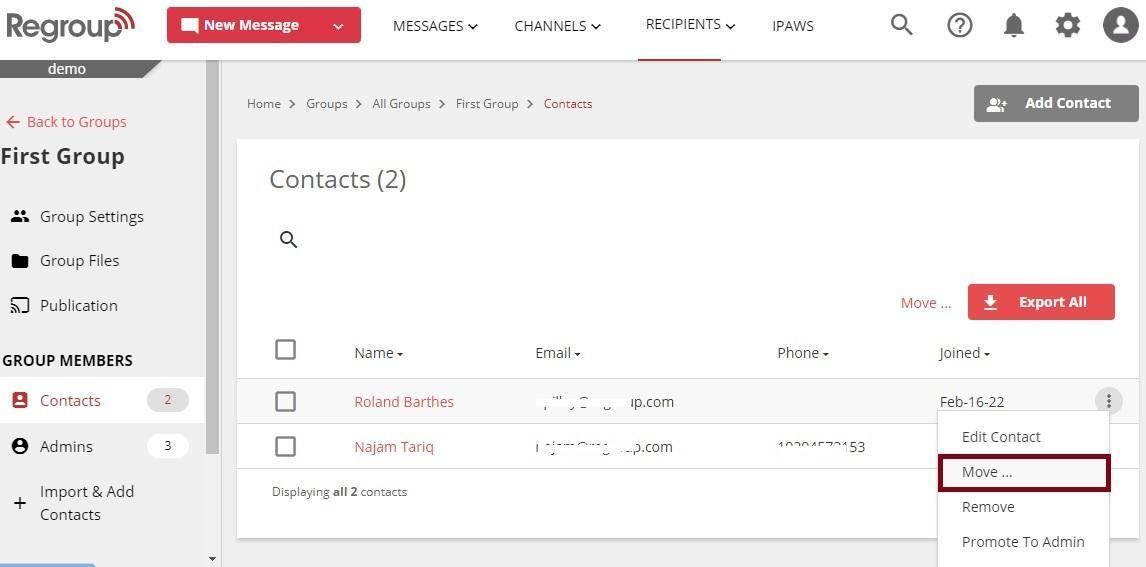
Click the vertical ellipsis corresponding to the contact.
-
Click Move to move. See the following image:
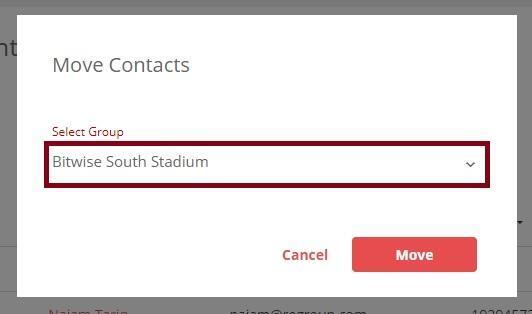
The Move Contacts page opens.
-
Click the Select Group drop-down and select the group to move this contact. The following image shows the group Bitwise South Stadium selected:
-
Click Move.
-
Click Yes to confirm moving the contact.
The selected contact will be removed from previous group and added to the selected group.