
You can promote any organization contact as admin. If you’re planning to promote a contact to any custom role, ensure to create the role prior. To understand how to create new roles, see the topic: Create New Roles.
You can promote an organization contact to admin as follows:
-
Click the Recipients tab. The following image shows the recipient tab:
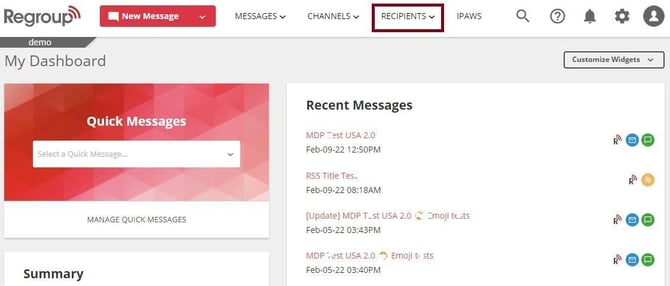
The My Groups page appears.
-
Click All Contacts under the Organization Contacts section on the left navigation panel. See the following image:
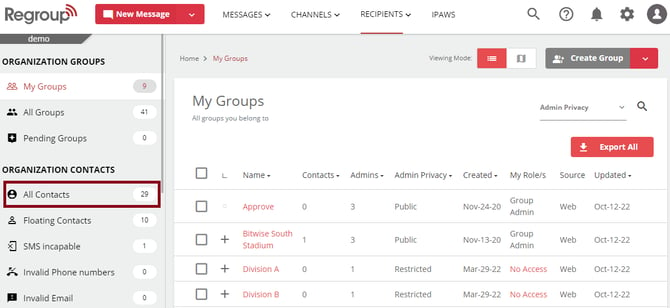
The All Contacts page opens with the list of all contacts in the organization.
-
You can click the search bar, enter a search word and click Enter to search for a contact.
-
Click the vertical ellipsis corresponding to the contact to update.
-
Click Promote to Admin to promote the contact as admin. See the following image:
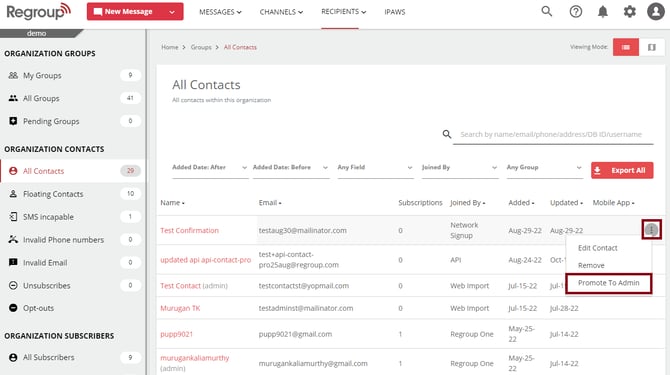
Promote to Admin page opens.
Note: If the contact is already an admin, you can click the View Admin Profile option to update the admin profile with new roles or permissions.
-
Click and select a role type from the Select Role type dropdown.
Role types are the resources that determine where the admin performs the allotted tasks. The role type options are:
-
Group
-
Channel
-
IPAWS
-
Organization
You cannot add multiple role types at one time.
-
-
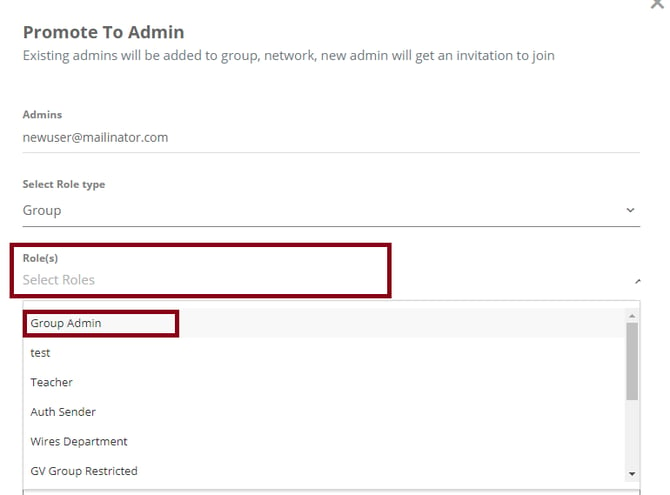
Click and select the role from the Select Role/s dropdown. You can only see the roles under the selected role type. See the following image:
-
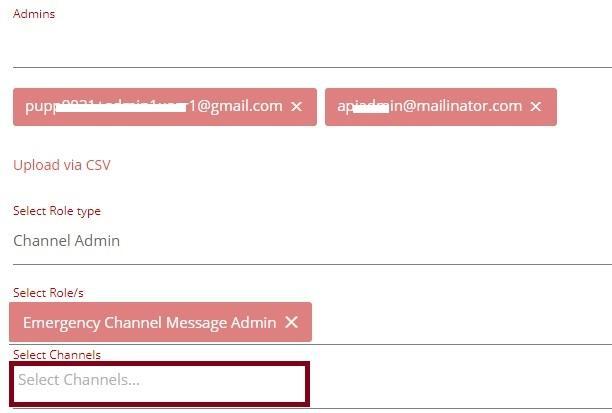
Select the channels or groups the admin can manage from the Select Groups or Select Channels dropdown. This option is available only if you select Groups or Channels as the Role Type. The following image highlights the select channel option:
-
If required, you can draft a message in the Add Your Message textbox.
-
Click Send.
You get a confirmation message that your invitation for the new admin role was sent to the selected contact.