---
title: Request Acknowledgement
description: The Request Acknowledgement option allows administrators to require confirmation from recipients that they have received a message. When this option is...
---
[Skip to content](https://resources.regroup.com/regroupkb/docs/request-acknowledgement#main-content)
English
Show submenu for translations

Open main navigation
Close main navigation
- English
Show submenu for translations
- [Contact us](https://bit.ly/47rQCNC)
[Contact us](https://bit.ly/47rQCNC)
How can we help you?
- There are no suggestions because the search field is empty.
1. [Regroup Knowledge Base](https://resources.regroup.com/regroupkb)
2. [Manage Messages](https://resources.regroup.com/regroupkb/manage-messages)
# Request Acknowledgement
The **Request Acknowledgement** option allows administrators to require confirmation from recipients that they have received a message. When this option is enabled for a notification, recipients are prompted to acknowledge the alert upon delivery.
Once a recipient submits their acknowledgement, the system records their response. Administrators can then view and track acknowledgement statuses in the **Message Report**, making it easy to identify who has confirmed receipt of the alert and who has not.
You can enable the **Request Acknowledgement** option while creating a message. Follow the steps below to configure this setting:
1. Click the **New Message** dropdown and select a message type.
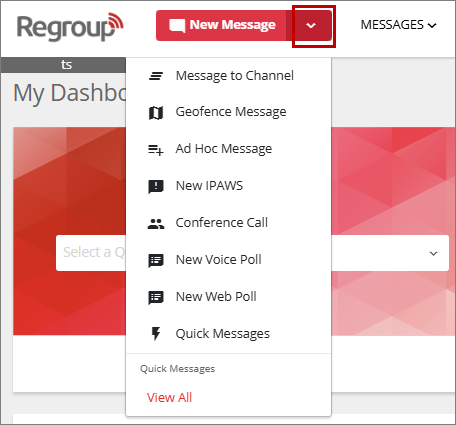
or
Click the **New Message** button.
The **Post New Message** page displays.

2. From **Message Type** dropdown, select a type of message you want to send (For example, message to channel, Adhoc message, Geofence message, etc.).
3. In the **Recipients** section, select recipient(s) using one of the following methods:
- Select group(s)
- Select individual(s)
- Select recipients via map
- Upload recipients CSV
4. In the **Delivery Methods** section, select one or more methods for message delivery. See the [Send New Messages](https://docs.regroup.com/docs/send-new-messages/) topic for additional information.
5. In the **Message Content** section, compose the message in one of the following ways:
- Choose a message template from the Message Template dropdown.
or
- Manually enter the message title and body.
6. Check the **Request Acknowledgement** option to enable it.

7. Optionally, perform the following actions if required:
- Check **Save message body as template for future use** to reuse the content later on.Save message as a body for future use.
- Check **Save as Quick Message** to reuse the message and recipients.
- Check **Schedule for later** if you want to send the message at a future time.
8. Click the **Send Now** button.
Recipients receive the message through the selected delivery methods. The delivered message includes an acknowledgement link, allowing recipients to confirm receipt by clicking the link.
1. Click the acknowledgement link in the message to confirm receipt.

A confirmation message will appear, indicating that your response has been successfully recorded.

### View Acknowledgement Report
1. Click the **Messages** dropdown and select **Sent Messages**.

or
Click the **Messages** label to navigate to **Messages** page, then select **Sent Messages** from the left navigation pane.

2. On the **Sent Messages** page, click the name of a message
3. Under the **Reports** tab, click the **Acknowledgements** tile.

A table is displayed showing the following details for each message recipient:
- **Name**: Displays the recipient name.
- **Resource Type**: Indicates the type of resource for which the notification was generated, such as a group or contact.
- **Resource Name**: Displays the name of the associated resource.
- **Sent Via**: Displays the delivery method(s) used to send the message to the recipient, such as Email, SMS, or Call.
- **Acknowledged**: Indicates whether the recipient acknowledged the message.
- **Acknowledged Via**: Displays the delivery method through which the recipient acknowledged the message.
- **Phone/Email**: Displays the phone number or email address used by the recipient to acknowledge the message.
- **Acknowledged At**: Displays the date and time when the recipient acknowledged the message.
- [Getting started](https://resources.regroup.com/regroupkb/getting-started)
- [Incident Management](https://resources.regroup.com/regroupkb/incident-management)
- [Set Up Organization Account](https://resources.regroup.com/regroupkb/set-up-organization-account#main-content)
- [Organization Setting](https://resources.regroup.com/regroupkb/set-up-organization-account#organization-setting)
- [Configure Organization Sign-Up Pages](https://resources.regroup.com/regroupkb/set-up-organization-account#configure-organization-sign-up-pages)
- [Manage Group Automation](https://resources.regroup.com/regroupkb/set-up-organization-account#manage-group-automation)
- [Configure Message Default Settings](https://resources.regroup.com/regroupkb/set-up-organization-account#configure-message-default-settings)
- [Manage Add-Ons](https://resources.regroup.com/regroupkb/set-up-organization-account#manage-add-ons)
- [Configure Social Media Preferences](https://resources.regroup.com/regroupkb/set-up-organization-account#configure-social-media-preferences)
- [View and Download Message Reports](https://resources.regroup.com/regroupkb/set-up-organization-account#view-and-download-message-reports)
- [Configure Contacts Management](https://resources.regroup.com/regroupkb/configure-contacts-management)
- [Set Up Admins and Roles](https://resources.regroup.com/regroupkb/set-up-admins-and-roles#main-content)
- [Manage Roles](https://resources.regroup.com/regroupkb/set-up-admins-and-roles#manage-roles)
- [Managing Existing Admins](https://resources.regroup.com/regroupkb/set-up-admins-and-roles#managing-existing-admins)
- [Manage Roles](https://resources.regroup.com/regroupkb/manage-roles)
- [Manage Groups](https://resources.regroup.com/regroupkb/manage-groups#main-content)
- [Create Groups Using Import](https://resources.regroup.com/regroupkb/manage-groups#create-groups-using-import)
- [Add Groups Using FTP Import](https://resources.regroup.com/regroupkb/manage-groups#add-groups-using-ftp-import)
- [Create or Update Group Hierarchy](https://resources.regroup.com/regroupkb/manage-groups#create-or-update-group-hierarchy)
- [Manage Group Files](https://resources.regroup.com/regroupkb/manage-groups#manage-group-files)
- [Manage Group Admin Profile](https://resources.regroup.com/regroupkb/manage-groups#manage-group-admin-profile)
- [Export Groups](https://resources.regroup.com/regroupkb/manage-groups#export-groups)
- [Configure Recipients and Admins](https://resources.regroup.com/regroupkb/configure-recipients-and-admins#main-content)
- [Add Recipients to Groups](https://resources.regroup.com/regroupkb/configure-recipients-and-admins#add-recipients-to-groups)
- [Manage Group Contacts](https://resources.regroup.com/regroupkb/configure-recipients-and-admins#manage-group-contacts)
- [Manage Organization Contacts](https://resources.regroup.com/regroupkb/configure-recipients-and-admins#manage-organization-contacts)
- [Manage Floating Contacts](https://resources.regroup.com/regroupkb/configure-recipients-and-admins#manage-floating-contacts)
- [Manage Communication Channels](https://resources.regroup.com/regroupkb/manage-communication-channels#main-content)
- [Create Channels](https://resources.regroup.com/regroupkb/manage-communication-channels#create-channels)
- [Create Channels Using Import](https://resources.regroup.com/regroupkb/manage-communication-channels#create-channels-using-import)
- [Setup Channels](https://resources.regroup.com/regroupkb/manage-communication-channels#setup-channels)
- [Create and Manage Sender Profiles](https://resources.regroup.com/regroupkb/manage-communication-channels#create-and-manage-sender-profiles)
- [Setup Social Media](https://resources.regroup.com/regroupkb/manage-communication-channels#setup-social-media)
- [Add Recipients to Channel](https://resources.regroup.com/regroupkb/manage-communication-channels#add-recipients-to-channel)
- [Manage Existing Channel Admins](https://resources.regroup.com/regroupkb/manage-communication-channels#manage-existing-channel-admins)
- [Setup Channel Subscriptions](https://resources.regroup.com/regroupkb/manage-communication-channels#setup-channel-subscriptions)
- [Manage Subscribers](https://resources.regroup.com/regroupkb/manage-communication-channels#manage-subscribers)
- [Manage Messages](https://resources.regroup.com/regroupkb/manage-messages)
[](http://www.regroup.com)
[mailto:email@email.com](mailto:email@email.com)
Copyright © 2026, Regroup Mass Notification