
Incident Management provides two roles that define user permissions for creating, managing, and executing incidents.
-
Incident Manager
-
Incident Operator
Incident Manager
Users assigned this role have full control over incident configuration and management. This role includes the following permissions:
-
Manage Incident Templates
-
Manage Incidents
- View Incident Templates
For more information about the actions users can perform with these permissions, refer to the Permissions table below.
Incident Operator
Users assigned this role are responsible for executing incident communications using predefined templates. This role is designed for team members responsible for executing incident communications without changing templates.
This role includes the following permissions:
-
Manage Incidents
-
View Incident Templates
For more information about the actions users can perform with these permissions, refer to the Permissions table below.
Permissions
|
Permissions |
Incident Manager |
Incident Operator |
Actions |
|---|---|---|---|
|
Manage Incident Templates |
Yes | No |
Can:
|
| Manage Incidents | Yes | Yes |
Can:
|
| View Incident Templates | Yes | Yes |
Can:
|
Follow the steps to view the Incident Manager and Incident Operator roles:
-
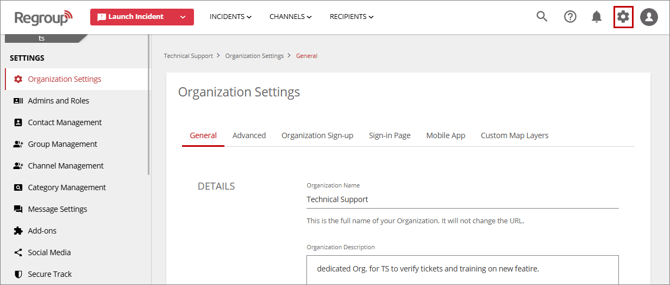
Click the Settings icon in the header menu.
-
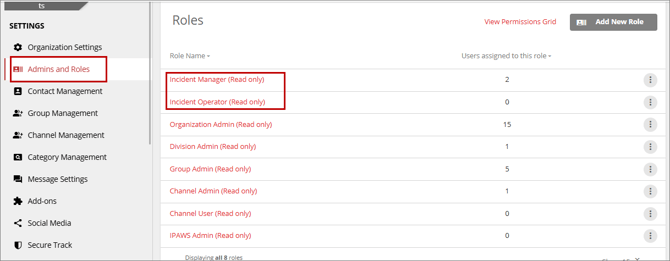
On the Settings page, in the left navigation pane, click Admins and Roles.
-
On the Admins and Roles page, scroll down to the Roles section.
-
Click a role name, such as Incident Manager or Incident Operator, to view its associated permissions and assigned users.