---
title: Send a Message Via WhatsApp
description: This topic explains how to send an alert message via WhatsApp. Before sending a messag via WhatsApp, make sure that the following prerequisites are met...
---
[Skip to content](https://resources.regroup.com/regroupkb/docs/send-a-message-via-whatsapp#main-content)
English
Show submenu for translations

Open main navigation
Close main navigation
- English
Show submenu for translations
- [Contact us](https://bit.ly/47rQCNC)
[Contact us](https://bit.ly/47rQCNC)
How can we help you?
- There are no suggestions because the search field is empty.
1. [Regroup Knowledge Base](https://resources.regroup.com/regroupkb)
2. [Manage Messages](https://resources.regroup.com/regroupkb/manage-messages)
3. [WhatsApp Messaging](https://resources.regroup.com/regroupkb/manage-messages#whatsapp-messaging)
# Send a Message Via WhatsApp
This topic explains how to send an alert message via WhatsApp. Before sending a messag via WhatsApp, make sure that the following prerequisites are met:
- The WhatsApp add-on is enabled and configured for the organization. See the [Configure WhatsApp for an Organization](https://docs.regroup.com/docs/whatsapp-messaging/#Configure-WhatsApp-for-an-organization) topic for additional information.
- The phone number(s) of the contact(s) are enabled to receive notifications on WhatsApp. See the [Enable WhatsApp for Contact Phone Numbers](https://docs.regroup.com/docs/whatsapp-messaging/#Enable-WhatsApp-for-Contact-Phone-Numbers) topic for additional information.
Follow the steps to send a message via WhatsApp:
1. Click the **New Message** dropdown and select a message type.

or
Click the **New Message** button.
The **Post New Message** page displays.

2. From **Message Type** dropdown, select a type of message you want to send (For example, message to channel, Adhoc message, Geofence message, etc.).
3. In the **Recipients** section, specify a recipient's group or individual recipient as required. See the [Send Messages](https://docs.regroup.com/docs/send-messages/) topic for additional details on specifying recipient(s) for a message.
4. In the **Delivery Methods** section, click **WhatsApp** to select it as a delivery method. You can also select additional delivery methods such as Email, Call (TTS/Voice), SMS/Text, Regroup Mobile, etc.

5. In the **Sender Profiles** section, select a predefined sender profile or define a custom sender profile. See the [Create Sender Profiles](https://docs.regroup.com/docs/create-sender-profiles/) topic for additional information on defining a sender profile.
6. In the **Message Content** section, compose the message in one of the following ways:
- Select a message template from the **Message Template** dropdown. When selected, the message title and body are automatically populated.
- Manually enter the message title and body.
If you want to define custom content for the WhatsApp notification, check the **“Custom Content for each delivery method”** option. Then, select **WhatsApp** under message body and define the content you want to send via WhatsApp.

7. Optionally, perform the following actions if required:
- Check **Save message body as template for future use** to reuse the content later on.Save message as a body for future use.
- Check **Save as Quick Message** to reuse the message and recipients.
- Check **Schedule for later** if you want to send the message at a future time.
8. Click the **Send Now** button.
The message is sent and delivered to recipient(s) via their WhatsApp numbers configured with Regroup.
### Sending Message Updates
After sending an initial notification through WhatsApp, you can keep recipients informed by sending message updates related to that notification. These updates are delivered to the same recipient(s) within the existing conversation thread, rather than starting a new chat.
To send message updates:
1. Click the **Messages** dropdown and select **Sent Messages**.
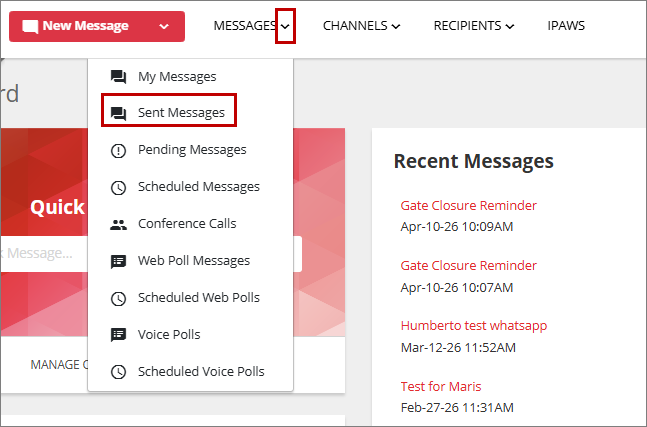
or
Click the **Messages** label to navigate to **Messages** page, then select **Sent Messages** from the left navigation pane.
The **Sent Messages** page opens with a list of messages sent from your organization.
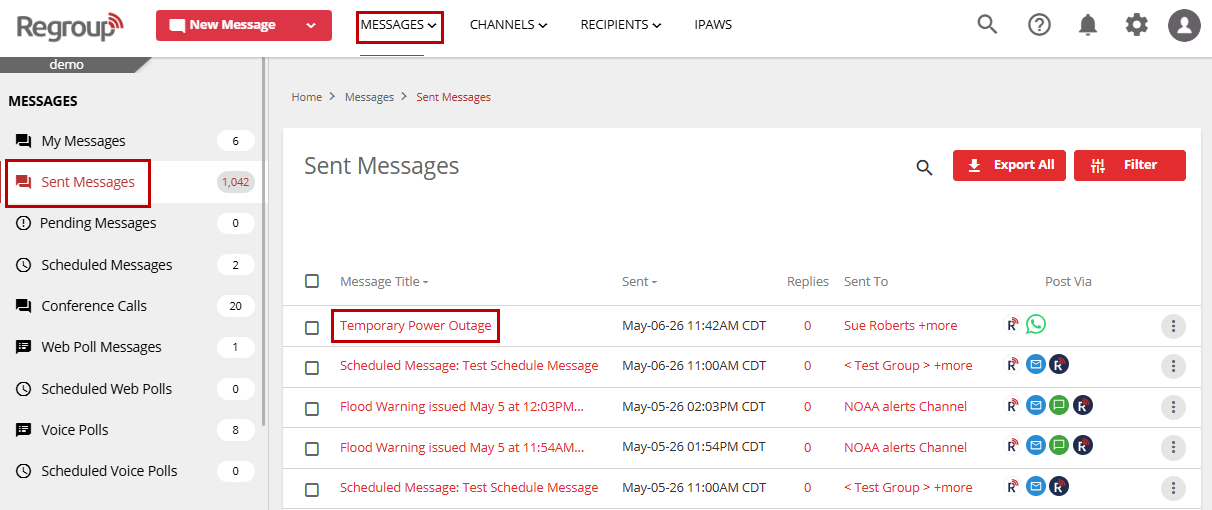
2. On the **Sent Messages** page, click the name of a WhatsApp message to view its details.
The Message details page displays.

3. Under **Message Details** tab, click the **Send Update** button.
4. Make the modifications as required, and click **Send Update**.
The updates are delivered within the same WhatsApp conversation where the original notification was sent.
### Stop Regroup WhatsApp Notifications
When a contact receives a notification from Regroup through WhatsApp, they have the option to stop receiving further notifications and updates at any time.
To stop receiving notifications:
1. Reply with **STOP** in the same WhatsApp conversation where the notification was received.
Once this command is sent, you will no longer receive notifications from Regroup via WhatsApp.
To resume receiving notifications:
1. Send **RESUME** in the same conversation.
After this, notifications from Regroup via WhatsApp will be enabled again.
- [Getting started](https://resources.regroup.com/regroupkb/getting-started)
- [Incident Management](https://resources.regroup.com/regroupkb/incident-management)
- [Set Up Organization Account](https://resources.regroup.com/regroupkb/set-up-organization-account#main-content)
- [Organization Setting](https://resources.regroup.com/regroupkb/set-up-organization-account#organization-setting)
- [Configure Organization Sign-Up Pages](https://resources.regroup.com/regroupkb/set-up-organization-account#configure-organization-sign-up-pages)
- [Manage Group Automation](https://resources.regroup.com/regroupkb/set-up-organization-account#manage-group-automation)
- [Configure Message Default Settings](https://resources.regroup.com/regroupkb/set-up-organization-account#configure-message-default-settings)
- [Manage Add-Ons](https://resources.regroup.com/regroupkb/set-up-organization-account#manage-add-ons)
- [Configure Social Media Preferences](https://resources.regroup.com/regroupkb/set-up-organization-account#configure-social-media-preferences)
- [View and Download Message Reports](https://resources.regroup.com/regroupkb/set-up-organization-account#view-and-download-message-reports)
- [Configure Contacts Management](https://resources.regroup.com/regroupkb/configure-contacts-management)
- [Set Up Admins and Roles](https://resources.regroup.com/regroupkb/set-up-admins-and-roles#main-content)
- [Manage Roles](https://resources.regroup.com/regroupkb/set-up-admins-and-roles#manage-roles)
- [Managing Existing Admins](https://resources.regroup.com/regroupkb/set-up-admins-and-roles#managing-existing-admins)
- [Manage Roles](https://resources.regroup.com/regroupkb/manage-roles)
- [Manage Groups](https://resources.regroup.com/regroupkb/manage-groups#main-content)
- [Create Groups Using Import](https://resources.regroup.com/regroupkb/manage-groups#create-groups-using-import)
- [Add Groups Using FTP Import](https://resources.regroup.com/regroupkb/manage-groups#add-groups-using-ftp-import)
- [Create or Update Group Hierarchy](https://resources.regroup.com/regroupkb/manage-groups#create-or-update-group-hierarchy)
- [Manage Group Files](https://resources.regroup.com/regroupkb/manage-groups#manage-group-files)
- [Manage Group Admin Profile](https://resources.regroup.com/regroupkb/manage-groups#manage-group-admin-profile)
- [Export Groups](https://resources.regroup.com/regroupkb/manage-groups#export-groups)
- [Configure Recipients and Admins](https://resources.regroup.com/regroupkb/configure-recipients-and-admins#main-content)
- [Add Recipients to Groups](https://resources.regroup.com/regroupkb/configure-recipients-and-admins#add-recipients-to-groups)
- [Manage Group Contacts](https://resources.regroup.com/regroupkb/configure-recipients-and-admins#manage-group-contacts)
- [Manage Organization Contacts](https://resources.regroup.com/regroupkb/configure-recipients-and-admins#manage-organization-contacts)
- [Manage Floating Contacts](https://resources.regroup.com/regroupkb/configure-recipients-and-admins#manage-floating-contacts)
- [Manage Communication Channels](https://resources.regroup.com/regroupkb/manage-communication-channels#main-content)
- [Create Channels](https://resources.regroup.com/regroupkb/manage-communication-channels#create-channels)
- [Create Channels Using Import](https://resources.regroup.com/regroupkb/manage-communication-channels#create-channels-using-import)
- [Setup Channels](https://resources.regroup.com/regroupkb/manage-communication-channels#setup-channels)
- [Create and Manage Sender Profiles](https://resources.regroup.com/regroupkb/manage-communication-channels#create-and-manage-sender-profiles)
- [Setup Social Media](https://resources.regroup.com/regroupkb/manage-communication-channels#setup-social-media)
- [Add Recipients to Channel](https://resources.regroup.com/regroupkb/manage-communication-channels#add-recipients-to-channel)
- [Manage Existing Channel Admins](https://resources.regroup.com/regroupkb/manage-communication-channels#manage-existing-channel-admins)
- [Setup Channel Subscriptions](https://resources.regroup.com/regroupkb/manage-communication-channels#setup-channel-subscriptions)
- [Manage Subscribers](https://resources.regroup.com/regroupkb/manage-communication-channels#manage-subscribers)
- [Manage Messages](https://resources.regroup.com/regroupkb/manage-messages#main-content)
- [WhatsApp Messaging](https://resources.regroup.com/regroupkb/manage-messages#whatsapp-messaging)
[](http://www.regroup.com)
[mailto:email@email.com](mailto:email@email.com)
Copyright © 2026, Regroup Mass Notification