
Overview
Sending messages to digital signage displays is possible using RSS feeds. Once Digital Signage is enabled for your organization, Digital Signage and RSS appear as delivery methods on the New Message page. This feature allows you to push visual alerts to screens connected through an integrated signage system.
This guide explains how to send Digital Signage messages.
Steps
-
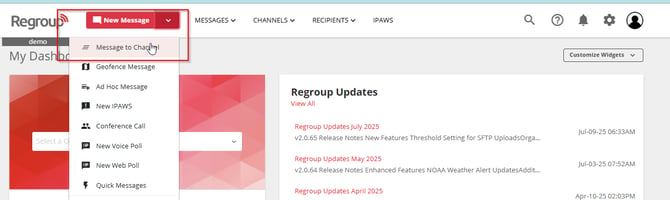
From the New Message dropdown, select Message to Channel.
Note: You can only send digital signage messages to channels with RSS configured. For setup, see Enable RSS Publication from Channel or Group.
-
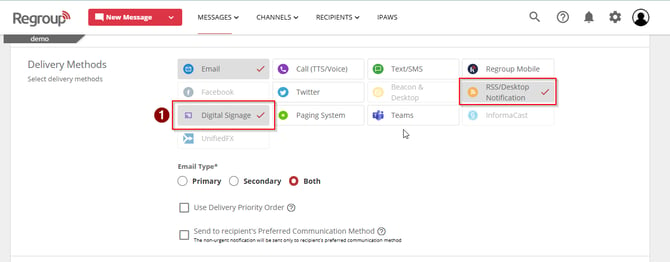
On the Post New Message page, select Digital Signage in the Delivery Method section. This automatically selects RSS as well.
-
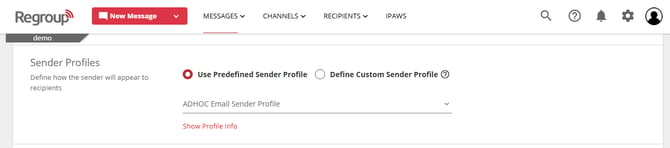
In the Sender Profile section, choose an existing sender profile.
-
In the Message Content section, enter the Message Title and Message Content.
-
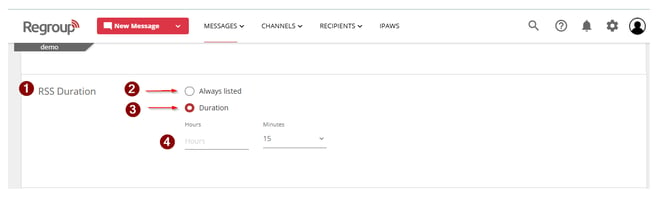
In the RSS Duration field, set how long the message stays live:
-
Always Listed: The message remains active until manually turned off in the channel.
-
Duration: Specify the number of hours or minutes the message stays live by entering values in the Hours and Minutes fields.
-
-
Click Preview to review the message before sending.
-
Click Send Now to broadcast the message immediately.
After Sending
-
The sent message appears in the URL for the FourWind Signage Integration Control File. See Accessing Digital Signage Integration Control File for details.
-
When a Digital Signage message with RSS is sent, the integration file’s emergency flag is set to True, and the message is published via the channel’s RSS link.
You can enable or disable Digital Signage in the Sent Messages section of the channel. Refer to Turn The Digital Signage On or Off for instructions.