
You can send messages from the New Messages page to your Alertus devices. You must select Beacon & Desktop as the delivery method for these messages.
See the topic Send New Messages, to know all options available for sending a message. The following procedure focuses only on sending Alertus messages:
-
Click New Message button. See the following image:
The post-new message page opens.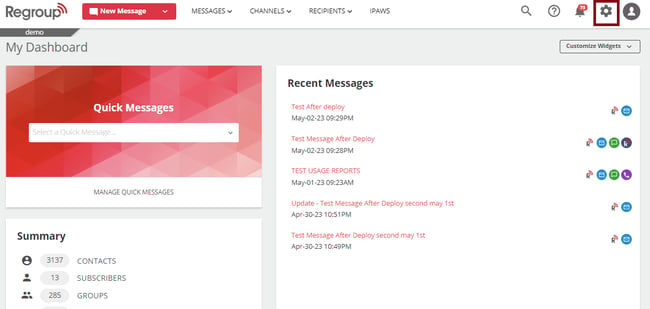
-
In the Message Type field, select Ad-Hoc Message to send messages only to Alertus Groups (Devices). You can leave the recipients field empty.
To send messages to Regroup recipients along with Alerts Groups, select as follows:
-
Ad Hoc Message: Send messages to Alertus Groups (Devices). Or, to Regroup groups and individuals along with Alertus Groups.
-
Message to Channel: Send messages to Regroup channels and Alertus Groups (Devices).
-
Quick Messages: sending messages to channels, groups or individuals saved as quick messages with Beacon & Desktop as a delivery method. For more details, see the topic: How to use quick messages.
See the following image:
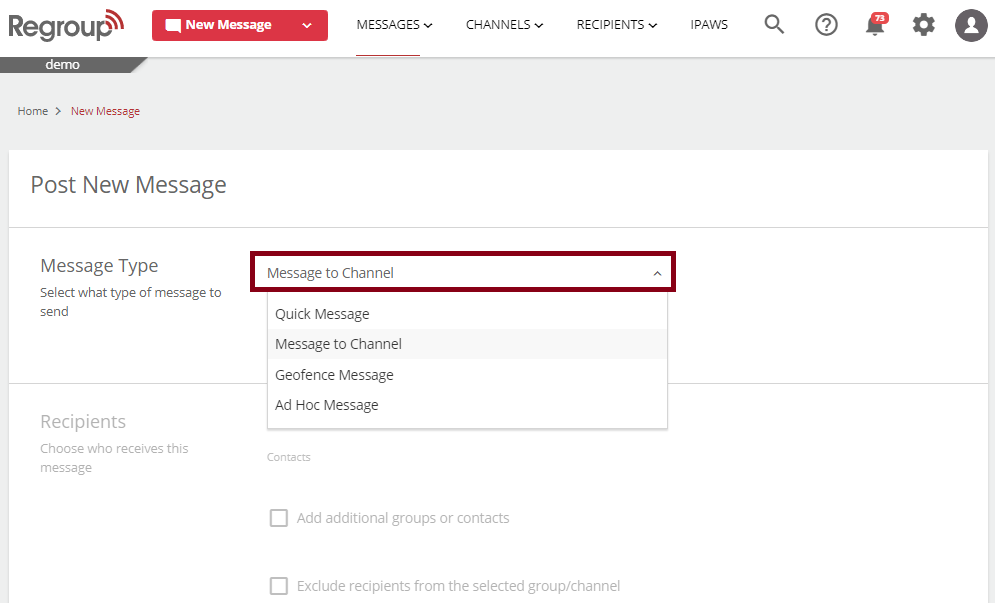
You can also select these message types directly from the New Message drop-down (New Message> Message to Channel).
Note: To send messages to only Alertus Groups (Devices), select Ad Hoc Message, and you can leave the Recipient section empty.
-
-
In the Delivery Method section, select Beacon & Desktop as the delivery method.
See the following image:
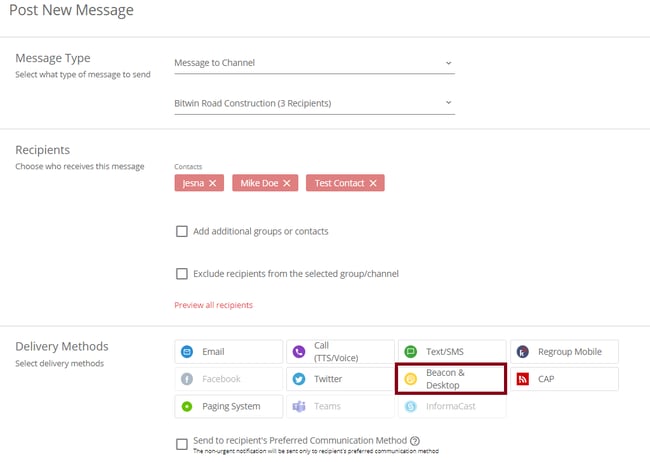
The Recipients section expands with fields to add Alertus Profiles and Groups.
-
Click the Alertus Profile dropdown and select the required profile.
-
Click the Alertus Groups(s) dropdown and select the required groups.
Tip: Our system accesses these detail using the Alertus Base URL, username and password you enter while setting up the Alertus add-on.
See the following image:
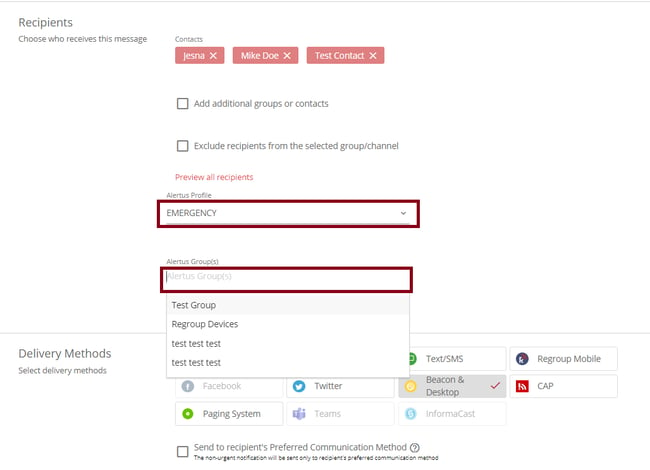
-
Add the sender profile and message content. To learn more about it, see the topic Send New Messages.
-
Click Save message body as a template for future use or Save as Quick Message to save the message body or full message, including recipients, respectively, for future use.
-
Click the schedule for later checkbox to schedule sending the alert later.
-
You can click Preview to preview the message.
-
Click Send Now to send the alert.
See the topic Send New Messages for more details on sending messages.