
You use a pre-saved message template to send Responsive Alerts. You must create a message template with polling options before sending messages. See the topic Create Responsive Alert Message Templates to create templates.
See the topic Send New Messages, to learn about all the options available for sending a message. The following procedure focuses only on sending Responsive Alerts:
-
Click New Message button. See the following image:
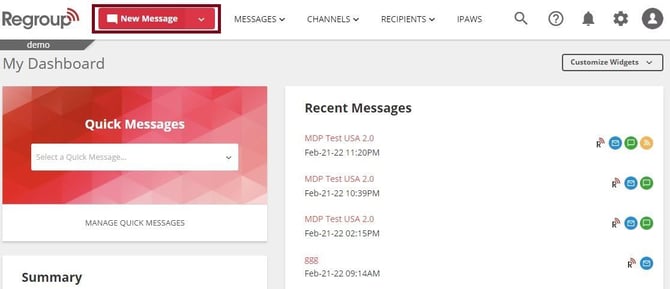
The post new message page opens.
-
From the Message Type section, select any of the following:
-
Message to Channel: to send the message to channels, groups, and individual recipients.
-
Ad Hoc Messages: to send messages to groups.
See the following image:
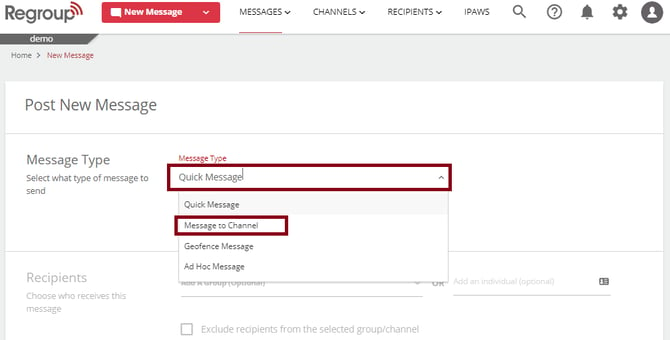
Tip: You can also select these message types directly from the New Message drop-down (New Message> Message to Channel).
-
-
Add the recipients, delivery method and sender profile. To learn more about these tasks and options, see the topic Send New Messages.
-
In the Message Content section, click Choose a Message Template dropdown and select the Responsive Alert template you created. See the following image to choose the message template dropdown:
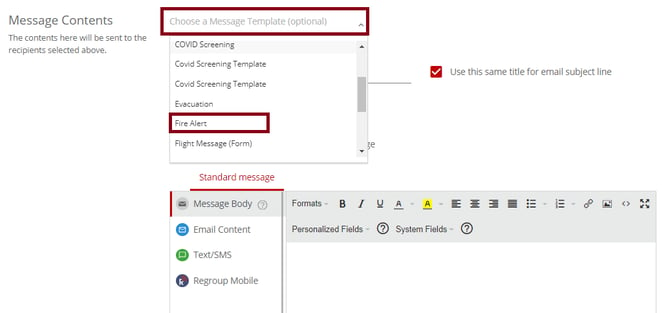
The template populates the message title, content and polling options.
To create a template, see the topic, Create Responsive Alert Message Templates.
-
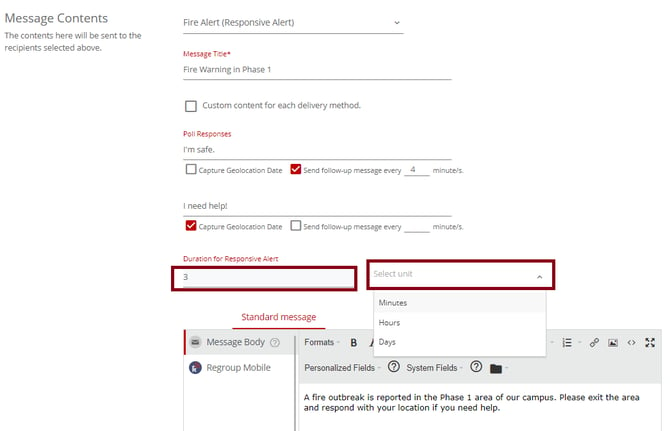
Update the Poll Responses if required.
-
Enter a time period in the Duration for Responsive Alert field and select the unit of time. See the following image:
-
You can click the This is Urgent checkbox to send the message irrespective of the contact’s quiet hour settings.
-
Click the Schedule for later checkbox to schedule sending the message.
-
You can click Preview to view how the message appears for the recipient.
-
Click Send Now to send the message instantly.
-
Click Send on the post-confirmation pop-up. You get a summary of recipients per delivery method.
The recipient now receives a unique URL in the email, SMS or push notification. They can click the link to respond to the poll in the web UI or mobile. They can also share their response using these links. Recipients can share the geolocation using the mobile app only if their location is set to Allow Access Always.
The Sent Messages page opens with the message you sent. You can view replies and geolocations in the Replies tab and respond to them. You can click the Geolocation tab to see all the shared geolocations in one map.