
Regroup enables you to set up different sets of notifications for admins according to their role in your organization.
See respective topics to set up notifications for organization, channel, and group admins.
See the topic Setup Organization Admin Notifications to notify channel admins on:
-
SFTP Import
-
API Import
-
LDAP SYNC
See the topic Setup Channel Admins’ Notification to notify channel admins on:
-
Pending Admin approval
-
Pending Subscribers approval
-
Newly added Subscribers
-
Subscriber profile modifications
-
CSV imports
This topic explains how to notify group admins on:
-
Pending Admin approval
-
Pending Group approval
-
Newly added contacts
-
Contact profile modifications
-
CSV imports
Here is how you set up notifications for organization admins:
-
Click the Recipients tab. See the following image:
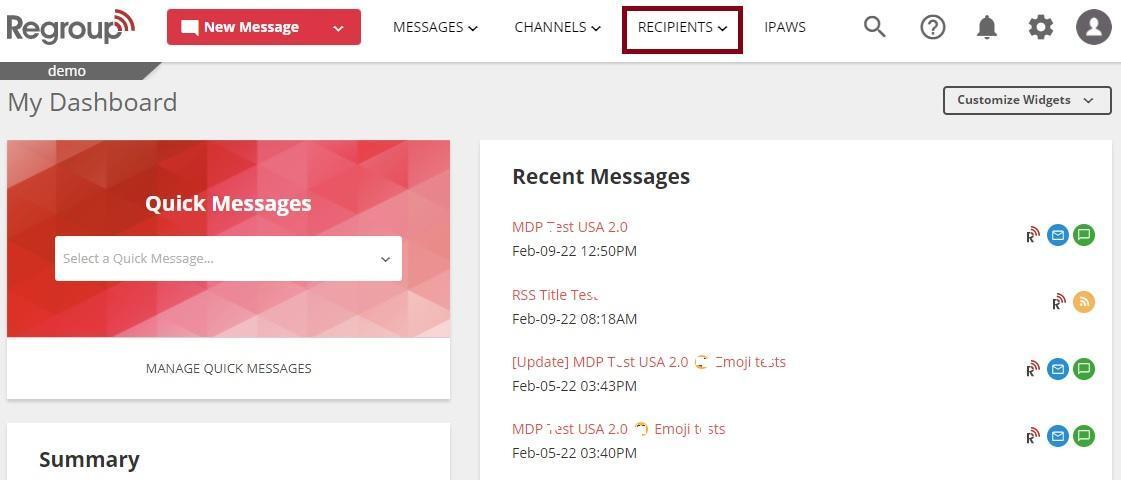
The My Groups page appears.
-
Search and locate the group to add the contacts in the My Groups tab. Organization admins can add contacts to the groups on the All Groups tab.
-
Click the group name and open it.
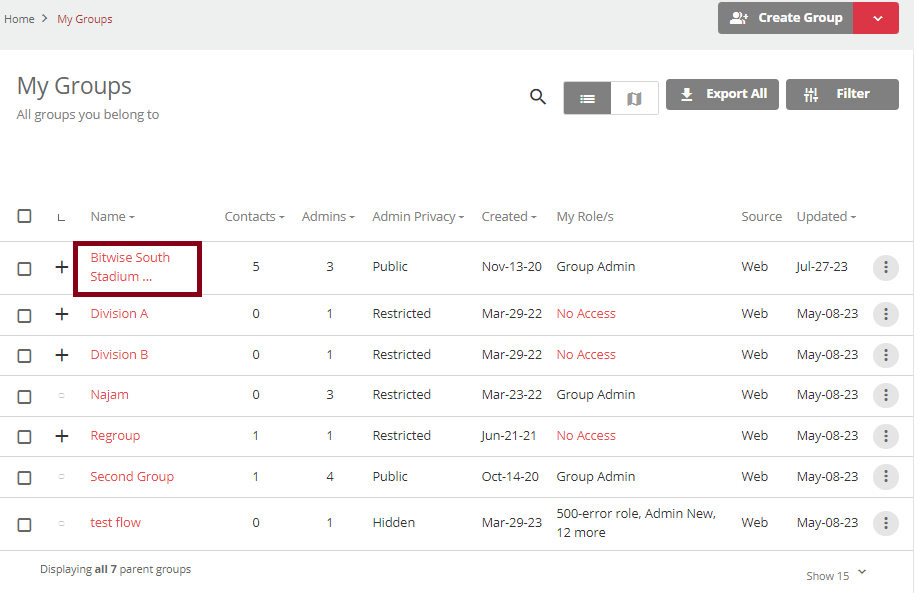
The Group Settings page opens.
-
Click Admins under the Group Members section on the left navigation panel. See the following image:
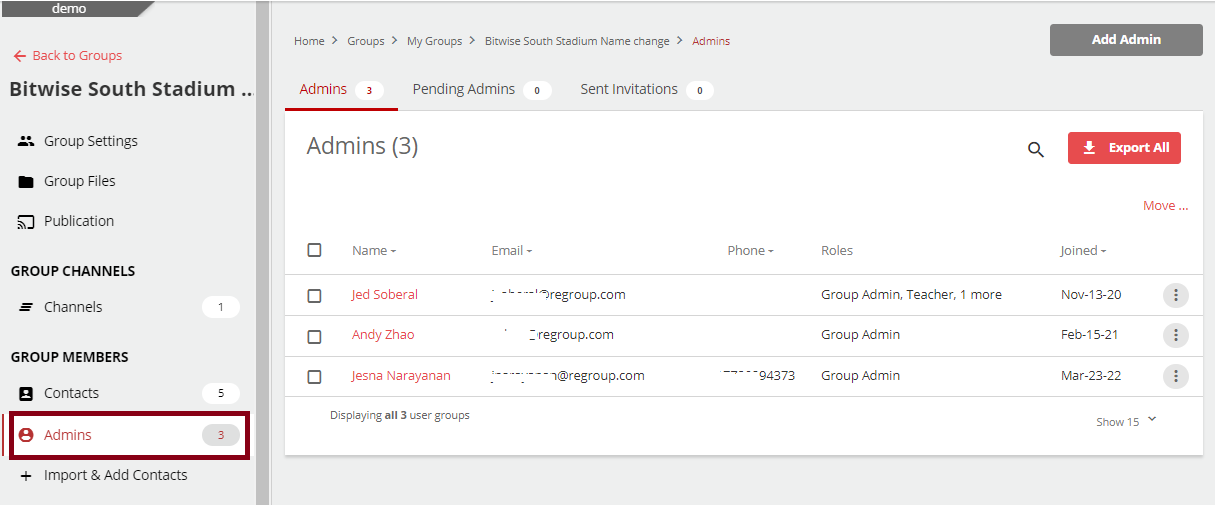
-
To search and locate the admin, enter the name or email ID of the admin and click enter in the lens icon.
-
Click on the vertical ellipsis on the right side of the selected profile.
-
Click Notification Settings. See the following image:
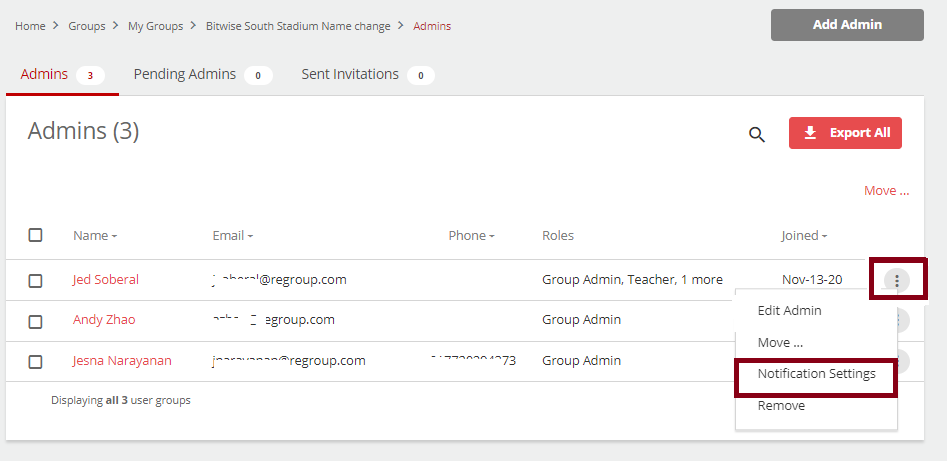
The Notification Settings page pops up.
-
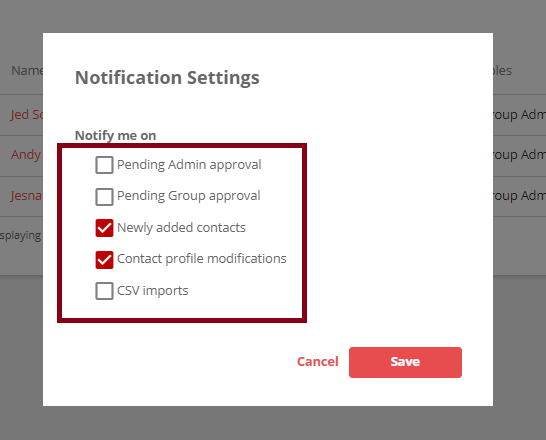
Click the checkboxes corresponding to any required notification:
-
Pending Admin approval: get notified when a new admin needs your approval to be added to the group.
-
Pending Group approval: get notified when a group creation needs your approval.
-
Newly added contacts: get notified when a new contact addition needs your approval to be added to the group.
-
Contact profile modifications: get notified when a contact in this group updates their profile.
-
CSV imports: get notified when a CSV import occurs in this group.
See the following image:
-
-
Click Save to save your notification preferences.