
You can create a QR code for the web and SMS subscriptions to a channel. When a user scans a QR code set for web signup, they are directed to the signup page where they can enter their information and sign up. When the QR code is set for the SMS subscription, users who scan the code will dial the subscription code you provide.
You must enter the keyword or URL in a third-party QR code generator to create a QR code.
You can configure QR code for the subscription in two ways:
Set QR Code for Subscription Using SMS
Users who scan the QR code set for SMS subscriptions (text to join) bypass the need to enter the shortcode, command and keyword required for the SMS subscription. Mobile scanning enables them to subscribe to the designated channels.
Here is how you create an SMS subscription QR code:
-
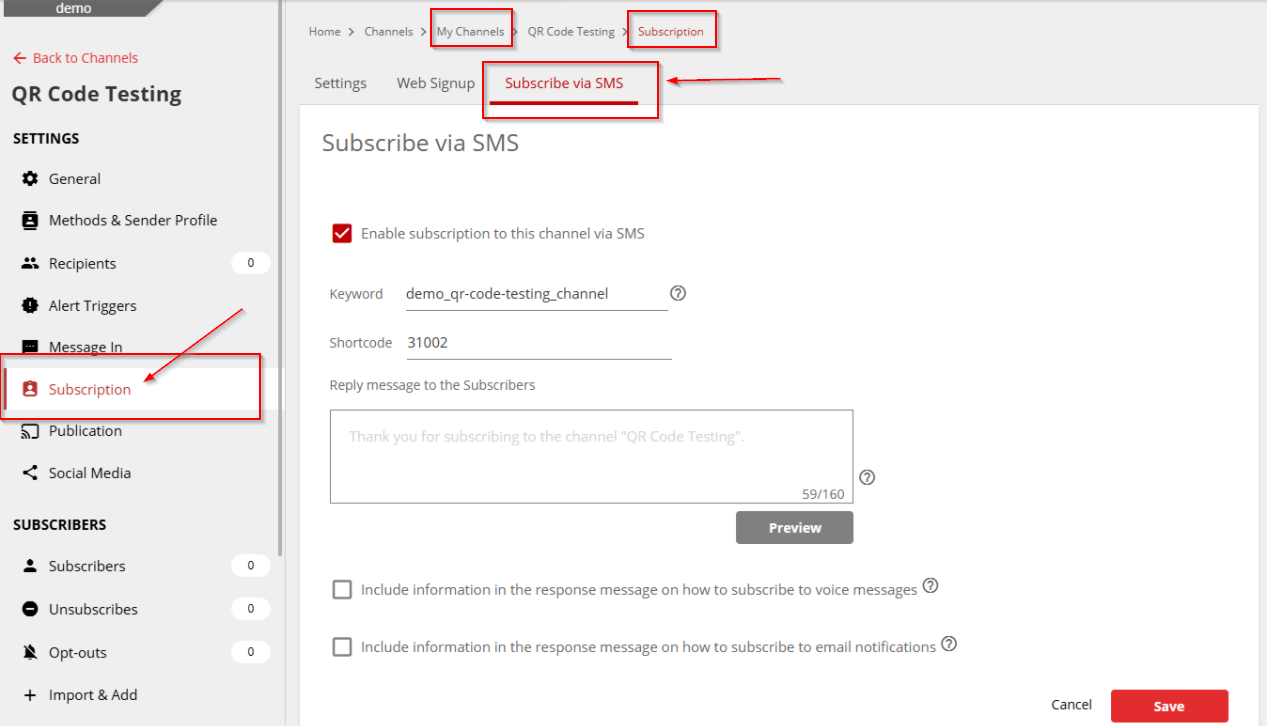
Collect the Keyword and Shortcode from the Subscribe via SMS tab. See the topic Configure Subscription via SMS (steps 1-7).
2. Once you have the keyword and phone number (shortcode), navigate to any third-party QR code generators. The following are some options:
3. On the QR code generator, click SMS. See the following image:
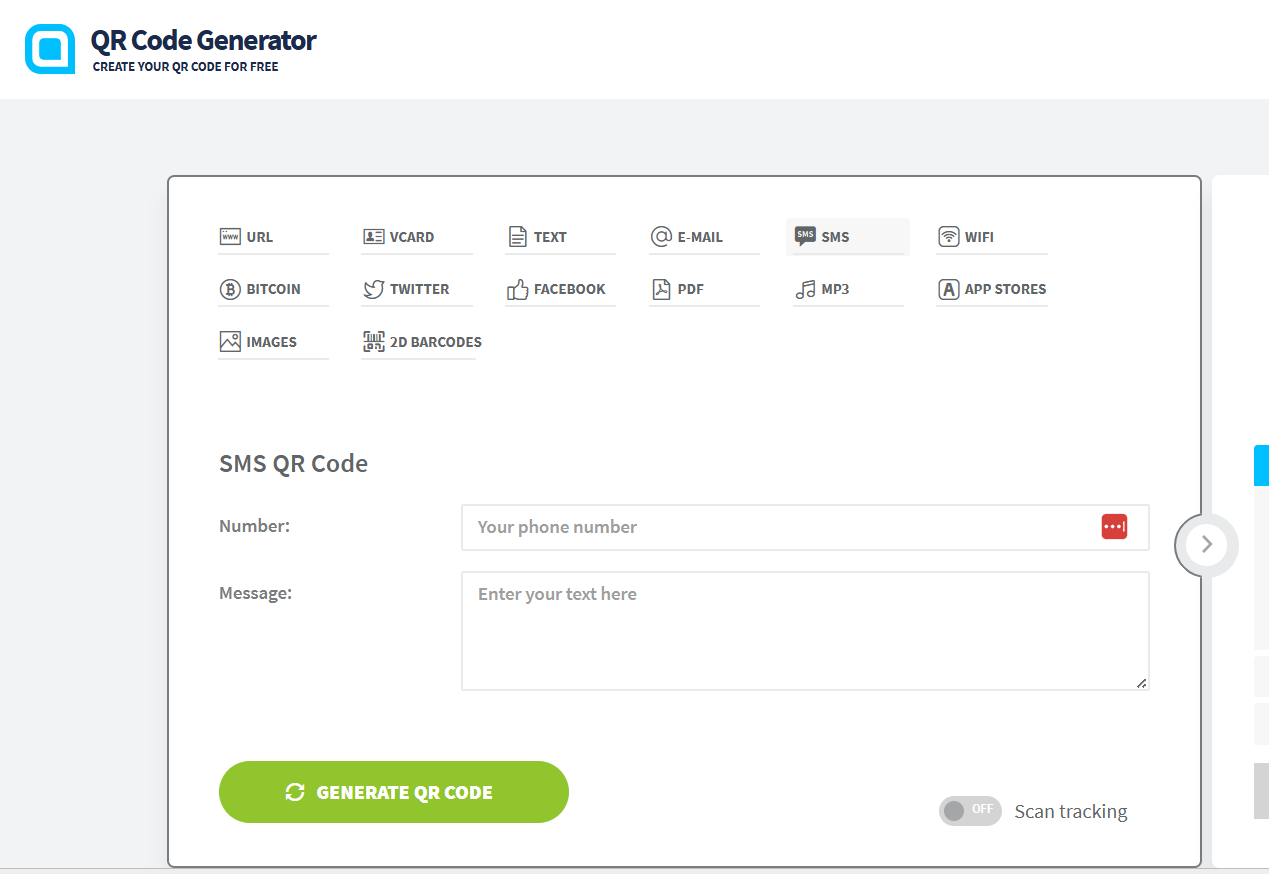
4. Enter the phone number in the Number field. To know which phone number to use, see the codes listed in this article: Short Codes, Long Codes, and Error Codes.
5. Enter the Keyword from the Regroup application in the Message field. You must enter the Keyword as join "keyword" without quotes.
The following image shows the QR code generator with the Shortcode as Number and Keyword (added with join) as Message:
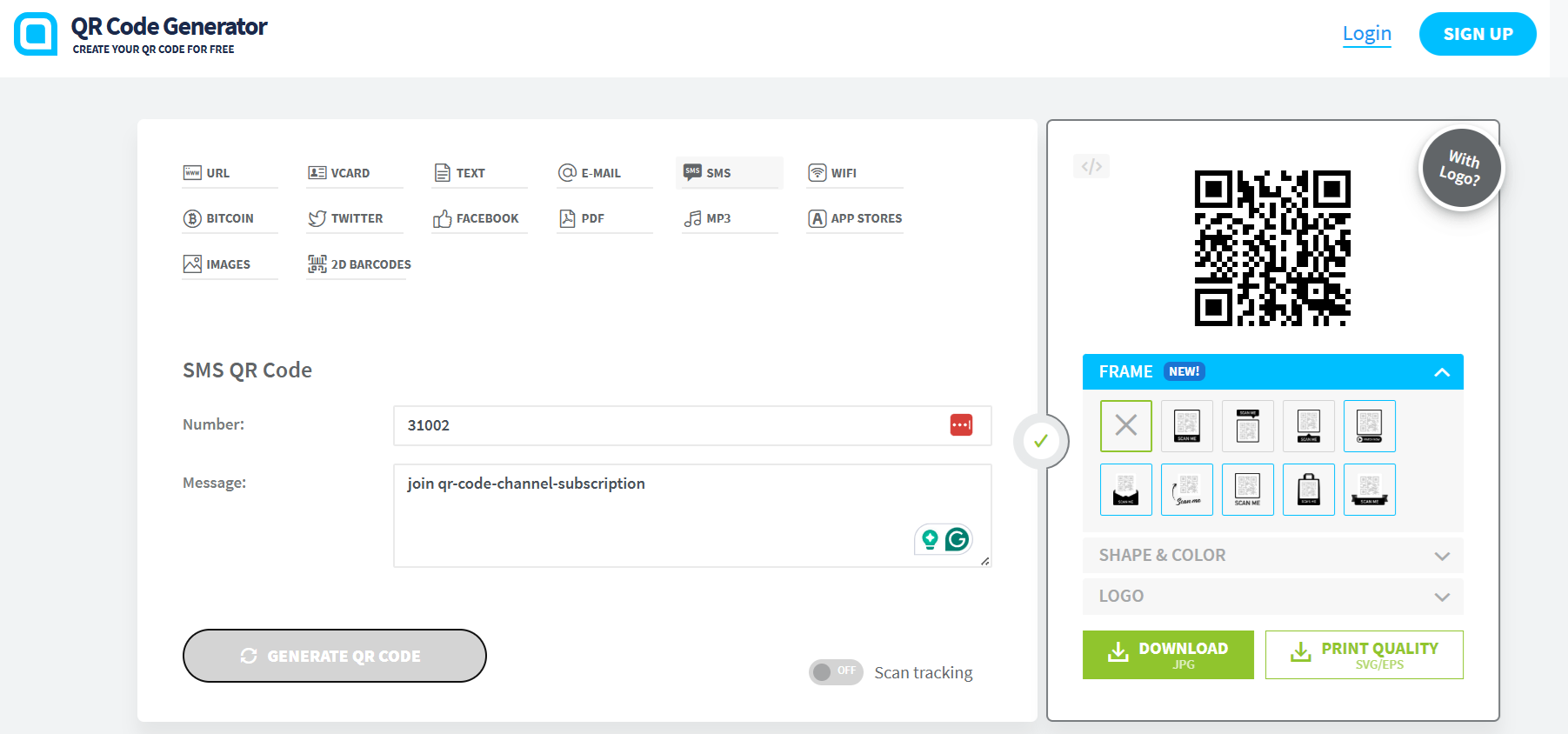
6. Click Generate QR Code.