
Update an IPAWS Alert
You can update an IPAWS alert at any time before it expires.
-
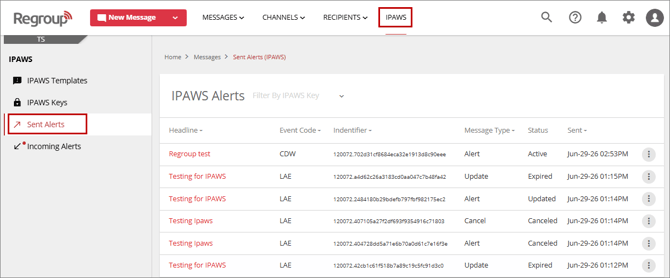
Navigate to IPAWS > Sent Alerts page.
-
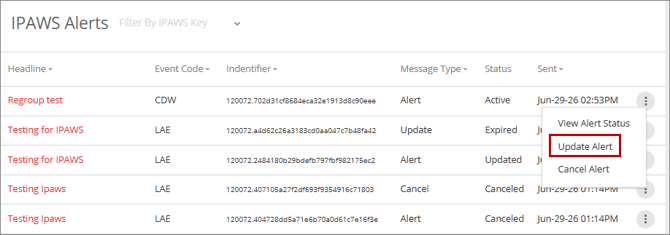
On the Sent Alerts page, click the More (ellipsis) icon for an alert, and then select Update Alert from the popup menu.
or
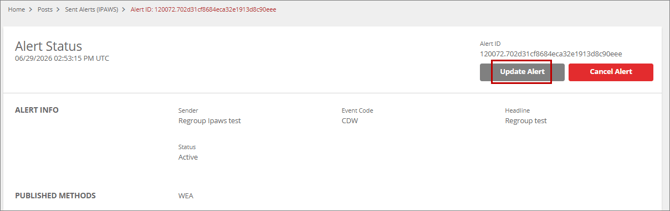
On the Sent Alerts page, click the alert name to open its Alert Status page, and then click the Update Alert button.
-
On the Update Alert page, modify the alert parameters as required. For detailed information about each IPAWS alert parameter, see the Create Templates and Send IPAWS Alerts topic.
-
Click the Preview and Send Update button.
The Preview IPAWS dialog is displayed, allowing you to review the IPAWS parameters configured for the alert. If a security code has been configured for launching IPAWS alerts, an Enter Code to Send field is shown. Enter the required code and click Send Alert to send the IPAWS alert. See the Configure a Launch Code For IPAWS Alerts topic for additional information on configuring a launch code for IPAWS alerts.
Cancel an IPAWS Alert
You can cancel an IPAWS alert at any time before it expires. Canceling an IPAWS alert stops further rebroadcasts of the referenced alert.
-
Navigate to IPAWS > Sent Alerts page.
-
On the Sent Alerts page, click the More (ellipsis) icon for an alert, and then select Cancel Alert from the popup menu.
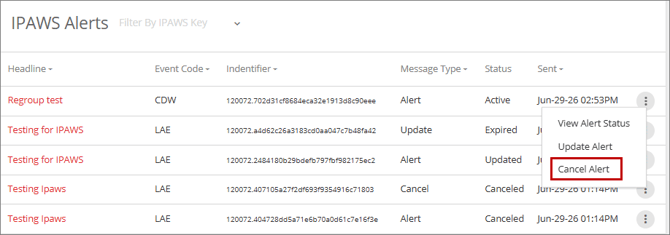
orOn the Sent Alerts page, click the alert name to open its Alert Status page, and then click the Cancel Alert button.
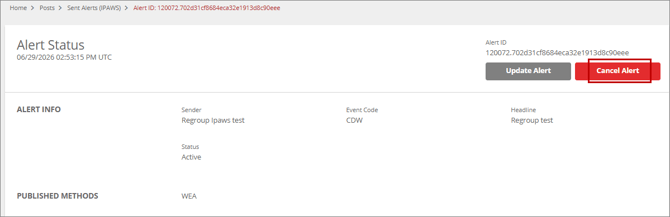
-
On the Cancel Alert page, click Send Cancel to stop the rebroadcast of the referenced IPAWS alert.
Note: Canceling an IPAWS alert stops further rebroadcasts of the referenced alert. It does not send an all-clear or "alert ended" message to the public.
Optionally, to keep the IPAWS alert active instead of canceling it, click Keep Alert Alive. The alert remains active without any changes.