
The responsive alerts message report comprises a pie chart displaying the count and percentage of responses. You can view and download the report with recipient details and response methods.
You can download the following three types of reports from the Reports tab of a sent responsive alert:
-
Summary Report: Provides the message details and overall analytics of the message.with recipient details and responses.
-
Delivery Status Report: Provides the delivery status of each delivery method per recipient. You can download the report with or without the custom attributes.
-
Recipient list with responses: You can download the list of recipients and their responses with or without custom attributes.
Here is how you view and download the responsive alert reports:
-
Click the Messages dropdown and select Sent Messages. See the following image:
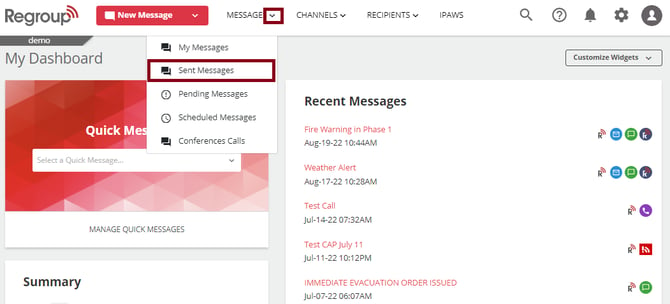
The Sent Message page opens.
You can reach the Sent Message page by clicking the Sent Messages on the left navigation pane of the Messages tab. See the following image:
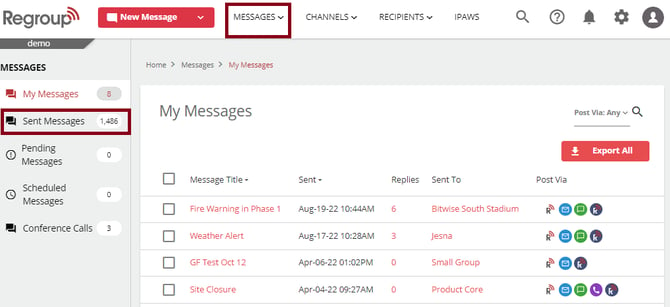
-
Click the Message Title of the message you want to monitor. See the following image:
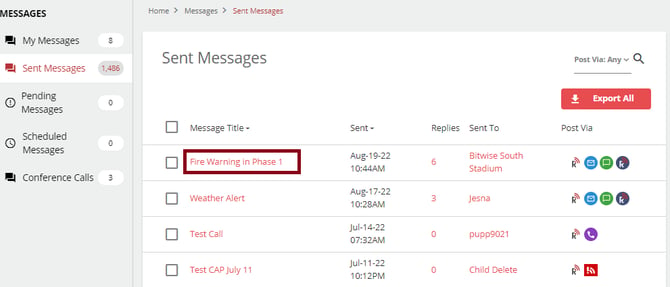
The Reports page of the selected message opens.
-
Click the Reports tab for reports. See the following image:
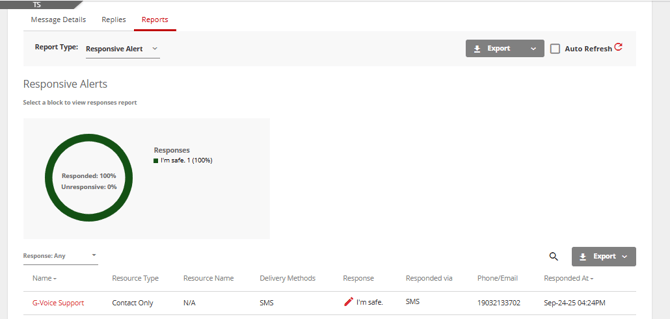
The Reports page opens.
-
To view the count and percentage of responses:
-
Click the Response Type dropdown and select Responsive Alert. See the following image:
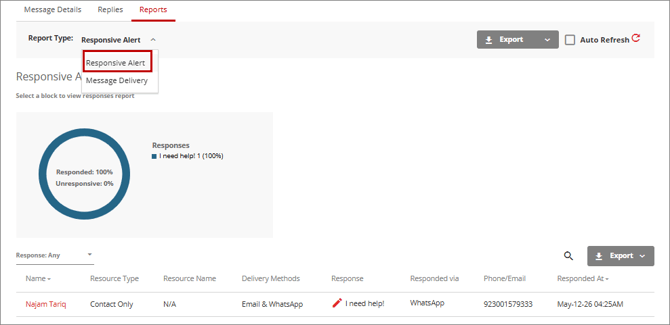
The Responsive Alerts report page opens.
-
You can view the pie chart displaying the count and percentage of responses.
-
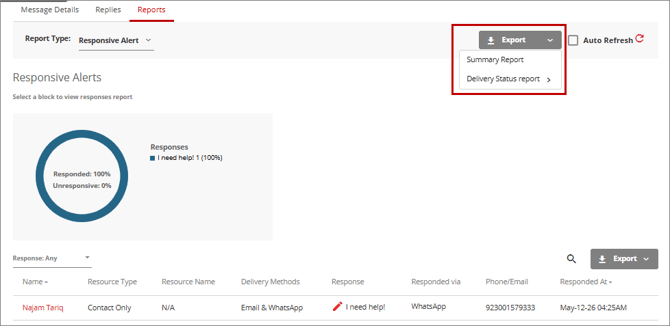
Click Export button to download the the following types of reports:
-
Summary Report: Provides the message details and overall analytics of the message.with recipient details and responses.
-
Delivery Status Report: Provides the delivery status of each delivery method per recipient. You can download the report with or without the custom attributes.
See the following image:
-
-
-
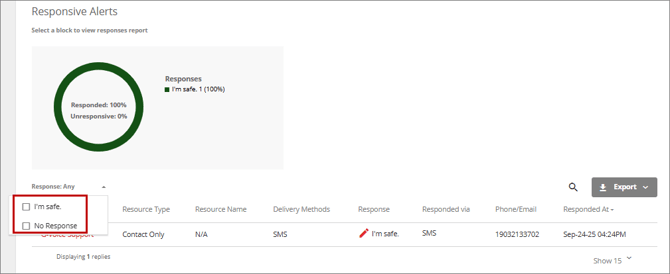
To sort the responses, click the Response Type dropdown and select the required response. See the following image:
-
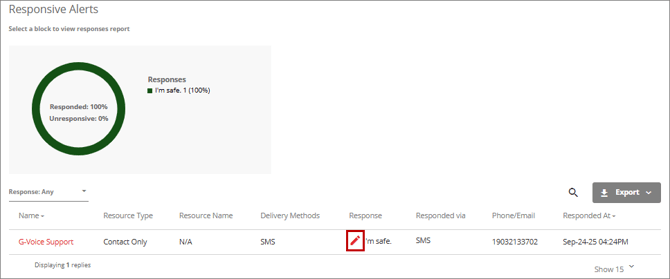
You can update the response submitted by a recipient to a responsive alert. To update a response:
-
Click the Edit icon for a response.
-
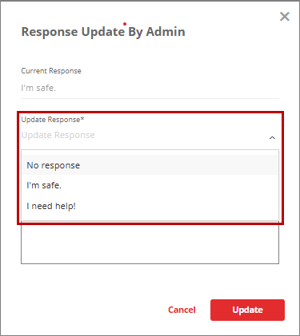
In the Response Update By Admin dialog, select the desired response from the Update Response dropdown list. For example, "I am Safe" or "I need Help".
-
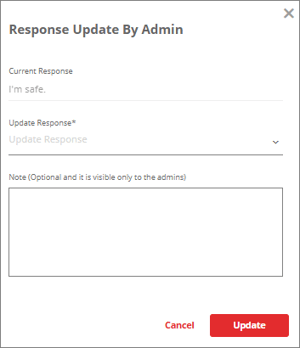
Optionally, specify a note for the response. This note will be visible to admins only.
-
Click the Update button.
-
-
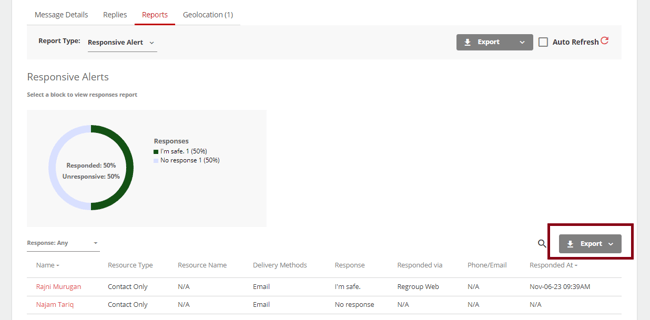
Click Export next to the recipient list to get the recipient list with responses.
See the following image:
See the topic Manage Message Reports and Email Analytics to learn more about message reports.