
You can view and download the detailed summary report of each sent message in the Reports tab. You can access the Reports tab from the Messages tab and Organization Settings.
In the Reports tab of any message you can:
-
View and export the Recipient and Status report per each delivery method.
-
Access the Email Analytics to understand messages' delivery and bounce status, engagement and browser details.
-
Download Summary Report.
The following procedure shows how to reach the Reports tab through the organization settings. Once in the Reports tab, refer to the procedure, Manage Message Reports and Email Analytics, step 2 onwards, to view and download the message reports and analytics.
-
Click the Organization Settings icon in the top right corner. See the following image:
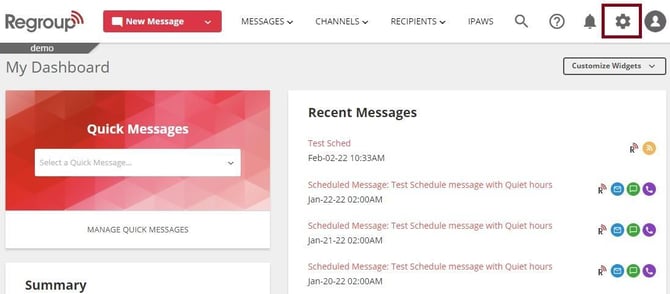
The Organization Settings page appears.
-
Click All Messages under the Reports section on the left navigation panel. See the following image:
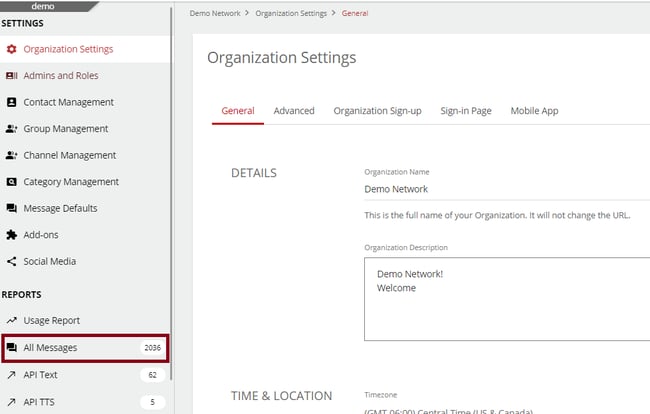
The All Messages page opens with the summary of messages sent from your organization.
-
Click on the message title of the required message. You can search for the message if required.
See the following image highlighting the search bar and the message title:
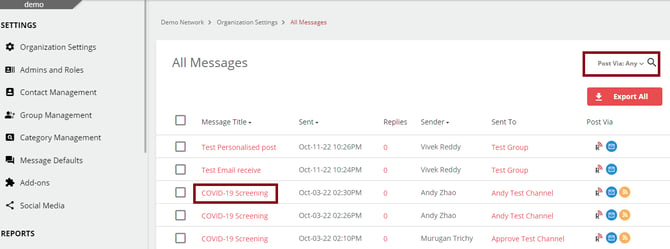
By default, the messages page opens with the Reports tab.
See the procedure, Manage Message Reports and Email Analytics, step 2 onwards, to view and download the recipient data, email analytics, and summary report.