
The contacts of a group, subscribers of channels and floating contacts in your organization constitute the Organization Contacts. Floating Contacts are the contacts that are not part of any groups and channels.
You can view or remove the organization contact as follows:
-
Click the Recipients tab. See the following image:
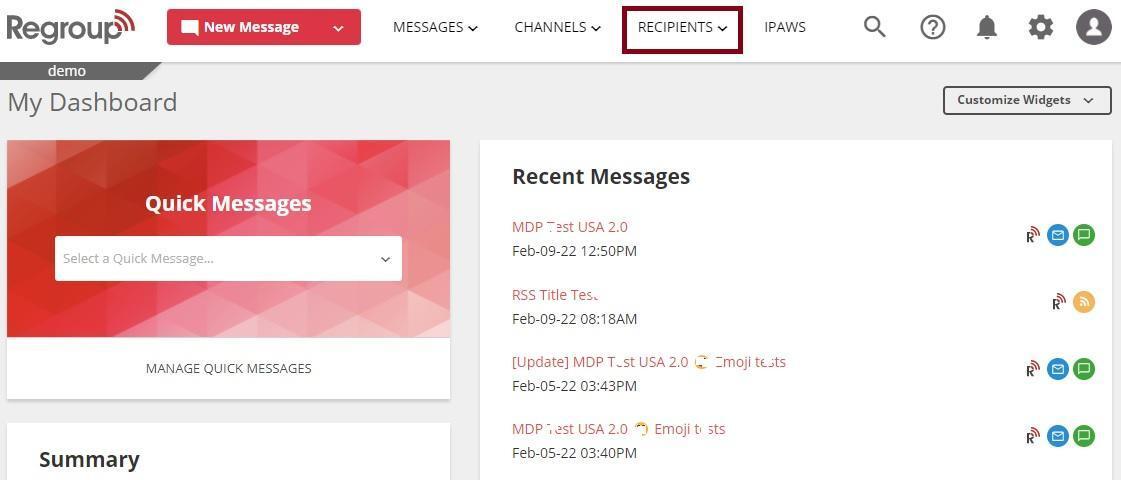
The My Groups page appears.
-
Click All Contacts under the Organization Contacts section on the left navigation panel. See the following image:
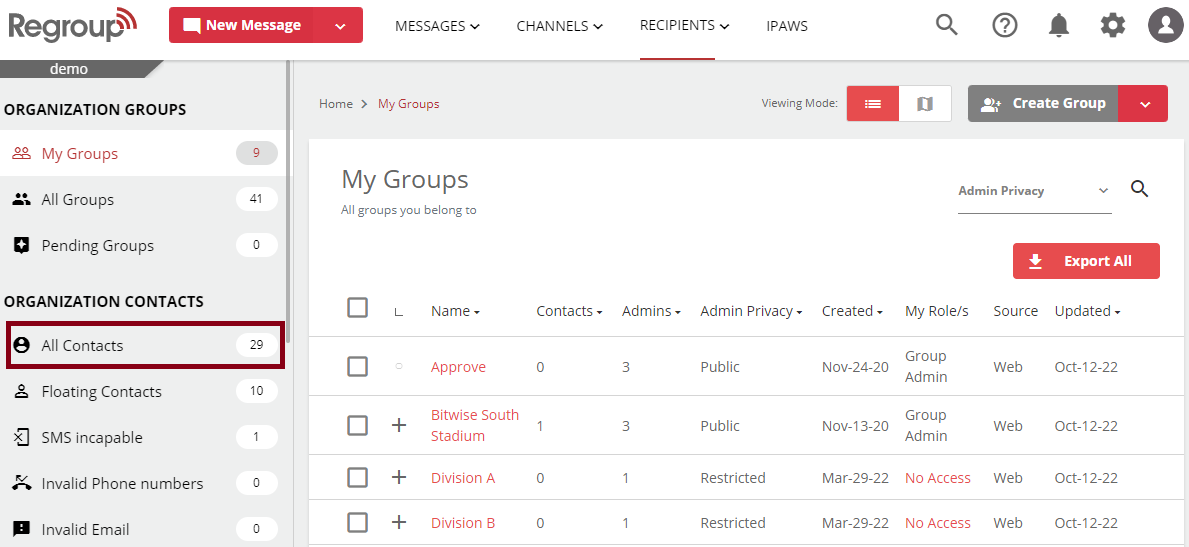
The All Contacts page opens with the list of all contacts in the organization.
-
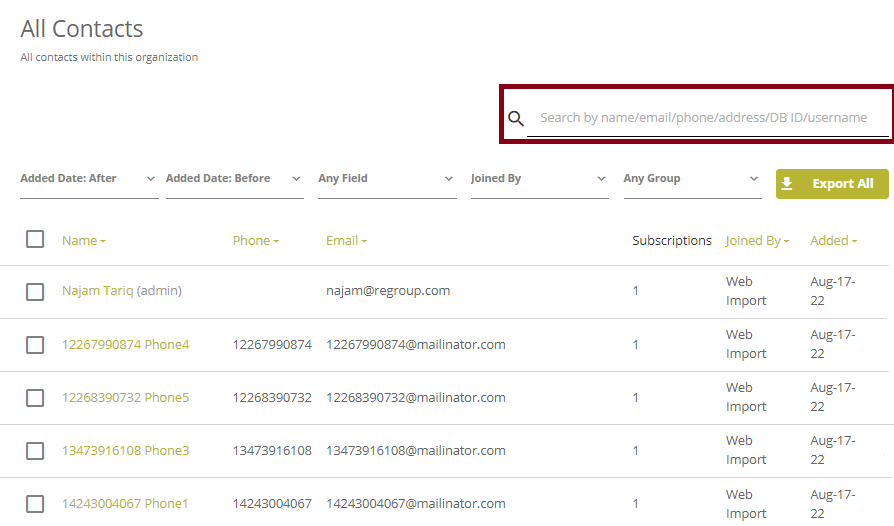
You can click the search bar, enter the search word and click enter to search for a contact record.
You can search a contact by name, email ID, phone, address, DB ID or user name. See the following image:
-
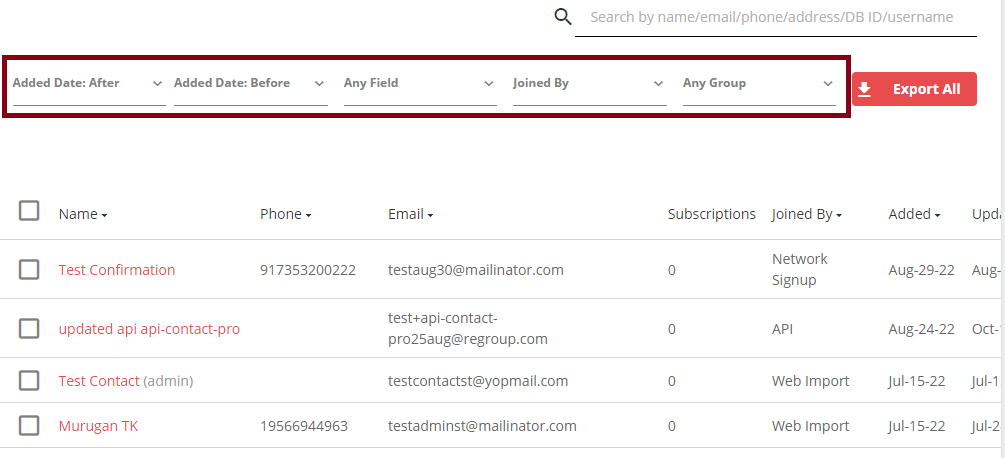
You can click the following filter option to:
-
Added Date (After) or (Before): search for contacts added after or before the selected date.
-
Any Fields: search for contacts using custom attributes.
-
Joined By: filter contacts on the method they used to join your organization.
-
Any Group: filter contacts based on the groups they are part of.
See the following image:
-
-
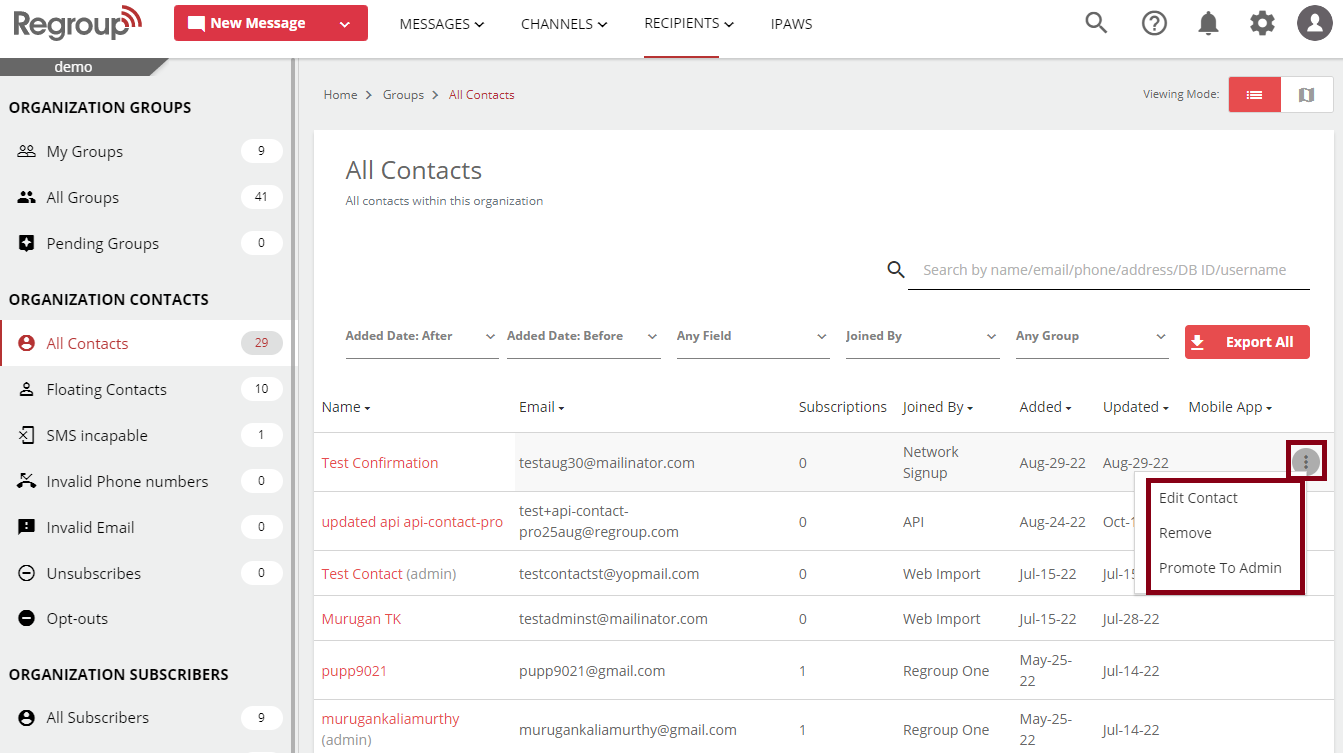
Click the vertical ellipsis corresponding to the contact you want to update.
-
You can click Remove to delete the contact profile. See the following image:
-
You can add contacts to channels or groups by clicking the Edit Contact option. When the Contact Profile page opens, scroll down to the My Groups and Other Channels to Subscribe section. For more information, see the topic Update Contact Profile.