
You can view the voice poll responses on the Voice Poll page of the Sent Messages. You can view and download a CSV with voice poll ID, users’ unique details, recorded responses, and their response key entry. You can also use API to fetch the voice poll responses.
-
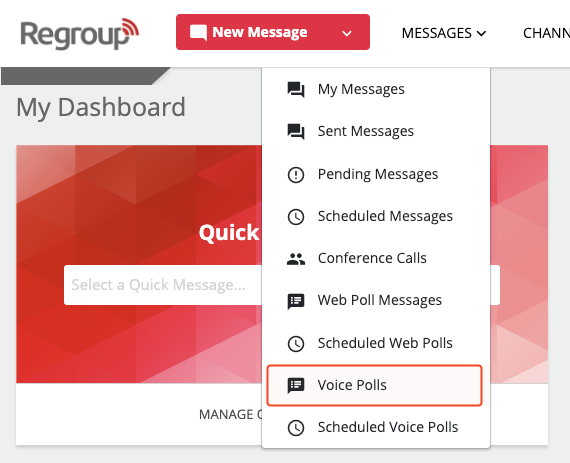
Select Voice Polls in the Messages dropdown.
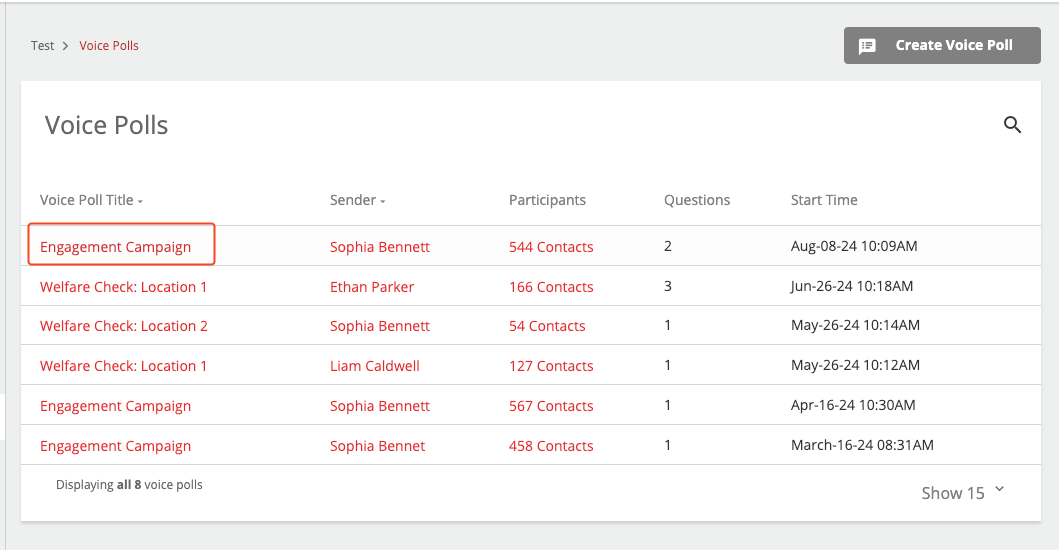
2. Click the message title to open the reports.
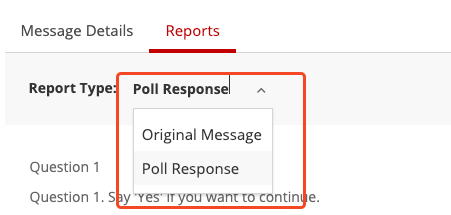
3. Click the Report Type dropdown to select from the following two types:
-
Original Message: View and download the recipient list with the delivery status of the call.
-
Poll Response: View and download the recipient list with their response to each question.
See the following image:
4. If you click Report Type – Original Message, you see the delivery status of the message per recipient. The diagram shows the total number of recipients per status.
Tip: You can contact Regroup to enable call retries. Call retries enable the system to call the recipient again if their phone is out of network or busy on the first call.
5. If you click Report Type – Poll Response, you see each question, its responses, and the recipient’s details.
Here are the available attributes of the Poll Response report:
-
Questions appear as tiles on the left side. Each tile contains the following:
-
The entire question.
-
Response options with the recipient count for each response and the no response count.
-
A pie chart showing the percentage of different responses and no response.
-
-
Recipient details of the selected question appear listed on the right side. The list contains the following recipient details:
-
Name of the recipient
-
Phone number to which the call was sent
-
Responses include the keypad entry numbers, voice recording, or no response.
-
Date and time when the system received the recipient’s response.
-
-
If you have selected Recording as the response option, you can click the play icon corresponding to each recipient to play their response.
-
You can click the Status: Any field to filter the recipient list per response option.
-
You can click Export to download a CSV with each question and its responses.
Tip: A playable link is available in the Response column of the CSV when you download a report with voice recording as the response.