
The WhatsApp delivery method enables organizations to send messages to contacts via WhatsApp as an additional delivery method. When enabled, it works alongside existing delivery methods such as SMS, voice calls, and email, and follows the same rules for phone numbers, phone types, custom content, and reporting.
WhatsApp is available as an add-on. Once enabled, administrators can configure it at the organization level, manage WhatsApp phone numbers within contact profiles, select WhatsApp as a delivery option when sending messages, and monitor delivery and read statuses through reporting.
To enable WhatsApp add-on, contact your Regroup Customer Success Manager.
To use WhatsApp as a delivery method for notifications, perform the following activities sequentially:
Configure WhatsApp for an Organization
WhatsApp must be enabled at the organization level before it can be configured and used as a delivery method. To use WhatsApp as a delivery method in Regroup, you need to generate a WhatsApp Token and a WhatsApp Phone Number ID from your Meta Business portfolio and then provide those credentials within Regroup. These credentials allow Regroup to securely connect to your WhatsApp Business account and send alert notifications.
For detailed instructions on generating WhatsApp token and Phone number ID, refer to the Generate WhatsApp Token and Phone Number ID topic. After generating the WhatsApp token and phone number ID, you have to enter these values in Regroup. Follow the steps to provide these parameters within Regroup.
-
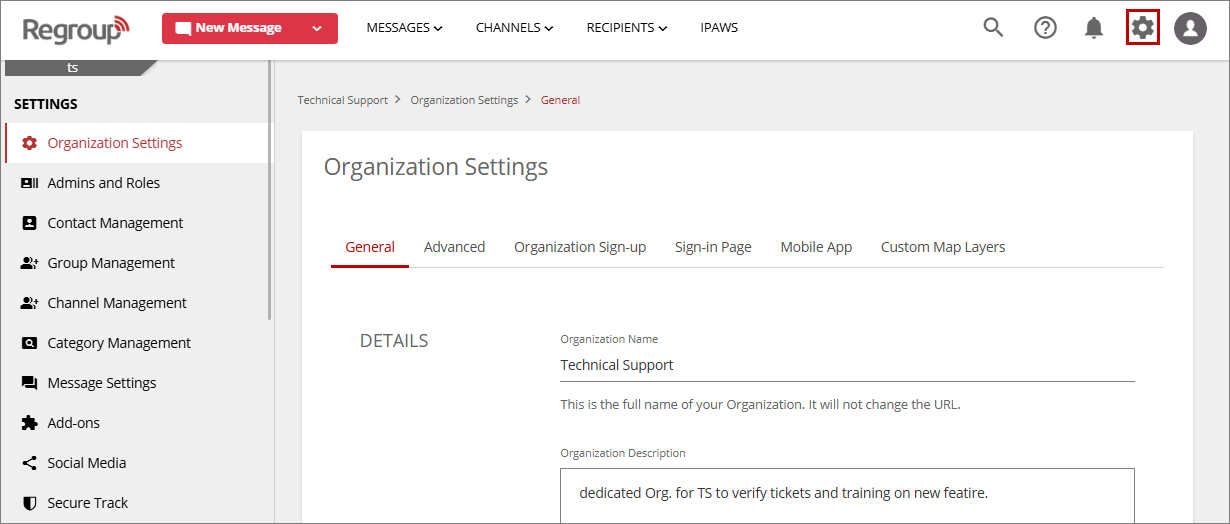
Click the Settings icon in the top bar.
The Organization Settings page displays.
-
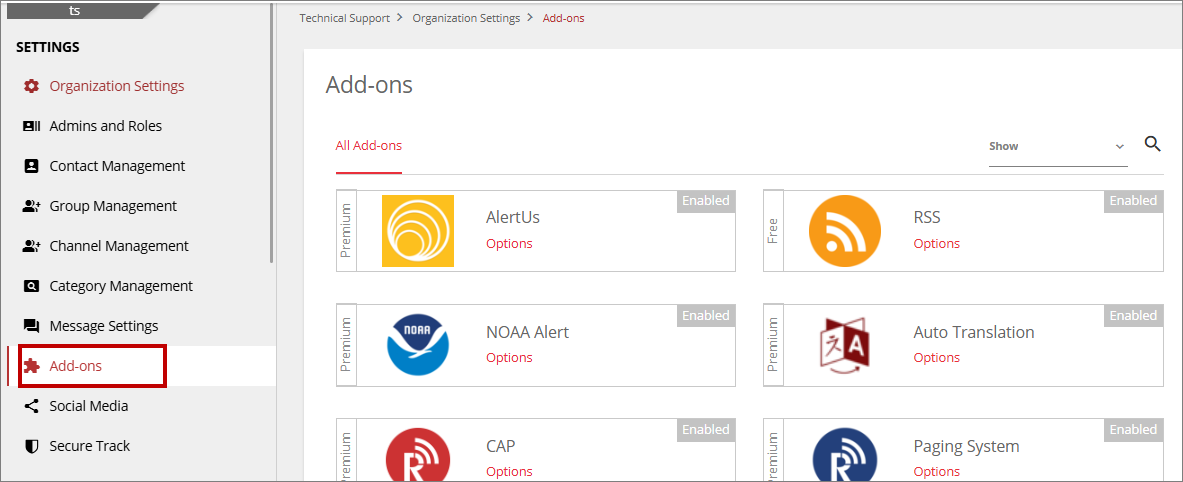
In the left pane, click Add-Ons.
The Add-Ons page appears, displaying all add-ons available to the organization.
-
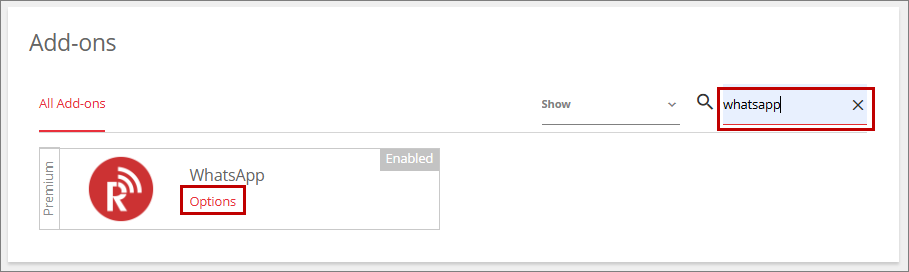
On the Add-ons page, click the search icon, type WhatsApp in the search field, and press Enter to find it.
The WhatsApp add-on appears in the search result.
Note: The WhatsApp options will only appear on the Add-ons page after it has been enabled by Regroup.
-
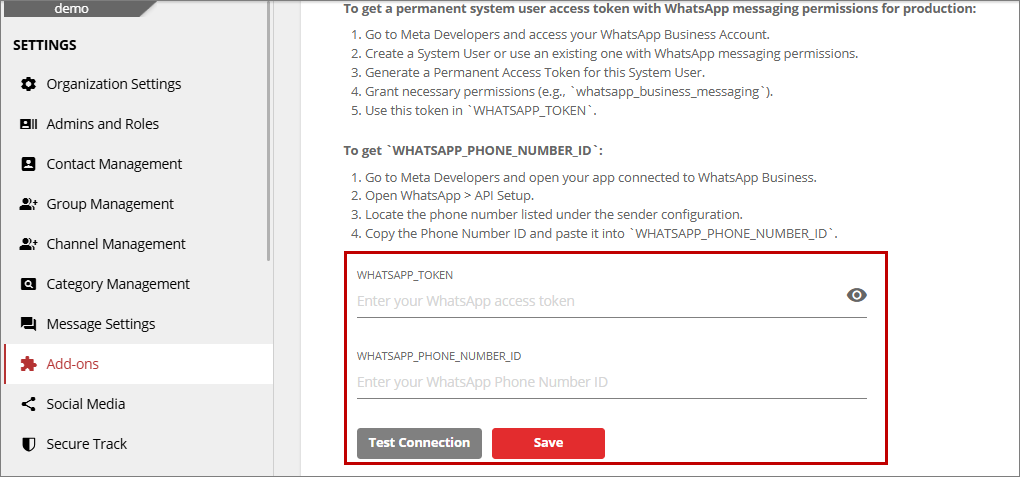
Click Options on the WhatsApp add-on tile.
-
Specify the following configurations for WhatsApp:
-
WHAPSAPP_ TOKEN: Enter the WhatsApp token generated from your Meta Business portfolio. See the Generate WhatsApp Token and Phone Number ID topic for additional information.
-
WHATSAPP_PHONE_NUMBER_ID: Enter the WhatsApp Business phone number ID generated from your Meta Business portfolio. See the Generate WhatsApp Token and Phone Number ID topic for additional information.
-
Enable WhatsApp for Contact Phone Numbers
To enable contacts to receive alert notifications via WhatsApp, you must configure WhatsApp for their phone number in the Contact profile or as part of a .csv or API user management process.
Enable Phone Number For WhatsApp via .csv and API
Refer to Format Reference in Recipient Import Syntax For CSV topic.
Refer to Phone Field Parameters in API User Import Documentation topic.
Manually Enable Phone Number For WhatsApp
Within the Contact profile, you can designate each phone number as either WhatsApp Capable or WhatsApp Incapable. Phone numbers
-
Navigate to the Profile page of the Contact you want to enable Whatsapp. Click Edit Profile.
-
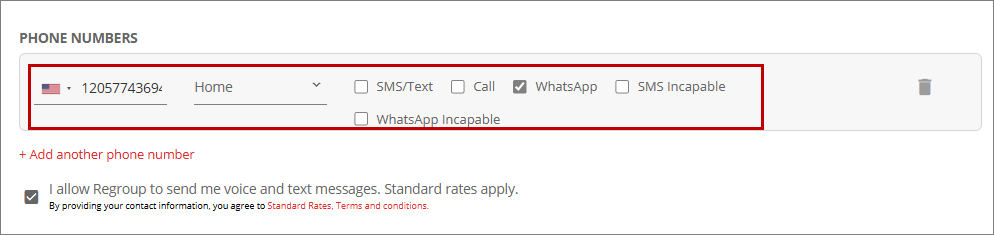
In the Edit Contact Profile page, scroll to Phone Numbers section.
-
In the Phone Numbers section, choose one of the following options for a number to configure WhatsApp notifications:
-
WhatsApp Capable: Indicates that the phone number supports WhatsApp messaging. When selected, notifications can be sent to the contact via WhatsApp.
-
WhatsApp Incapable: Indicates that the phone number does not support or is not enabled for WhatsApp. When selected, WhatsApp notifications will not be sent to this contact.
-
-
Click the Save Finish button to save the settings.
View WhatsApp Incapable Contacts
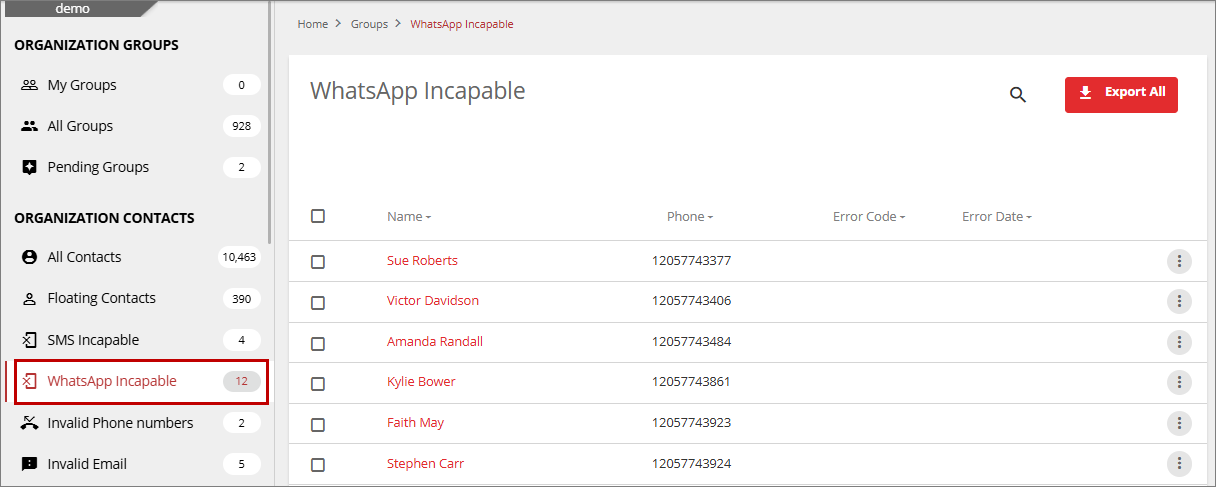
WhatsApp Incapable contacts are phone numbers that are unable to receive notifications via WhatsApp. These are automatically added to the incapable list after the first attempt to send a message. The WhatsApp Incapable Contacts section under Organization Contacts displays all phone numbers that are marked as incapable of receiving WhatsApp messages.
-
Click Recipients in the header menu.
-
In the left pane, under the Organization Contacts section, click WhatsApp Incapable.
The WhatsApp Incapable page displays, listing the phone numbers that are marked as incapable of receiving WhatsApp notifications.
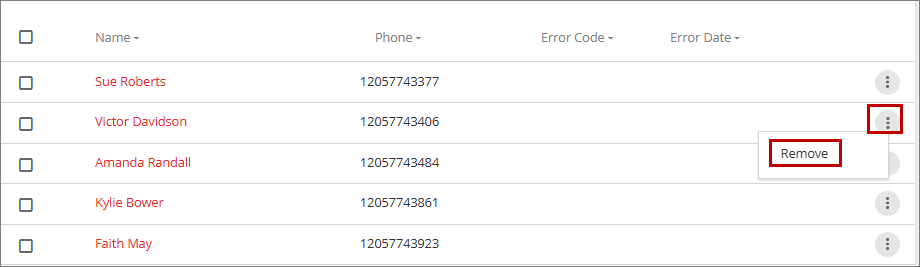
You can also remove a phone number from the WhatsApp Incapable list if the contact subsequently associates WhatsApp with their phone number and wants to receive messages from your organization. To do so:
-
Click the ellipsis (three-dot) icon for a phone number.
-
From the dropdown, click Remove.
The number is removed from the WhatsApp Incapable list. Once removed, it is no longer treated as a WhatsApp incapable number.