
When a message is sent via WhatsApp, you can use WhatsApp Reporting to monitor its delivery status. You can also track and review replies received from recipients.
-
Click the Messages dropdown and select Sent Messages.
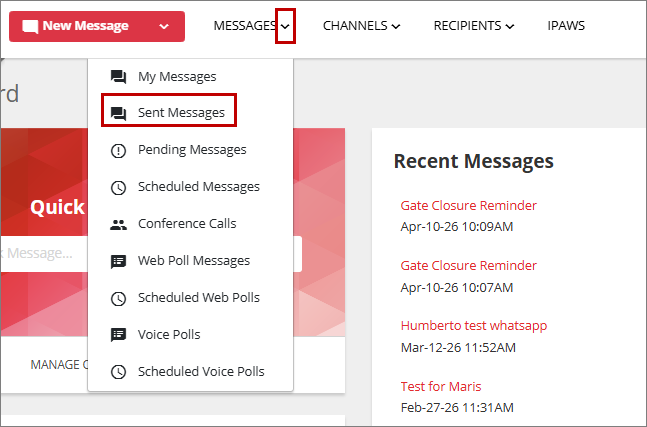
or
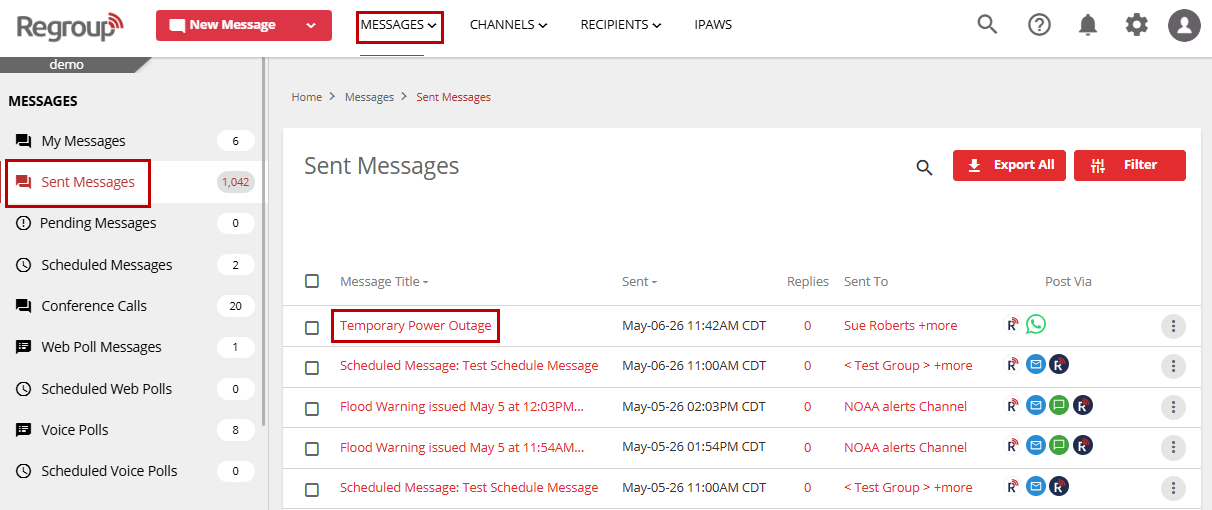
Click the Messages label to navigate to Messages page, then select Sent Messages from the left navigation pane.
-
On the Sent Messages page, click the name of a WhatsApp message to view its details.
-
Message Details: Displays the message content/body.
-
Replies: When a message is sent to recipients via WhatsApp, they can reply directly within the same conversation. All replies, along with the corresponding recipients for that message, can be viewed in the Replies section. You can also filter recipients by All Recipients, Replied, or Not Replied.
-
Reports: Displays a tile for the WhatsApp message. The tile includes a donut chart that shows the total number of recipients to whom the message was sent, along with separate counts for successful, pending, and failed deliveries.
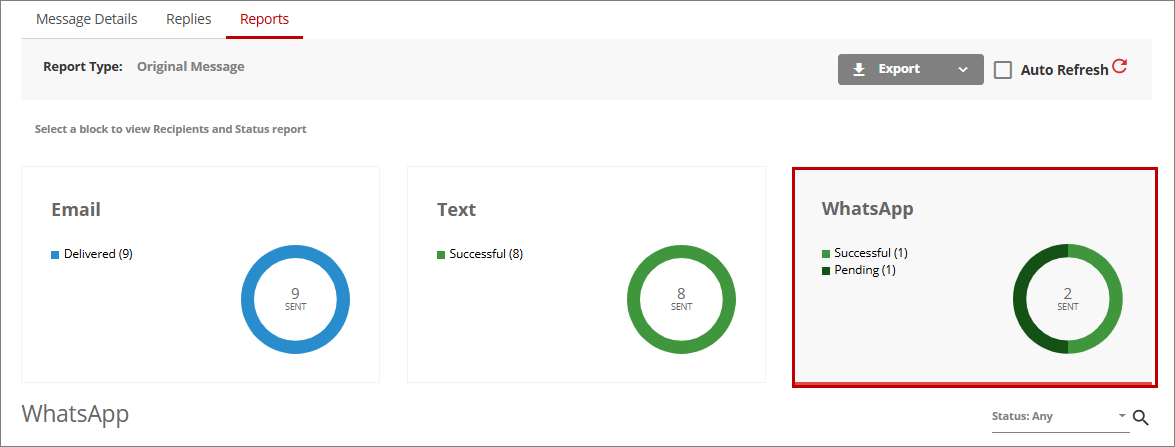
Click the WhatsApp tile. A table is displayed showing the following details for each WhatsApp message recipient:
-
Name: Displays the recipient name.
-
Resource Type: Indicates the type of resource for which the notification was generated, such as a group or contact.
-
Resource Name: Displays the name of the associated resource.
-
Phone: Displays the recipient phone number to which the WhatsApp message was sent.
-
Status: Shows the delivery status of the WhatsApp notification.
-
Sent: Displays the date and time when the WhatsApp notification was sent.

You can also filter this table based on the notification delivery status, such as Successful, Pending, or Failed.
-
-