
Overview
This guide explains how to create a group manually in the system. You can set up group details, permissions, and settings to match your organization’s needs, including nesting groups, setting privacy levels, and configuring communicati n options.
Steps to Create a Group
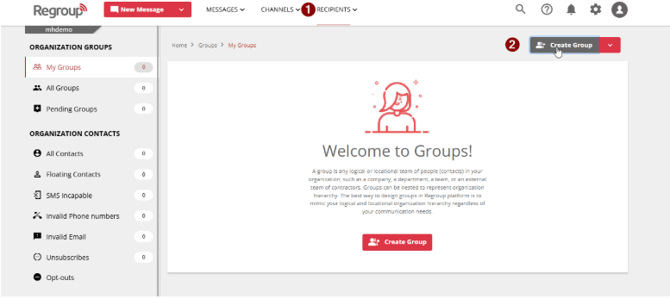
- Go to the Recipients tab and open My Groups.
- Click Create Group in the top-right corner.
- Enter the Group details
- Group name upto 50 characters
- Description: Visible to any admin who can view the group.
- Allow Contacts to Leave: Lets members remove themselves from the group via their profile.
- Allow Admins to Leave: Lets assigned admins remove themselves from the group.
- Select Admin privacy
- Public:
- Restricted: All admins can view but must request permission to send messages.
- Hidden – Only authorized admins can view or send messages.
- s