The Regroup application dashboard contains options for you to quickly access multiple functionalities.
To see the detailed dashboard overview, go to Dashboard Overview.
The following image shows the dashboard items numbered in order from right to left: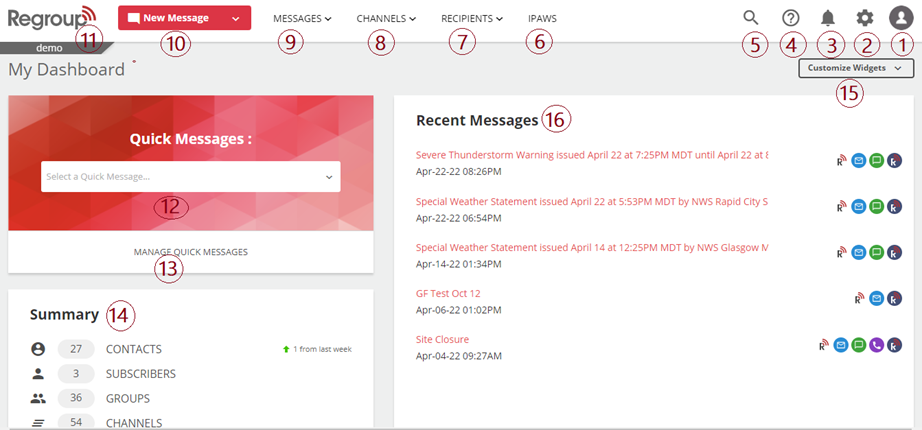
1. My Profiles icon: Access your profile and the list of organizations you are a part of. You can also switch to your linked admin or contact profile and access the logout option.
2. Organization Settings icon: Configure your organization’s account here. You determine how you manage the admins, including their roles, contacts, groups, add-ons, social media preferences and more. You can also access your message reports and analytics in this section.
3. Notification icon: View all notifications here. Admins get notified of the groups, channels and membership creation approvals here.
4. Help Center icon: Access Regroup’s help center to contact the customer support team. You also submit service requests here.
5. Search icon: Search for any group, channel, post, contact or admins' names here.
6. IPAWS: Create and manage IPAWS keys here. You can also see the incoming and sent alerts here.
7. Recipients section: Create and manage groups and contacts here, and access the channel and organization's subscribers. Recipients in your organization groups and channels are configured here.
8. Channels section: Create and manage channels, multiple message templates and quick messages in this section. Channel files and related sender profiles can also be managed here.
9. Messages section: Access the messages sent and replies received by your organization here. Message reports, analytics and sending message updates are also managed here. You can also view conference calls and scheduled messages.
10. New Messages icon: Create and send messages here. You can access different message types from the drop-down icon. You can also access the quick messages in the drop-down.
11. Regroup logo: Use this to navigate to the home page. You can update the logo and the name of your organization on the Organization Settings page.
12. Quick Message search bar: Search quick messages to instantly send messages here. Quick Messages are pre-saved message templates that include the body text, recipients, sender profile and sending methods.
13. Manage Quick Messages section: Create and manage quick messages here. You can access all pre-saved quick messages, message templates and sender profiles in this section.
14. Summary section: You can view the summary of contacts, subscribers, groups, channels, mobile app users and messages here. You can click on each item to view and manage the section. You can also see a quick summary of how the number of these items has increased or decreased over a week.
15. Customize Widgets button: Use this button to customize the dashboard view. You can click and select any listed items to display them in your dashboard. You can also add the Regroup Update widget to view all application updates on the dashboard.
16. Recent Messages: View and access the recent messages sent from your organization and what delivery methods were used.