You can delete a group when the group is no longer required. You can select the groups on the My Groups or All Groups page and click Remove. You can also enable the auto-delete group option and select a date to delete the group when creating it.
Note: You cannot revoke a group deletion. If you delete a group, you cannot restore its files, messages or members.
Here is how you delete a group:
- Click the Recipients tab. See the following image:
The My Groups page appears.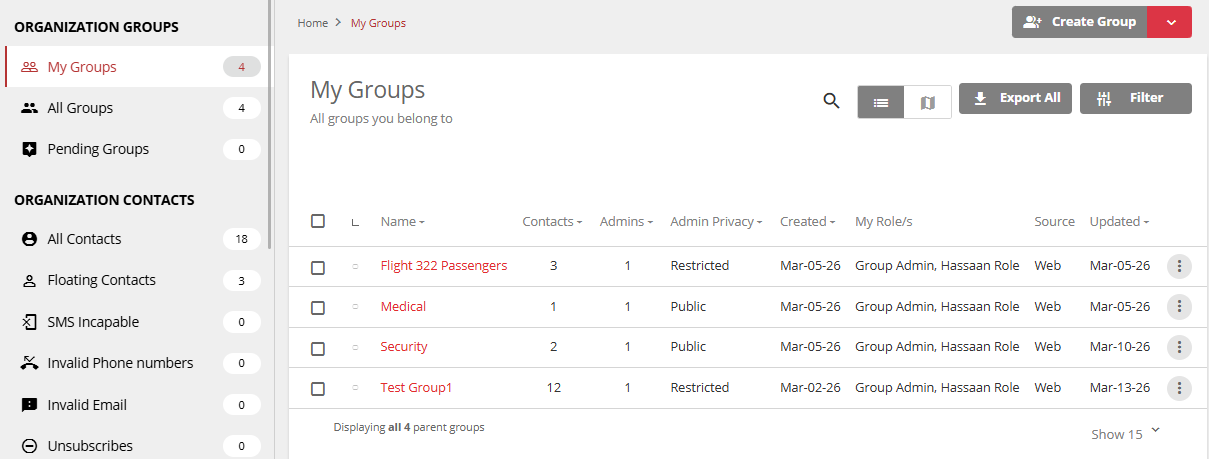
- Locate the group you want to delete in the My Groups tab. Organization admins can also delete groups on the All Groups tab.
- Click the selection checkbox of the group you want to delete and click Remove.
The following image highlights the remove button and the three groups selected.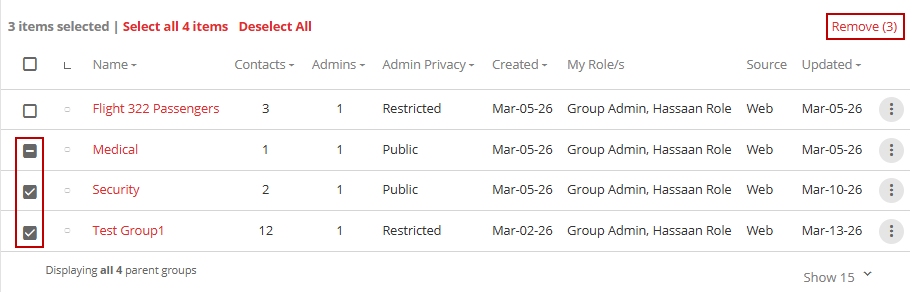
- You can delete an individual group by clicking the vertical ellipsis corresponding to the group and clicking Delete.
Note: You can never restore a deleted group.
See the following image: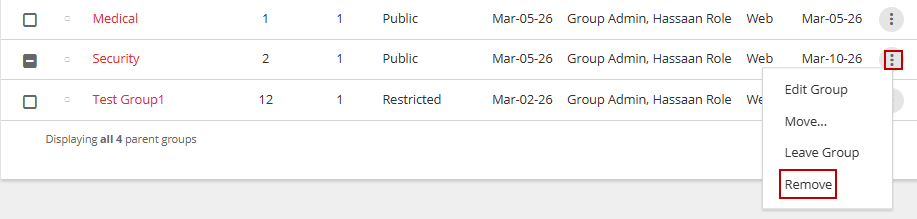
-
Type Yes on the confirmation message to confirm the deletion. See the following image:
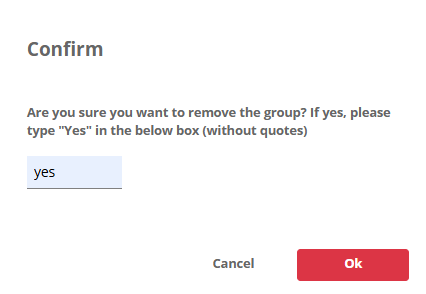
- Click Ok.
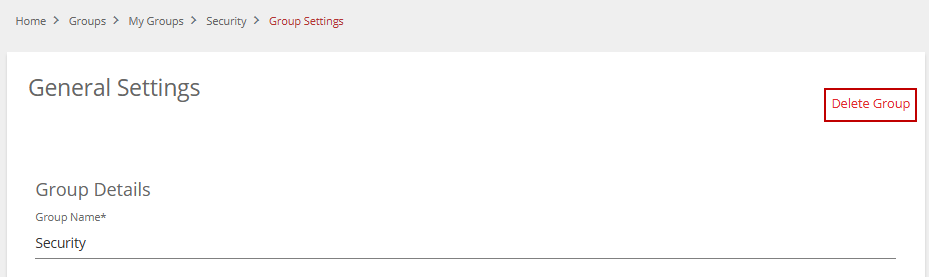
You can also delete a group on the Group Settings page (Recipient> My Groups/All groups> Edit Group> Delete Group). See the following image: